For: Owners, Operations
Where: Setup > Integrations
Available: Web dashboard · All countries
Besides ads and analytics, the Integrations page connects email tools, automation tools, team chat and more. It also lets you use your own Google Maps key for the map on your store.
How it works
Most of these tools need Zyda to turn them on for your store first. Until then, their rows show Available on request, and you cannot connect them. Ask your Zyda account manager to turn them on.
Once they are on, each tool asks for the keys from your account with that tool. Each field in the sheet says where to find its key.
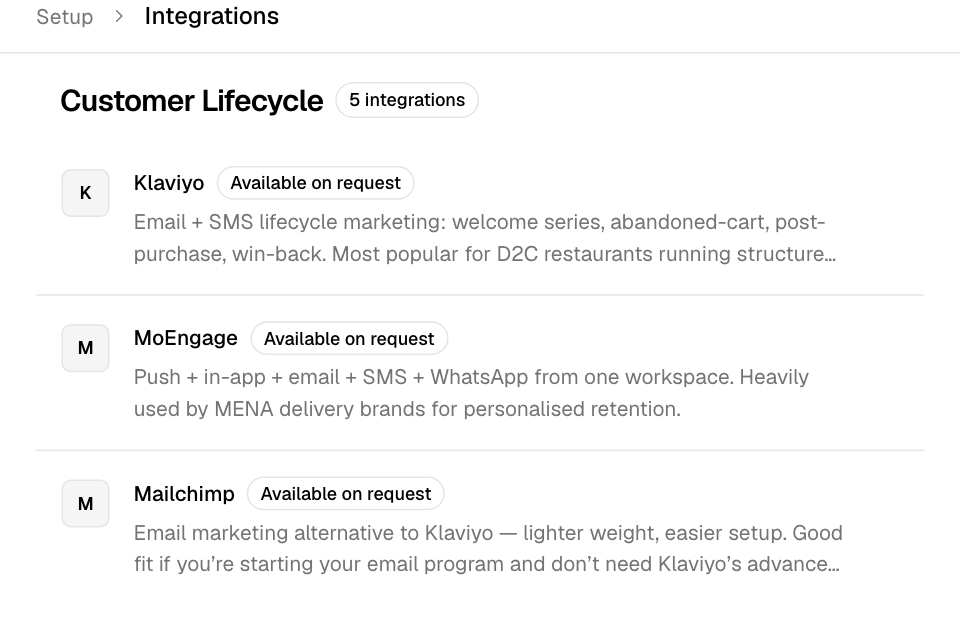
The tools and what they ask for
| Section | Tool | You enter |
|---|---|---|
| Customer Acquisition | Google Ads | Conversion ID (AW-…) |
| Customer Acquisition | Tag ID, Ad Account ID, Conversions API Token | |
| Customer Lifecycle | Klaviyo | Public API Key (Site ID), Private API Key |
| Customer Lifecycle | Mailchimp | API Key, Audience ID, Data Center ID |
| Customer Lifecycle | Engage | Public Key, Private Key, Default List ID (optional) |
| Customer Lifecycle | MoEngage | API ID, API Key |
| Customer Lifecycle | OneSignal | App ID |
| Mobile App | AppsFlyer | S2S API Token |
| Mobile App | Adjust | App Token |
| Measurement | Delighted | API Key, Channel |
| Workflow & Custom | Zapier | Zapier Webhook URL |
| Workflow & Custom | Custom Webhook | Webhook URL |
| Workflow & Custom | Pipedream | Pipedream Source URL |
| Workflow & Custom | Slack | Incoming Webhook URL |
| Workflow & Custom | Discord | Webhook URL |
AppsFlyer and Adjust are only useful if you have your own store app.
Connect a tool
- Go to Setup > Integrations and select the tool.
- Fill in each field. A field marked secret is never shown again after you save.
- Select Connect.
To change a key later, select the row again. Leave a secret field blank to keep the saved value.
Use your own Google Maps key
Your store's map and address search use Zyda's Google Maps key. You can use your own key instead.
- In a Google Cloud project, turn on the Maps JavaScript API and the Places API.
- Create a key under APIs & Services, then Credentials. Limit it to your store's web addresses.
- In Zyda, under Location Services, select Google Maps.
- Paste the key in Google Maps API Key and select Connect.
To go back to Zyda's key, select More, then Disconnect.
Rules and limits
- Custom Webhook in this list is not the same as Webhooks. For signed order events to your own system, use Webhooks. See Set up webhooks and API keys.
- Google Ads can also run from your own Google Tag Manager container. See Connect Google Analytics 4 and Tag Manager.
- A Google Maps key is not secret. It is shown in full.
Common questions
Why can't I select Klaviyo?
It shows Available on request. Zyda must turn it on for your store first. Ask your account manager.