For: Owners, Operations
Where: Setup > Integrations
Available: Web dashboard · All countries
Your store works with other tools: ad platforms, your POS, courier companies and your own systems. The Integrations page lists all of them in one place, so you can connect a tool and see at a glance which ones work.
How it works
Each tool is one row. The row shows its name, a badge and one line about it. When a tool is connected, the line shows what you saved, such as the Pixel ID.
The rows are in sections, in this order: Customer Acquisition, Point of Sale, Customer Lifecycle, Measurement, Mobile App, Workflow & Custom, Location Services and Delivery. Each section heading shows how many of its tools are connected, or how many tools it holds when none is.
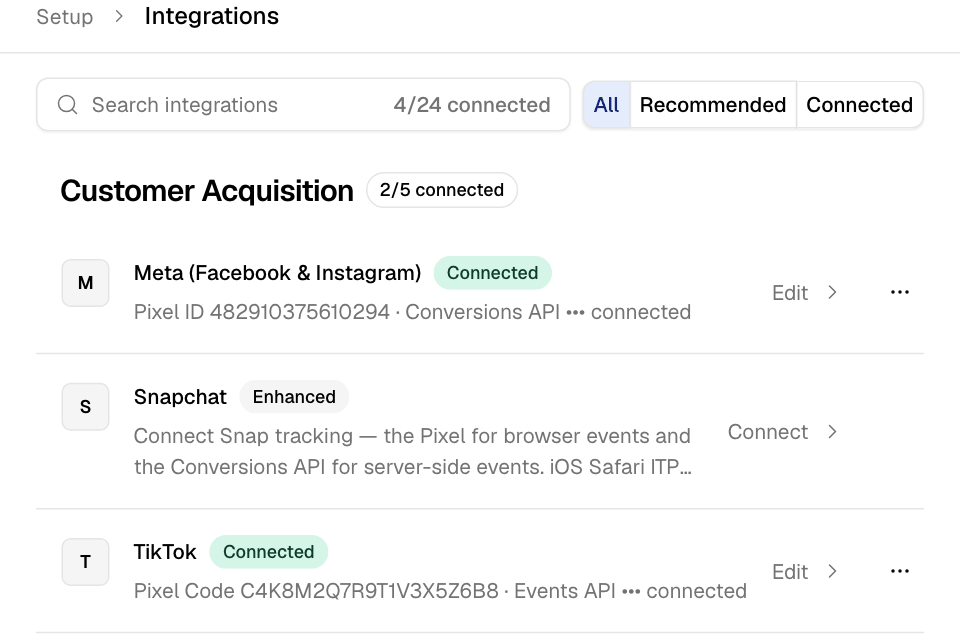
Find a tool
- Go to Setup > Integrations.
- Type in Search integrations. You can search in English or Arabic.
- To narrow the list, choose All, Recommended or Connected beside the search box.
Recommended shows the tools to start with: Meta, Snapchat and TikTok, and the Order Food button if your store has it.
Connect a tool
- Select the tool's row. The end of the row says Connect.
- Fill in the sheet that opens. Each tool asks for its own keys or IDs.
- Select Connect.
The row then shows Connected. To change what you saved, select the row again. It now says Edit.
What the badges mean
| Badge | Meaning |
|---|---|
| Connected | The tool is set up and working. |
| Default | The courier company Zyda uses first for delivery fees and times. |
| Action required | The tool stopped working. The line under the name says why. |
| Paused | The tool is set up but turned off. |
| Available on request | Zyda must turn this tool on for your store first. Ask your Zyda account manager. |
| Beta | A POS or courier company that is still in testing. You can connect it. |
| New, Enhanced | The tool is new on this page, or it gained new features. |
Fix a tool that shows Action required
The line under the name says what to do. For example: "The access token was rejected. Generate a new one and save it to resume tracking."
- Select the row.
- Enter the new value, such as a new access token.
- Select Save changes.
Disconnect a tool
- Select More (the three dots) at the end of the row.
- Select Disconnect.
- Confirm. Events stop reaching the tool right away.
Disconnecting an ad platform removes both its Pixel and its server token.
Rules and limits
- Integrations shows in the sidebar for the Owner and Operations roles, and for roles you copied from them.
- Webhooks and API keys open their own pages. You manage them there, not from the row menu.
- POS and courier rows have their own steps. See Connect your POS, such as Foodics and Connect a courier company.
Common questions
Why can't I see Integrations in the sidebar?
Your role does not include integrations. Ask the store owner to change your role.
Why is a tool greyed out with Available on request?
Zyda turns these tools on per store. Ask your Zyda account manager to turn them on.