For: Owners, Operations
Where: Setup > Menu > Items > Menu settings
Available: Web dashboard · All countries
Needs: Allergens and nutrition, turned on in Menu settings
Customers with allergies need to know what is in a dish before they order. Add allergens, dietary claims and nutrition to your items, and customers see them on your store.
How it works
Allergens and nutrition are off until you turn them on for your store. When they are on:
- Each item gets a Nutrition & allergens tab.
- The menu spreadsheet gets Calories and Allergens columns.
- Items you leave empty look the same as before.
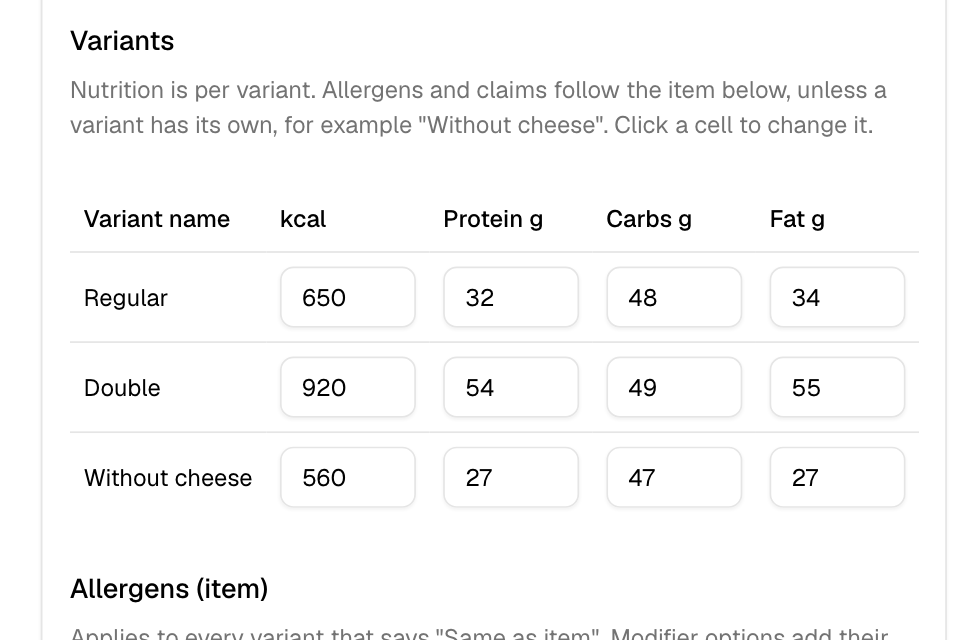
You set allergens and dietary claims for the item. Nutrition is set for each size, because a large portion has more calories. A size can also have its own allergen list, for example "Without cheese". Modifier options can add their own allergens and nutrition when a customer picks them.
If you turn the feature off, customers see nothing. What you entered is kept, and comes back when you turn it on.
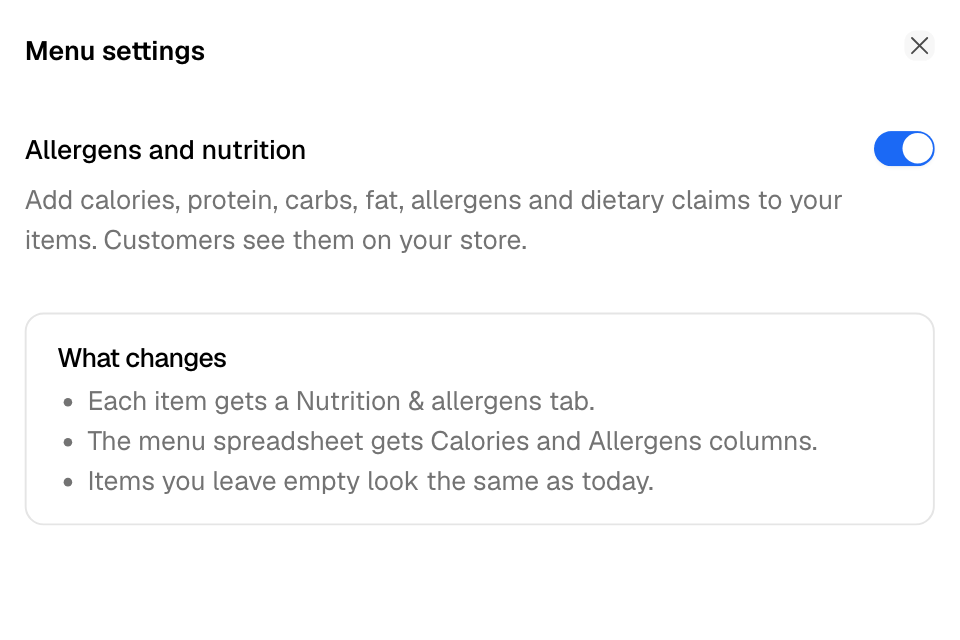
Turn it on
- Go to Setup > Menu > Items.
- Select Menu settings.
- Turn on Allergens and nutrition.
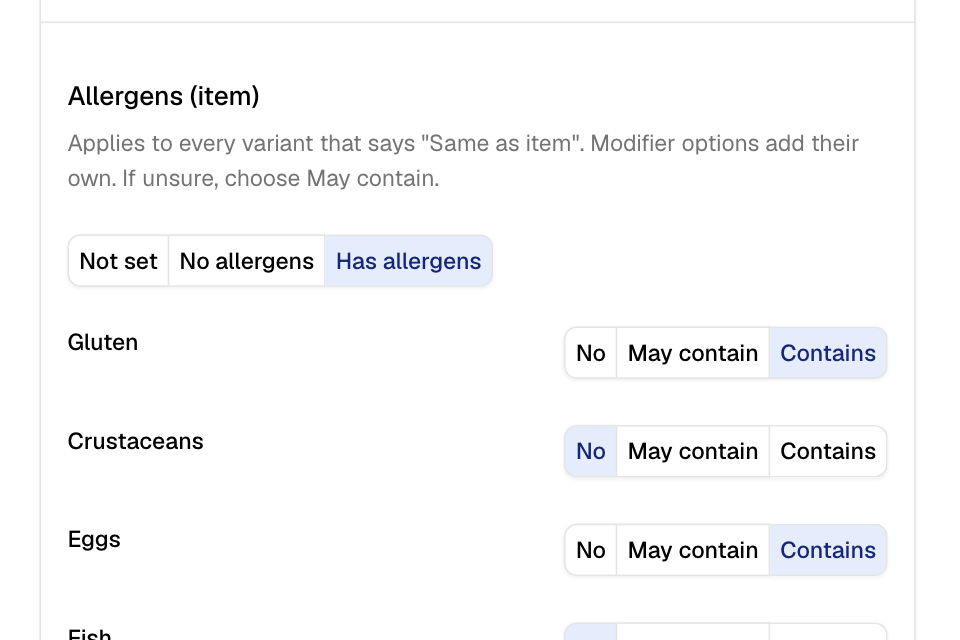
Add allergens and claims to an item
- Open the item, then the Nutrition & allergens tab.
- Under Allergens (item), choose the Allergen status:
- Not set: customers see nothing.
- No allergens: customers see "No listed allergens".
- Has allergens: choose Contains or May contain for each allergen that applies.
- Under Dietary claims (item), tick the claims that are true, such as Vegetarian or Spicy.
- Select Save.
If you are not sure, choose May contain.
Add nutrition for each size
- On the same tab, find the Variants table.
- Select a cell and type the Calories, Protein g, Carbs g and Fat g for each size.
- Optional: in Allergens & claims, choose Own list for a size that differs from the item. Start from the item's list copies the item's allergens to change them.
- Select Save.
Leave a cell empty to show nothing for it.
Add allergens to a modifier option
- Go to Setup > Menu > Modifiers.
- Select the "…" menu on the option, then Edit.
- Under Nutrition & allergens, add what the option adds to the item.
- Select Save.
The allergens and claims
| Allergens | Gluten, Crustaceans, Eggs, Fish, Peanuts, Soy, Milk, Tree nuts, Celery, Mustard, Sesame, Sulphites, Lupin, Molluscs |
|---|---|
| Claims | Vegetarian, Vegan, Gluten free, Dairy free, Nut free, Sugar free, Organic, Spicy |
Rules and limits
- Calories are whole numbers from 0 to 10,000.
- Protein, carbs and fat are grams from 0 to 1,000, with one decimal place at most.
- With Has allergens, choose at least one allergen, or choose No allergens.
- A claim that clashes with an allergen turns off. For example, Vegan turns off when the item contains milk or eggs.
- Set the allergen status before you add claims.
- Items synced from a POS can still save this tab.
Common questions
Can I add allergens to many items at once?
Yes. Use the Allergens column in the menu spreadsheet. See Import or export your menu.
What happens to the information if I turn the feature off?
Customers stop seeing it. Zyda keeps what you entered.