For: Owners, Operations, Marketing
Where: Setup > Storefront > Editor > Footer & pages > Pages
Available: Web dashboard · All countries
Customers want to know your story, your catering offer or your opening hours. Put each one on its own page of your store, with its own web address.
How it works
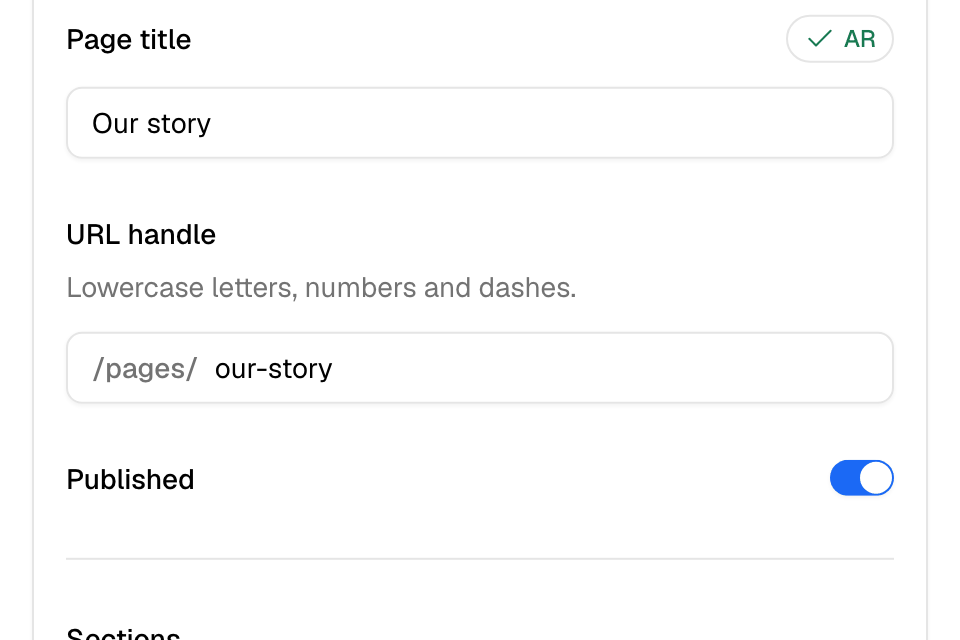
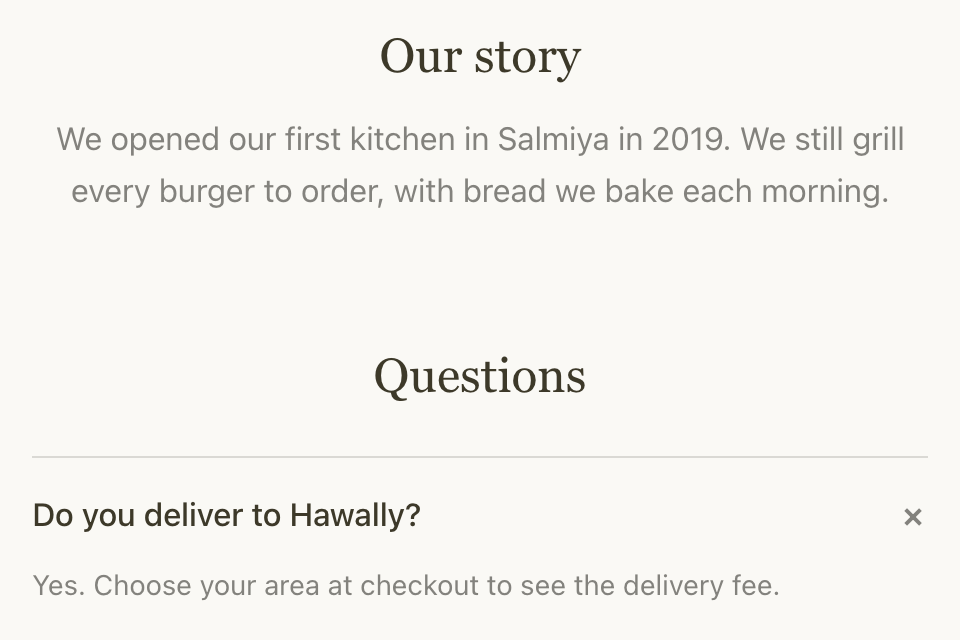
A page is built from the same sections as your home page: banners, text, pictures, branches, questions and a contact form. Each page has an address that ends in /pages/ and a name you choose, such as /pages/our-story.
A page shows on your store when two things are true:
- Its Published switch is on.
- You selected Publish at the top of the editor after you saved it.
While you edit a page, the preview shows that page.
Create a page
- Go to Setup > Storefront > Editor and open Footer & pages > Pages.
- Select Add page.
- Type the Page title. It is in the language you chose above the preview. Switch language and type the other one.
- Check the URL handle. Zyda makes it from the English title. Use lowercase letters, numbers and dashes.
- Turn on Published.
- Select Add section and build the page. See Build your store's home page for the sections.
- Select Save. The editor goes back to the list of pages.
- Select Publish.
Link to your page
A page does not show in your menu by itself. Add a link to it:
- In the top menu or the footer: add a link, and choose Page under Links to. See Set up your header, bottom bar and footer.
- In the phone bottom bar: add a tab that links to Page.
Edit or delete a page
- Open Footer & pages > Pages.
- Select the page in the list. Each row shows Published or Draft.
- Change it and select Save, or select Delete and then Delete again.
- Select Publish.
After you publish a deletion, customers can no longer open the page.
Rules and limits
- A page needs a URL handle. The address can be at most 60 characters.
- Button and picture links must start with https://, mailto: or be a link inside your store.
- A page with Published off stays hidden from customers, even after you publish.
Common questions
I created a page, but customers cannot find it. Why?
Check three things: Published is on, you selected Publish, and a menu, footer or bottom bar link points to it.
Can I change a page's address later?
If you change the URL handle of a saved page, Zyda saves a new page with the new address. The page with the old address stays. Delete it if you do not need it.