For: Owners, Operations, Branch staff
Where: The call bar, at the bottom corner of every dashboard page
Available: Web dashboard · Kuwait, Egypt
Needs: Your store's calls connected, and you added to who answers calls
Your staff answer restaurant calls on the computer, with no desk phone. The call bar sits on every dashboard page, so you can take a call while you work on orders.
How it works
The call bar shows only to people who answer calls for your store. It sits in a bottom corner of the screen and stays there when you move between pages.
Your status decides whether calls ring for you:
| Status | What it means |
|---|---|
| Ready | Calls ring for you. |
| Paused | Calls skip you. You picked a pause reason, such as Break. |
| Offline | Calls skip you. |
| On call | You are on a call. |
| After call | The call ended. Finish the call's label and notes before the next one. |
When nobody answers a call in time, Zyna, Zyda's AI agent, answers it if your store set her to.
Get ready to take calls
- Use a computer with a headset or a microphone.
- In the call bar, select the arrow button at its end (Change status). Then select Ready.
- The first time, allow the microphone in your browser. The Test your microphone dialog opens. Say something. When the bar moves, you see "Your microphone works."
To take a break, open the status menu, select Pause, then pick a reason. To stop taking calls, select Offline.
Answer a call
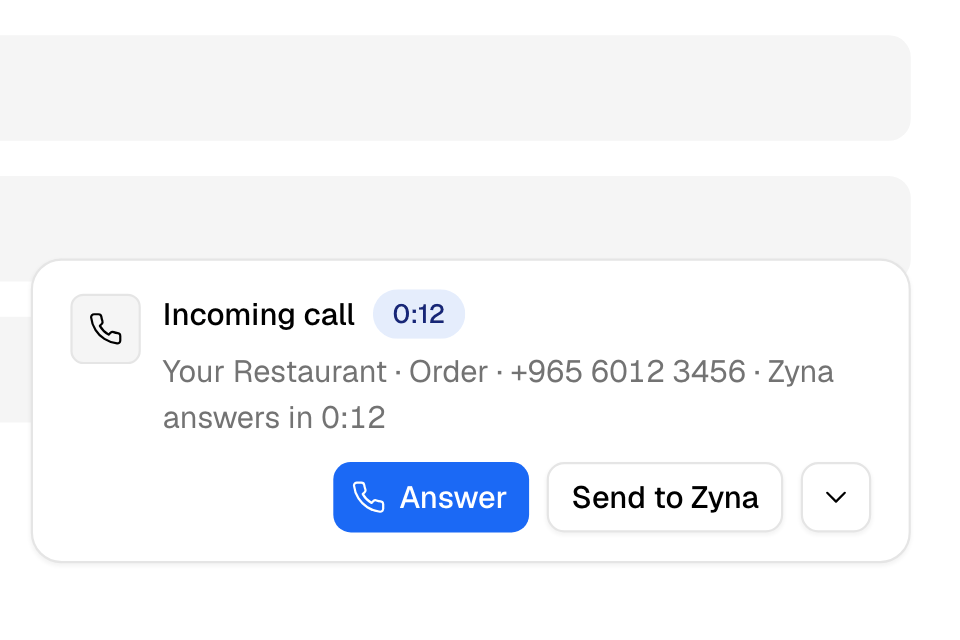
When a call rings, the bar shows Incoming call, the brand, the queue and the caller's number.
- Select Answer. You can also press Alt+A.
- Talk to the caller.
If your store set it up, the order screen opens with the caller as the customer. Otherwise, select Open caller to see the customer's page.
To pass a ringing call to Zyna, select Send to Zyna. The bar also counts down to when Zyna answers by herself: "Zyna answers in …".
During the call
- Hold and Resume: put the caller on hold. Your microphone is off while the call is on hold.
- Transfer: send the call to a teammate under Agents, or to a list of people under Queues. If they do not answer, the caller comes back to you.
- Call another number while the caller is on hold. Select Switch to move between the two calls.
- Send ordering link: choose Arabic or English. Zyda sends your store link to the caller on WhatsApp if your brand can send it, or else by SMS.
- Hang up: end the call. You can also press Alt+Shift+H.
Call a customer
- In the call bar, select Call a customer.
- Choose the Brand and type the Phone number.
- Select Call.
You must be Ready or Paused to call. The Call button on a customer's page and on an order opens the same dialog.
Finish the call
After you hang up, the bar shows After call.
- Under Label this call, select Pick a label, for example an order or a complaint.
- Optional: write Notes about the call.
- For a complaint, write the Complaint details: what went wrong and what the customer wants.
- Select Done.
You go back to Ready.
Rules and limits
- Your store may require a label before you can go Ready. The bar says "Pick a label to go Ready."
- A complaint label needs complaint details before Done works.
- Notes can have up to 1,000 characters.
- You can send the ordering link during the call and up to 30 minutes after it, 3 times per call at most.
- An ordering link sent by SMS uses one of your store's SMS credits. With no credits left, it is not sent.
- If your microphone is unplugged while you are Ready, the bar sets you Offline so calls skip you. Select Fix microphone.
- A manager can change your status. The bar tells you who changed it.
Common questions
Why do calls not ring for me?
Check that your status is Ready and that your microphone works. Also ask your manager to check that you are on the Who answers list.
Zyna could not take the call. Why?
Zyna needs AI credits. If the store has none left, the bar says Zyna cannot take the call. Buy credits on Finance > Plan.
Can I move the call bar?
Yes. Drag it to another corner, or use Move call bar and the arrow keys.