For: Owners, Operations, Marketing
Where: Respond > Chats > Inbox
Available: Web dashboard · All countries
Needs: A connected WhatsApp number
Customers ask about the menu, an order or a delivery. The inbox puts every WhatsApp chat in one place, with the customer's orders next to the chat.
How it works
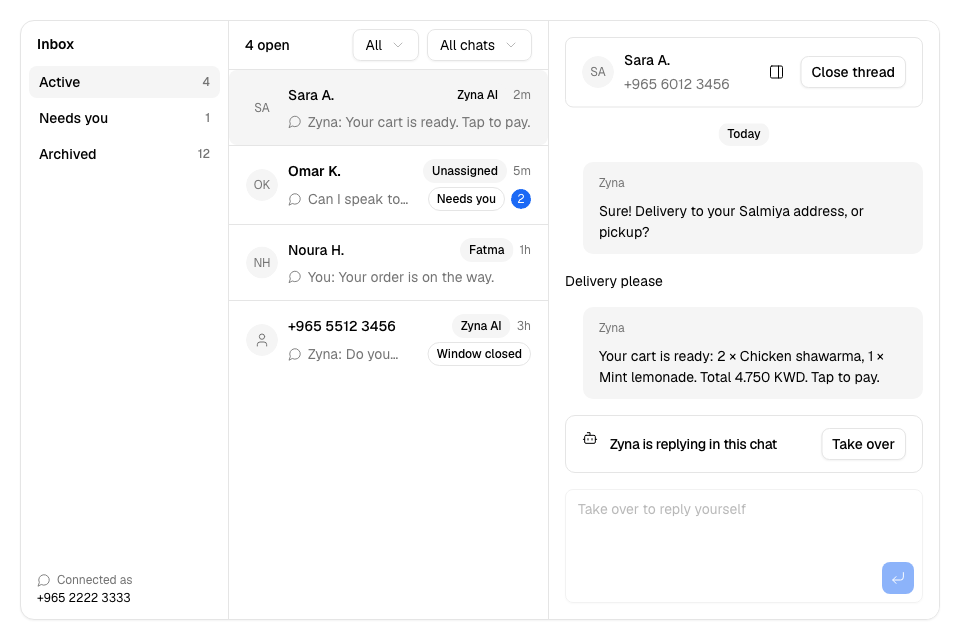
The inbox has four parts, from left to right:
- Views: Active, Needs you and Archived. The number next to each view is how many chats it holds.
- The list of chats in the view, newest first.
- The open chat, with the reply box at the bottom.
- Details about the customer and the chat.
New chats appear as they arrive. The dashboard plays a sound when a customer writes, and a different sound when a chat needs a person.
Find a chat
- Go to Respond > Chats > Inbox.
- Select a view:
- Active: open chats.
- Needs you: chats where the customer asked for a person. See Take over a chat from Zyna AI.
- Archived: chats you closed.
- To narrow the list, use the date filter: All, Today, 7 days or 30 days. It uses the time of the customer's last message.
- If Zyna AI answers chats in your store, a second filter shows. Select Handled by Zyna AI to see only the chats she is answering.
Each row shows the customer's name or number, the last message and badges:
| Badge | Meaning |
|---|---|
| Needs you | The customer asked for a person. |
| Window closed | The 24-hour reply window is over. |
| Zyna AI, a teammate's name, or Unassigned | Who is answering the chat. |
Reply to a customer
- Select the chat in the list. Opening it marks it as read.
- Type in the reply box.
- Select Send, the return-arrow button. You can also press Enter. To start a new line, press Shift and Enter.
Your messages show Seen when the customer reads them, or Failed if they were not sent. The inbox sends text only.
To see older messages, select Load older messages at the top of the chat.
The 24-hour reply window
WhatsApp lets you reply freely for 24 hours after the customer's last message. After that, the reply box closes and shows: "The 24-hour reply window has closed."
To write to the customer again, send an approved template. Select Go to templates. See Create WhatsApp templates for campaigns.
See the customer's details
The Details panel shows, for a customer Zyda knows by phone number:
- How many orders they placed, and their total sales. Total sales show only if your role can see sales.
- Recent orders. Point at an order to see its items, total, payment and address. Select it to open the order.
- Recent carts, the items they added but did not order.
- Last delivery address.
- Calls, with recordings, if your store uses Zyda calls.
- Conversation: the channel, the status, who is answering, the reply window and when the chat started.
To hide or show the panel, select Hide details or Show details, the panel button at the top of the chat. If your store uses Zyda calls, select Call to phone the customer.
Close a chat
When the conversation is done, select Close thread. The chat moves to Archived.
To open it again, find it in Archived and select Reopen.
Rules and limits
- You need the WhatsApp area at edit level to reply, close or reopen a chat. With view level, the reply box says "You can read this chat but not reply to it."
- The Owner, Operations and Marketing roles can reply by default. Change roles in Setup > Team.
- You cannot reply while Zyna AI is answering the chat. Select Take over first. The inbox asks for Take over on every WhatsApp chat your team is not answering, also when Zyna AI is off.
- Instagram chats show in the same inbox if Zyda support connected your Instagram account. Zyna AI does not answer Instagram chats. Instagram has no templates: you can reply again only when the customer writes again.
Common questions
Why can't I type in the reply box?
There are three reasons. The 24-hour window closed, so send a template. Zyna AI is answering, so select Take over. Or your role can only read chats.
Can I send photos or files from the inbox?
No. The inbox sends text only. You can see photos, voice notes, videos, files and locations that customers send.
Does the date filter search all my chats?
It filters the chats already loaded. More chats load as you scroll down the list.