For: Owners, Operations, Marketing
Where: Setup > Storefront > Editor
Available: Web dashboard · All countries
You want to change your store website, but you do not want customers to see a half-finished change. The storefront editor saves your changes as unpublished changes. You check them in a preview, then publish them all at once.
How it works
The editor has two parts:
- On the left: the list of things you can change, in groups. Select one to open its settings. Select the back arrow to return to the list.
- On the right: a preview of your store with your changes.
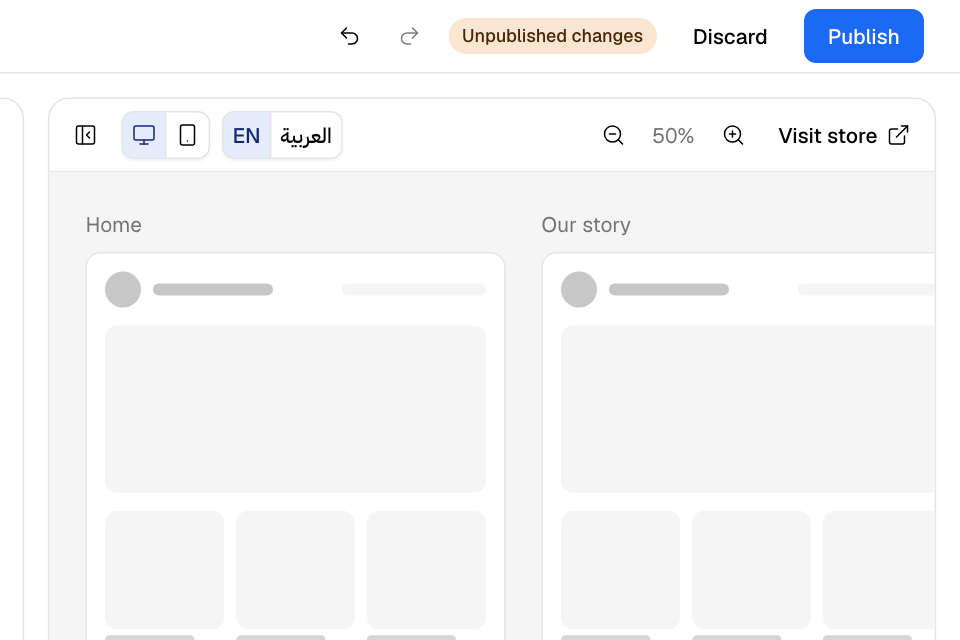
Your changes do not go to your live store at once. They are saved as Unpublished changes. Customers see them only after you select Publish.
The badge at the top tells you where you are:
| Badge | What it means |
|---|---|
| Saving… | A change is on its way. Wait before you publish or leave. |
| Unpublished changes | You have changes that customers do not see yet. |
| Published | Your live store shows everything you changed. |
What you can change
| Group | Section | What it changes |
|---|---|---|
| Start | Style | Colours and fonts in a few clicks. See Set your store's colours and fonts. |
| Start | Looks | A ready-made layout for your whole store. |
| Start | Version history | Earlier published versions. |
| Theme | Colors, Typography | Every colour and font, one by one. |
| Header | Navigation | The top of your store, the menu links and the phone bottom bar. |
| Home page | Landing, Home page | What customers see first. See Build your store's home page. |
| Catalog | Layout, Product cards | How your menu and products look. See Choose how your menu looks. |
| Ordering | Delivery | Whether customers see your delivery zones on the map. |
| Footer & pages | Footer, Pages | The bottom of every page, and your own pages. |
Some sections have a Save button at the end. Others save each change at once and say "Changes here save as you make them." In both cases, the change goes into your unpublished changes, not to your live store.
Check your changes in the preview
The preview shows your store with your unpublished changes. It shows your home page, your menu page if you have a custom home page, and each published page you added.
Use the bar above the preview:
- Select the screen icon or the phone icon to see the computer or the phone version.
- Select EN or العربية to see your store in that language. The text boxes in the editor then change in that language.
- Select the zoom buttons to make the preview bigger or smaller.
- Select Visit store to open your live store in a new tab.
- Select the panel icon to hide or show the settings and give the preview more room.
Publish your changes
- Go to Setup > Storefront > Editor.
- Make your changes.
- Check them in the preview, on the computer and the phone, in both languages.
- Select Publish.
The badge changes to Published. Customers see the changes the next time they open your store.
Undo a change
- Select Undo to go back one step. Select Redo to go forward again.
- You can also press Ctrl+Z (⌘+Z on a Mac) to undo, and Shift+Ctrl+Z (Shift+⌘+Z) to redo. Inside a text box, these keys undo your typing instead.
Undo and Redo wait while a change is saving, and while a section has changes you did not save yet.
Throw away all your unpublished changes
- Select Discard.
- Select Discard again to confirm.
Your editor goes back to what customers see now. You cannot undo this.
Go back to an earlier version
Each time you publish new colours, fonts or layout, Zyda keeps a version. A version holds your colours, fonts and corners, and the layout when it shows Includes layout. It does not hold your home page sections, pages, menu links or footer.
- Open Start > Version history.
- Find the version by its date and time. Includes layout means it also has the layout from that time.
- Select Restore to draft, then Restore to draft again.
- Check the preview, then select Publish.
Your live store does not change until you publish. To keep a version easy to find, select the pin icon next to it. It then shows Pinned.
Start from a ready-made look
A look sets the layout of your whole store, such as wide pages and large photos. It does not change your colours.
- Open Start > Looks.
- In the preview area, choose a look: Spacious, Edge-to-edge grid, Centered boutique, Compact catalog or Bold hero.
- Select Use this look.
- Check your pages, then select Publish.
You can also describe the look you want, such as "a bold, dark hero", and select Suggest. Zyda picks a look that fits and adds it to your unpublished changes.
To go back to Zyda's default layout, select Reset layout under Reset layout to defaults. Your colours, fonts, photos and videos stay.
Rules and limits
- You need the storefront permission. The Owner, Operations and Marketing roles have it.
- Your logo, cover photo and the words on the Branding page do not wait for Publish. They change your store as soon as you save them. See Add your logo, cover and store name.
- A custom font file and a home page video upload at once, but your store uses them only after you publish.
- If you leave the editor while a change is saving, the dashboard asks you first.
Common questions
I changed my store, but customers still see the old one. Why?
Your changes are waiting. The badge says Unpublished changes. Select Publish.
Can I undo a change after I published it?
For colours, fonts and layout, yes. Open Version history, select Restore to draft on the version before it, then select Publish. For home page sections, pages, menu links and the footer, change them back by hand and publish again.
Can two people edit at the same time?
Yes, but they share one set of unpublished changes. When one person publishes, the changes of both go live.