For: Owners, Operations, Marketing
Where: Grow > Offers > Add offer > Show all settings
Available: Web dashboard · All countries
A goal sets up an offer in a few clicks. When you need more control, the full form has every setting. Open it with Show all settings on a new offer, or with Edit on a saved one.
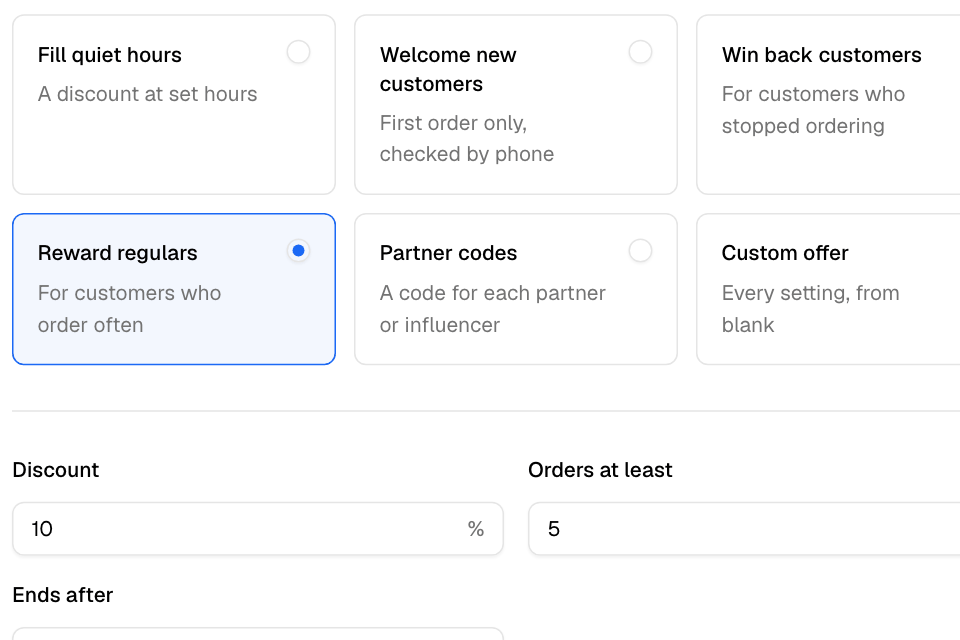
Offer
- How customers get it: Automatic or Code. New offers only.
- Code: the code customers enter. Letters and numbers only, and different from your other codes.
- Description: the text customers see, in English and Arabic.
Reward
| Type | What the customer gets |
|---|---|
| Percentage off | A percentage off. Tick Cap the discount to set the most one order can save. |
| Amount off | A fixed amount off. |
| Free delivery | No delivery fee. Delivery orders only. |
| Buy X get Y | Buy some chosen items, get more of them free or at a percentage off. The cheapest items are discounted. |
| Free item | One or more chosen items free once the customer spends a set amount. The cheapest one in the cart is free. If none is in the cart, the customer is asked to choose one. |
For percentage or amount off, you can tick Also free delivery.
For money off the whole order, select Add a level to give more at higher spends, up to 5 levels. The cart gets the highest level it reaches.
A discount never goes above the items' total. It never comes off the delivery fee, except free delivery.
Where it applies
- Available on: App and website, App only or Website only. App only needs your own app in the app stores and your own website domain. App-only offers show on your website with a link to download your app.
- Orders: All orders, Delivery only or Pickup only.
- Delivery zones: only delivery orders to these zones get the offer. Not for automatic offers.
- Items: Whole menu or Chosen items. For chosen items, under Discount on, choose The whole order, once or Every chosen item. A ticked category includes items you add to it later.
- What counts: tick Skip items already on sale, or choose items and categories under Never counts. They get no discount and do not count toward the minimum.
- Branches: All branches or Chosen branches.
Limits
- Who: Every customer, New customers (first order), Customers who stopped ordering (no order in a number of days) or Regular customers (at least a number of orders). Zyda checks by phone number. Cancelled and unpaid orders do not count.
- Minimum order: only orders above this amount qualify.
- Limit total uses: the offer stops after this many orders.
- Limit uses per customer: one customer's uses, counted across every account with the same phone number.
- Limit the money it gives: a budget. See Control what an offer costs.
Schedule
- Starts: the date and time the offer starts.
- End date: without one, the offer runs until you turn it off.
- Set days and hours: the offer works only on the days and between the times you choose. For a scheduled order, Zyda checks the time the order is due.
Times follow your store's time zone.
What you cannot change later
The discount type, orders, items and branches are fixed once the offer exists. To change them, Duplicate the offer and change the copy.
You cannot change the start date after the offer is used once. You cannot change a code that a campaign can still send.
Stores with a POS
If your POS prices the cart, these are not available: Buy X get Y, free item, What counts and spend levels. Stores that send orders to any POS cannot use spend levels or automatic offers.