For: Owners, Operations, Finance
Where: Manage > Closing
Available: Web dashboard and Zyda phone app (Android) · All countries
Needs: Edit access to orders and view access to sales, or view access to payments
At the end of a shift, you need to know what you sold, what you collected, and what does not add up. The closing report shows one business day on one page.
How it works
A business day runs from 5 AM to 5 AM, in your store's time. Sales count on the day the order was placed. A cancellation counts on the day you cancelled. A refund counts on the day you requested it.
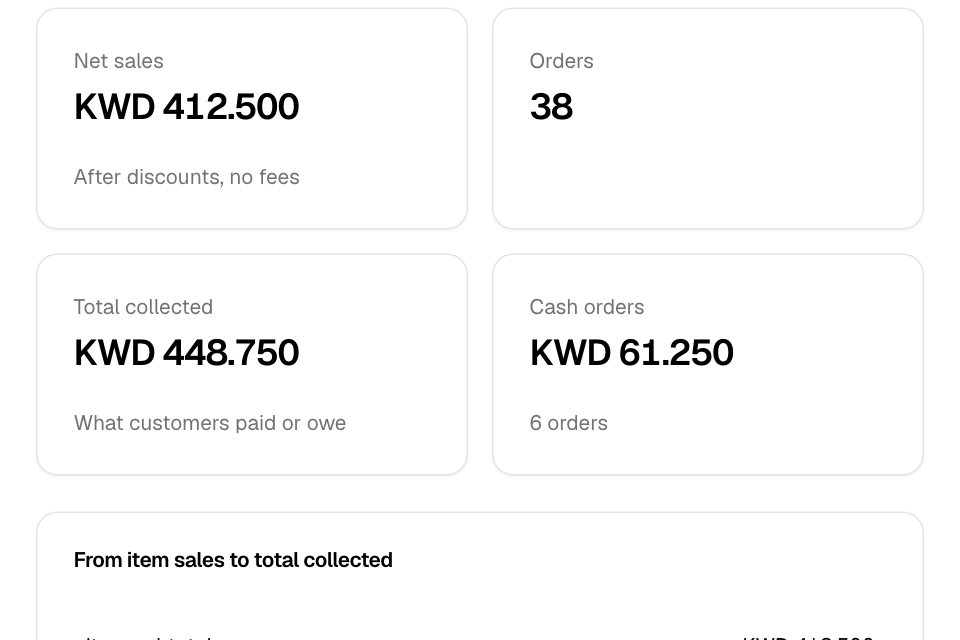
Read the report
- Go to Manage > Closing.
- Choose the Business day: Today, Yesterday or Custom.
- Choose a branch, or All selected branches.
The Summary tab shows:
- Net sales: after discounts, without tax or fees.
- Orders.
- Total collected: what customers paid, plus cash still to collect.
- Cash orders and Card on delivery.
- A list from net sales to total collected, line by line. A line shows only when it is not zero.
The Payments tab shows orders and payments by status, payments by method, and sales by hour.
The Products tab shows what sold.
Fix what needs a look
Needs a look lists orders that may need action:
| Line | Meaning |
|---|---|
| Charged, not accepted | The customer paid, but nobody accepted the order. |
| Charged, order cancelled | The customer paid for a cancelled order. Check it was refunded. |
| Cancelled from earlier days | Orders from earlier days cancelled on this day. |
| Refunds requested | Refunds sent on this day. |
| Refunded by edit | Money sent back after an order was edited. |
| Pay-at-table still open | Dine-in tables not paid yet. |
Select View details to see the orders.
Print or export
Select Print or Export CSV.
Common questions
Who can see Closing?
The Owner, Operations and Finance roles. Branch staff do not see it.