For: Owners, Operations, Finance, Marketing
Where: Understand > Sales > Areas
Available: Web dashboard · All countries
Before you open a branch, add a zone or change a delivery fee, you need to know where your sales come from. The Areas report shows sales for each branch, and for each delivery zone of a branch.
How it works
Go to Understand > Sales, then select Areas. You see one row for each branch:
| Column | What it shows |
|---|---|
| Sales | The branch's sales. |
| Avg. order | Sales divided by orders. |
| Delivery | Delivery orders. |
| Pickup | Pickup orders. |
| Orders | All orders. |
| Customers | Different customers who ordered. |
Select a branch to see its delivery zones. Each zone shows Sales, Avg. order, Orders and Customers. Some older stores see delivery areas instead of zones.
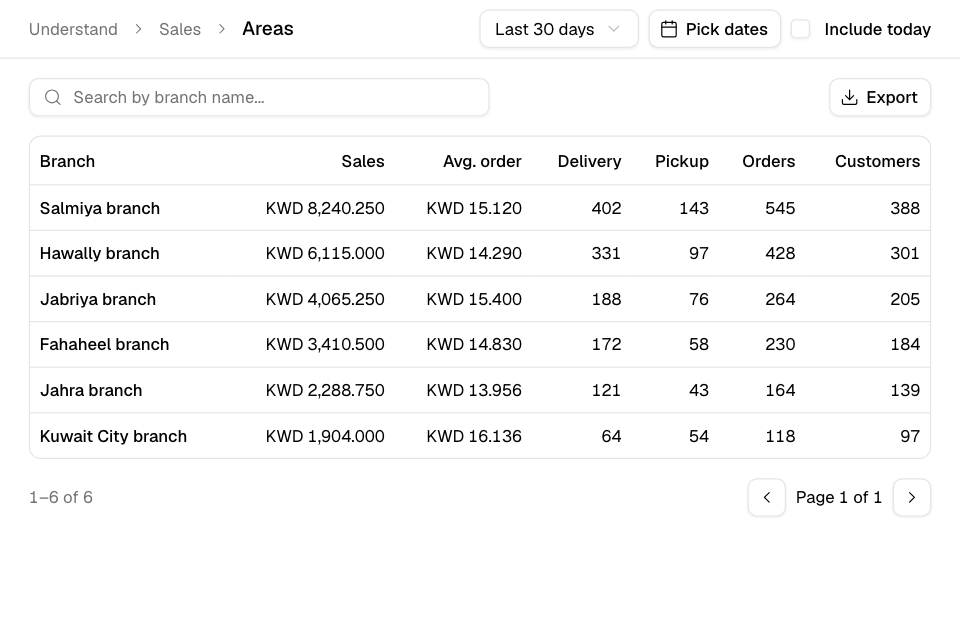
Compare your branches
- Go to Understand > Sales > Areas.
- Choose the dates. Tick Include today to add today.
- To find one branch, type its name in the search box.
- Read the rows. The list shows 30 branches on each page.
See a branch's zones
- In the branch list, select the branch name.
- The page lists the branch's delivery zones, with their numbers for the same dates.
- To find one zone, type its name in the search box.
- To go back to the branch list, select Areas at the top of the page.
Use this list to find zones with many orders and a low average order. They may need a higher minimum order. See Change a delivery zone.
Export
Select Export. The file downloads to your computer. In the branch list, the file has every branch. In a branch, the file has its zones.
Rules and limits
- You need view access to sales.
- Export needs the Download reports permission. The Owner, Operations and Finance roles have it.
- Only accepted orders count.
Common questions
Why don't I see Export?
Your role does not include Download reports. Ask the store owner for a role that has it.
Where do I see if deliveries arrive on time?
Use the delivery report. See Check how delivery is doing.