For: Owners, Operations
Where: Setup > Integrations > Google Analytics 4 or Google Tag Manager
Available: Web dashboard · All countries
Google Analytics 4 shows where your store's visitors come from and which of them order. You can let Zyda send this data for you, or load your own Google Tag Manager container and set up the tags yourself.
How it works
There are two ways to get data into Google Analytics 4 (GA4). Pick one, not both, or every visit and order is counted twice.
| GA4 through Zyda | Your own Tag Manager | |
|---|---|---|
| What you enter | The Measurement ID, with First-party tracking on | The Container ID |
| Who sets up the tags | Zyda | You, in Google Tag Manager |
| Route | Through Zyda's own address, sgtm.zyda.com | Straight from the browser to Google |
| Lost to ad blockers and Safari | Fewer visits and orders lost | More lost |
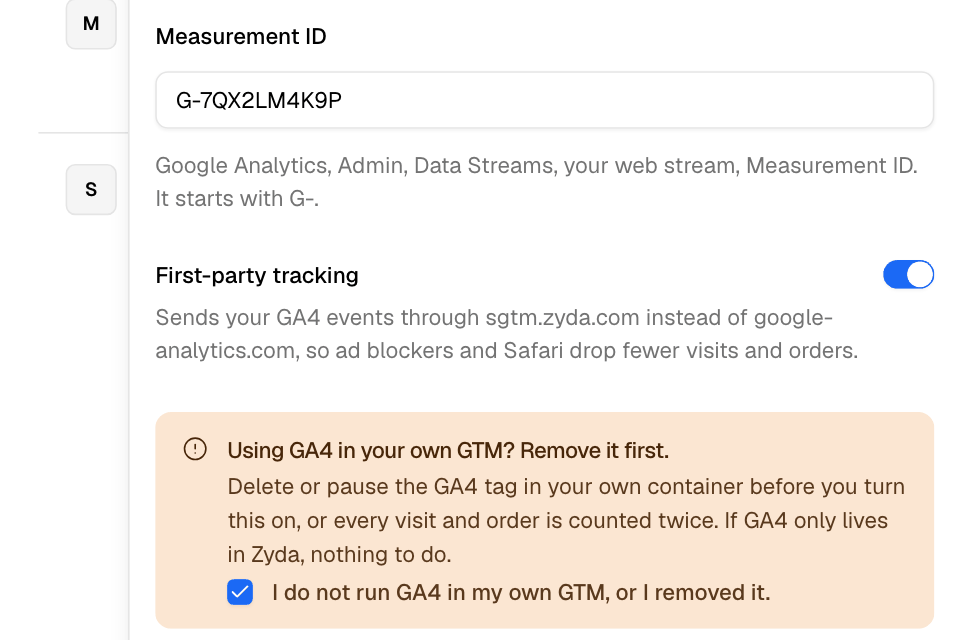
Send GA4 data through Zyda
- In Google Analytics, go to Admin, Data Streams, then your web stream. Copy the Measurement ID. It starts with G-.
- In Zyda, go to Setup > Integrations and select Google Analytics 4.
- Paste it in Measurement ID.
- Turn on First-party tracking.
- If you also run GA4 in your own Tag Manager, delete or pause that GA4 tag first. Then tick "I do not run GA4 in my own GTM, or I removed it."
- Select Connect.
The Connect button stays off until you tick the box in step 5.
Check that it works
- Open your store and place a test order.
- In Google Analytics, open Reports, then Realtime.
The visit and the order show within a minute or two.
What GA4 receives
With First-party tracking on, your store sends these events to your GA4 property: page_view, view_item, add_to_cart, begin_checkout and purchase. The purchase carries the order number as its transaction ID.
Load your own Google Tag Manager container
- In Google Tag Manager, copy your Container ID. It looks like GTM-XXXXXXX.
- In Zyda, select Google Tag Manager.
- Paste it in Container ID.
- Select Connect.
Your store then loads your container. Your store also adds these events to the data layer, for your tags to use: page_view on every page, view_item, add_to_cart and purchase.
Google Ads tags can also go inside your own container.
Rules and limits
- The Measurement ID must start with a capital G and a dash, such as G-AB12CD34EF. A small g is refused.
- With First-party tracking off, Zyda does not load GA4 on your store. The Measurement ID alone sends nothing. Turn it on, or load GA4 in your own container.
- Your container and GA4 do not load while your staff take a phone order in the dashboard.
- To remove GA4 or your container, select More, then Disconnect. Removing the Measurement ID also turns off first-party tracking.
Common questions
I added my Measurement ID but GA4 shows nothing. Why?
First-party tracking is off. Turn it on, or set up GA4 inside your own Tag Manager container.
Can I use both?
Yes, if GA4 itself is set up in only one of them. Your container can hold other tags, such as Google Ads.