For: Owners, Operations
Where: Setup > Integrations > Point of Sale
Available: Web dashboard · All countries
If your kitchen runs on a POS such as Foodics, online orders should reach it without anyone typing them in again. Connect your POS once, and Zyda sends your orders to it.
How it works
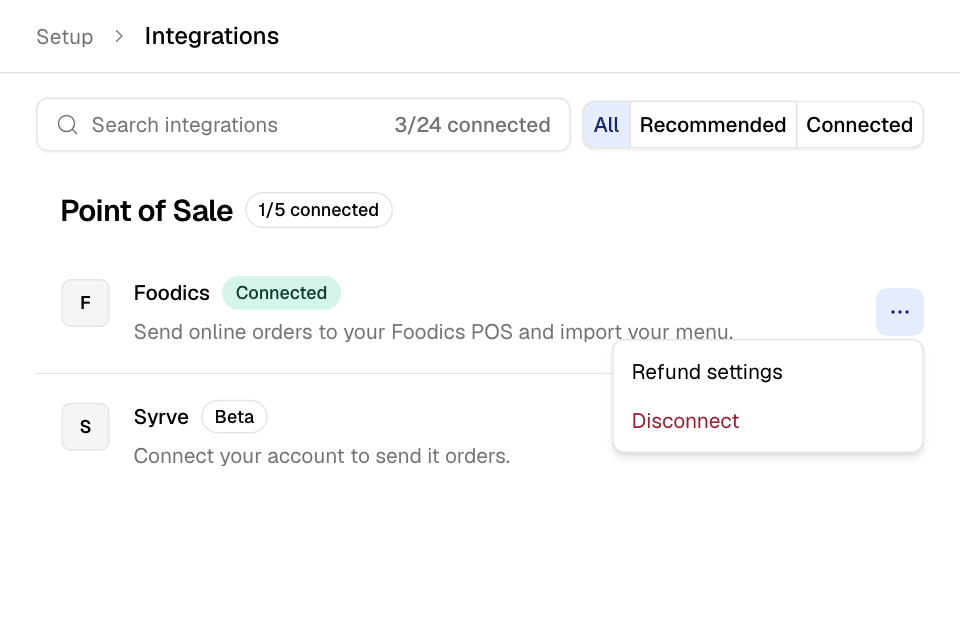
The Point of Sale section lists the POS systems Zyda works with. A system that is still in testing shows a Beta badge. When your POS is connected:
- New orders go to your POS.
- If your POS can send its menu, you can import it into Zyda.
- Some changes are made in the POS, not in Zyda. For example, an order that reached the POS is edited in the POS.
Before you start
Some POS systems cannot work with every store setting. If one of these is on, the connect sheet says so and links to the page that turns it off:
| The sheet says | Where to change it |
|---|---|
| You have to disable the Card on Delivery… | Go to payment methods |
| You have to disable the Auto Accept… | Go to order management |
| You have to set taxes to 0… | Go to business information page |
Connect your POS
- Go to Setup > Integrations.
- Under Point of Sale, select your POS. The row says Connect.
- Read the notes in the sheet.
- If the sheet asks for keys, enter them:
- the API Key from your POS, or
- a key for each branch. Each key is checked when you leave its field.
- Select Connect now.
Some POS systems ask for no key. Connect now then takes you to the POS, where you sign in and allow Zyda.
You see "Authorized successfully", or, after signing in at the POS, a page that says Connected. If the POS can send its menu, the page says "Your account is connected. Import your menu next." Select Open Menu to import from your POS.
If the page says Couldn't connect, select Back to integrations and try again.
Import your menu from the POS
The import happens in Setup > Menu. See Import or export your menu.
Choose what happens when your POS cancels a paid order
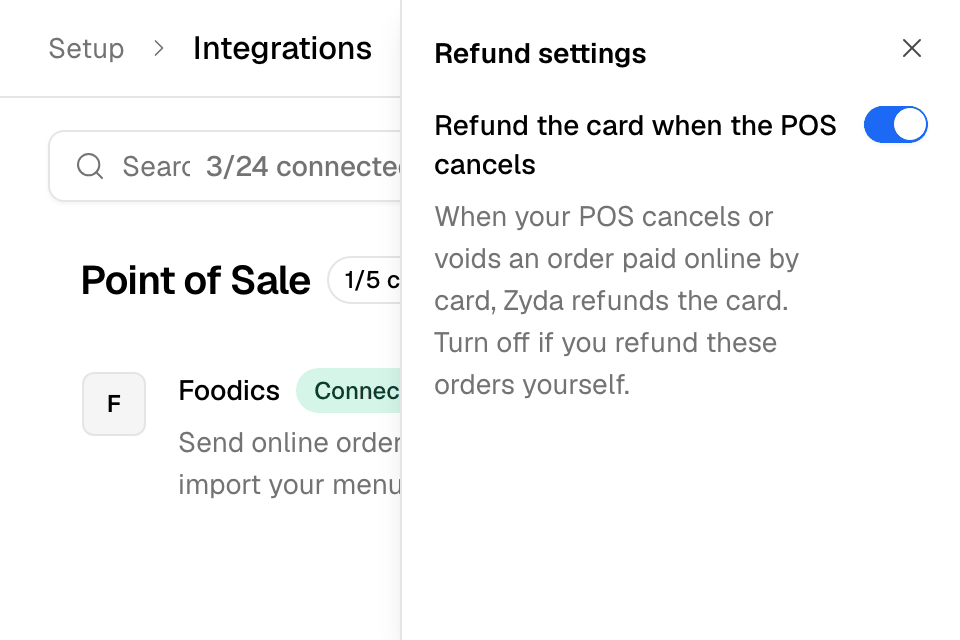
When your POS cancels or voids an order the customer paid online by card, Zyda refunds the card. This is on by default.
- On your POS row, select More (the three dots).
- Select Refund settings.
- Turn Refund the card when the POS cancels off if you refund these orders yourself. It saves at once.
Disconnect your POS
- Select More on the POS row.
- Select Disconnect and confirm.
The page reloads. New orders stop going to the POS.
Rules and limits
- Only people who can edit integrations see Refund settings.
- If Zyda manages the connection key for you, there is no Disconnect. Ask Zyda support.
- Some POS systems can only be connected by Zyda support. Their sheet says "Ask your Zyda account manager to turn these on."
- Each branch's POS link shows on the branch page, under Integrations. See Add a branch and set its opening hours.
Common questions
Why can't I edit an order that is in my POS?
The POS holds the order. Edit it in your POS. See Edit an order after it is placed.
Does Zyda refund the customer when I cancel in the POS?
Yes, for orders paid online by card, unless you turned off Refund the card when the POS cancels.