For: Owners
Where: Setup > Team > Add role
Available: Web dashboard · All countries
The ready-made roles fit most jobs, but not every job. A cashier may need to refund, or a marketer may need your customer list. Make a role of your own, with the exact pages and actions the job needs.
How it works
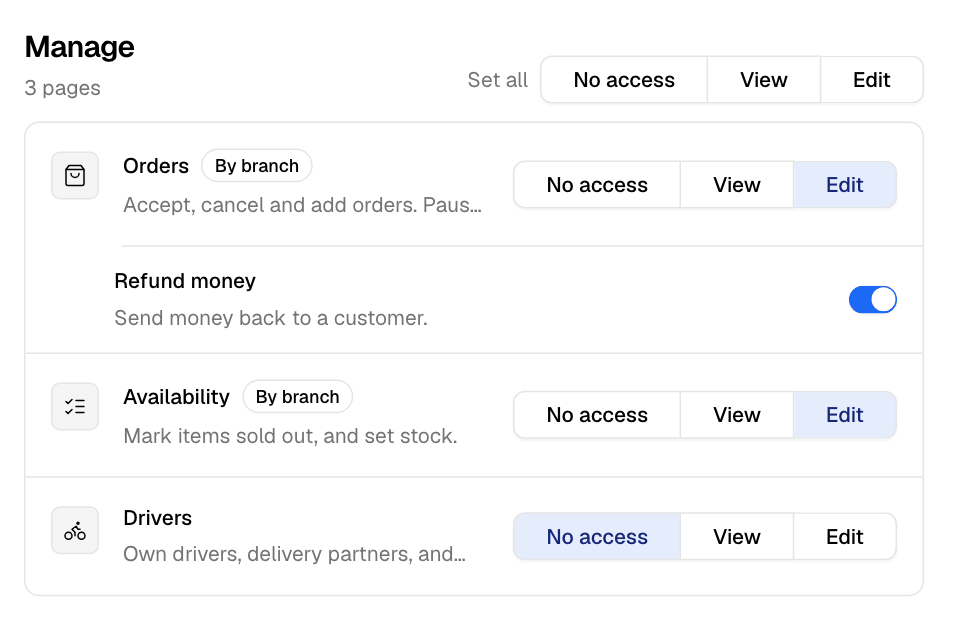
A role of your own always starts as a copy of a Zyda template: Operations, Marketing, Finance or Branch staff. You cannot copy Owner. Then you change the level of each page:
- No access: the page is not in their sidebar.
- View: they can open the page.
- Edit: they can open the page and change it.
Zyda AI uses Ask and Ask and edit in place of View and Edit. Sales and Transactions can only be viewed.
Actions that move money or data have their own switch under their page. A switch works only when its page is at the right level.
| Switch | Page and level it needs |
|---|---|
| Refund money | Orders at Edit |
| Download reports | Sales at View |
| Download customer lists | Customers at View |
| See product costs | Menu at View |
| Publish or unpublish the store | Storefront at Edit |
| Change payout bank details | Owner only. Locked on every other role. |
If you lower a page's level, Zyda turns off the switches that need more.
Create a role
- Go to Setup > Team.
- Select Add role.
- Enter a Role name, for example "Cashier".
- Under Start from, choose the template closest to the job.
- Select Create role. The new role opens.
- For each page, choose No access, View or Edit. To set every page under one sidebar heading at once, use Set all next to the heading.
- Turn on the switches the job needs.
- Check What they see. It shows the sidebar this role opens. On a small screen, select Preview sidebar.
- Select Save role.
You see "Role saved." Now give the role to people in People. Read Add a person to your team.
Copy a role
- To copy a Zyda template, open it in Roles and select Copy and edit.
- To copy one of your roles, open it and select Copy.
The copy is named after the role, with "(copy)" at the end. Change the name and select Save role.
Change or delete a role
- Go to Setup > Team > Roles.
- Select Edit next to your role.
- Make your changes and select Save role. To undo them, select Discard.
To delete it, select Delete, then Delete again. The people who had the role move to the template it was copied from.
The change reaches everyone who has the role.
Rules and limits
- You cannot change a Zyda template. Zyda keeps them up to date.
- Each role name must be different from your other roles and from the Zyda templates. 80 characters at most.
- When Zyda adds a new page, your role gets it at the level of the template it was copied from.
- Team opens only for Owners. A role of your own cannot give it.
- Wholesale shows only to roles copied from Operations. The Zyna AI tab under Chats shows only to roles copied from Operations, Marketing or Finance.
- Changing the plan and blocking a customer's phone number also need a role copied from Operations. Read See what each role can open and do.
- A person with one of your own roles can be limited to some branches. Read Limit a person to some branches.
Common questions
How do I see who has a role?
In Roles, select the number in the People column. People opens with only the people who have that role.
Why can't I turn a switch on?
Its page is not at the level the switch needs. For example, set Orders to Edit before you turn on Refund money.
A person with View can still press a button. Why?
Some pages still show their buttons to View users. When they try to save, Zyda refuses the change.