For: Owners, Operations, Marketing
Where: Setup > Storefront > Link in bio
Available: Web dashboard · All countries
Instagram and TikTok let you put only one link in your bio. A link in bio page holds all your links under one address, with a button to order from your store.
How it works
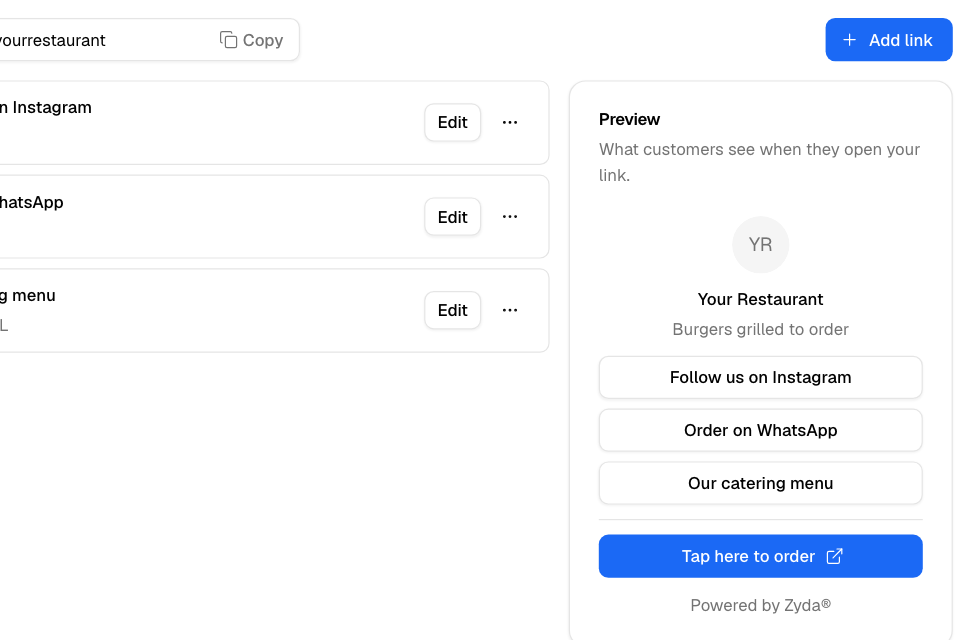
Your link in bio page shows your logo, your store name, your slogan, a button for each link you add, and Tap here to order.
Its address is:
- orderfa.st/ and your store's name, if your store is on a Zyda address.
- Your own domain, then /en/links or /ar/links, if your store has its own domain. The language is your store's language.
The Preview on the right shows what customers see when they open your link.
Set up your page
- Go to Setup > Storefront > Link in bio.
- Select Add link.
- Type the Title. The Arabic title copies it. To type a different Arabic title, select Add Arabic text.
- Choose the Type, such as Instagram, WhatsApp or Website URL, and fill in the link or number.
- Select Save.
- Add more links the same way.
- Select Copy next to your page address.
- Paste the address into your Instagram, TikTok or Snapchat bio.
Change, sort or delete a link
- Select Edit on a row to change it.
- Drag the handle at the start of a row to move it. Or select … and then Move up or Move down.
- Select …, then Delete, and select Delete again.
Changes show on your page at once.
Rules and limits
- The logo, store name and slogan come from Setup > Storefront > Branding.
- These links are separate from the links on the Web links page. A WhatsApp link here is used for your store's WhatsApp button only when Web links has no WhatsApp link.
Common questions
Where does Tap here to order go?
To your store's home page.
Can I see how many people opened my link?
Not on this page.