For: Owners, Operations
Where: Setup > Business > Details
Available: Web dashboard · All countries
Needs: Owner or Operations role
Your store name, your owner details and your VAT settings live on one page. VAT settings change what customers pay at checkout, so check them before your first order.
How it works
Setup > Business > Details has three parts:
- Store: the Store name customers see, in English and Arabic, and the Store type. The Country is set when the store is created and cannot be changed.
- Owner: the person legally responsible for the store. Name, email, phone, national ID number, and photos of the ID.
- Licensed business: turn on Licensed to add your company name, licence number, VAT ID number, licence documents and your VAT settings.
Change your store name
- Go to Setup > Business > Details.
- Change the Store name in English and Arabic. Both are required.
- Select Save.
Add your licence
- Turn on Licensed.
- Enter the Company name as it appears on the licence, in English and Arabic.
- Enter the License number and the VAT ID number. Use digits only.
- Under Documents, add a photo of the Licence and of the Authorised signatory.
- Select Save.
Each photo can be up to 5 MB. To replace a photo, tap it and pick a new one.
Set your VAT
- With Licensed on, enter the VAT rate, from 0 to 100.
- Under Menu prices, choose:
- Exclude VAT: your prices do not contain VAT. VAT is added at checkout.
- Include VAT: your prices already contain VAT. The customer pays the price shown.
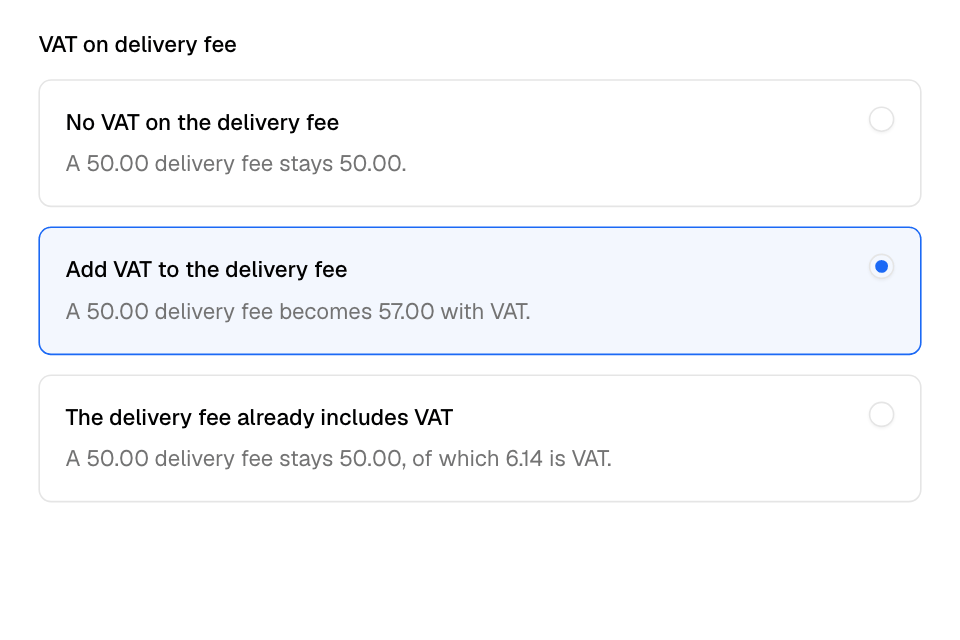
- Under VAT on delivery fee, choose:
- No VAT on the delivery fee.
- Add VAT to the delivery fee: the customer pays the fee plus VAT.
- The delivery fee already includes VAT: the fee stays the same, and part of it is VAT.
- Select Save.
Each choice shows an example, so you can check it before you save.
For example, at 14% VAT, an item priced 100:
| Menu prices | Customer pays | VAT in it |
|---|---|---|
| Exclude VAT | 114 | 14 |
| Include VAT | 100 | 12.28 |
Rules and limits
- Add VAT to the delivery fee needs a VAT rate above 0 and Exclude VAT for menu prices. If your store sends orders to a POS, it is set in your POS.
- If you choose Include VAT for menu prices, Add VAT to the delivery fee turns off.
- With Foodics, the VAT rate and menu prices show "Managed in Foodics". Change them in Foodics.
- Removing a saved photo deletes it at once. It cannot be brought back.
- Only the Owner and Operations roles see Setup > Business.
Common questions
Why can't I choose "Add VAT to the delivery fee"?
The line under it says why: "Needs a VAT rate.", "Needs menu prices to exclude VAT." or "Set in your POS."
My details saved, but a photo did not. What now?
You see "Details saved, but a photo did not upload. Try again." Add the photo again and select Save.
Can I change my country?
No. The country is set when the store is created.