For: Owners, Operations, Finance, Marketing
Where: Understand > Sales > Items
Available: Web dashboard · All countries
Some items carry your menu, and some only take space. The Items report ranks what you sell, so you know what to promote, what to price again and what to remove.
How it works
Go to Understand > Sales, then select Items. The Items tab lists your items from the highest sales to the lowest.
For each item, you see:
- Sold: how many were sold.
- Orders: how many orders had the item.
- Sales: the item's sales in these dates.
The first page shows your top 10. Use the arrows under the table to see the next 10.
The Categories tab shows the same numbers for each menu category.
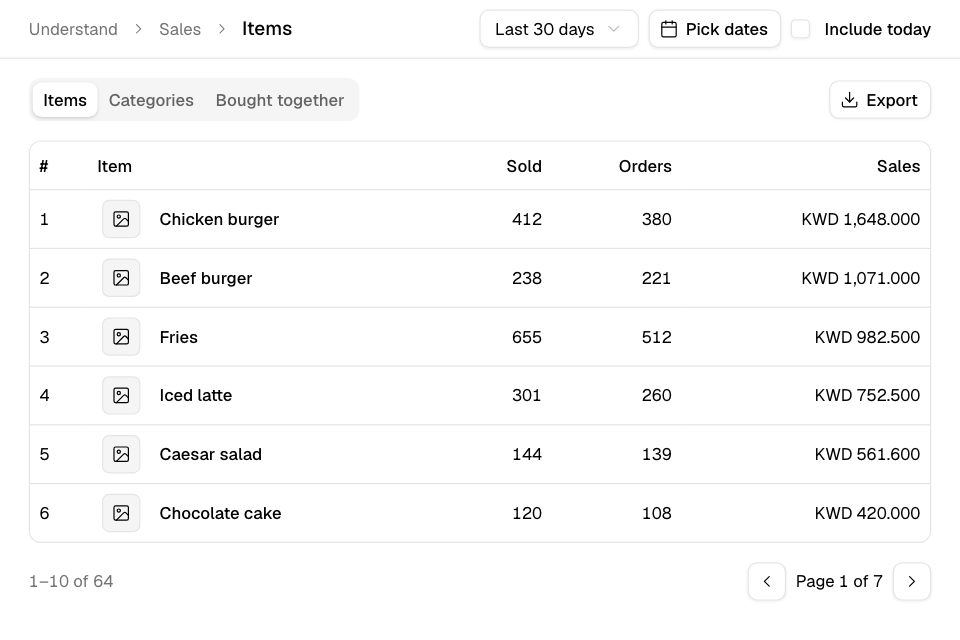
Rank your items
- Go to Understand > Sales > Items.
- Choose the dates, for example Last 30 days or Pick dates. Tick Include today to add today.
- Select Items or Categories.
- Read the list from the top. Rank 1 has the highest sales.
Export the list
- Open the tab you want: Items or Categories.
- Select Export.
- Zyda emails you the full list for the dates you chose.
You see "Best selling items report will be delivered to your email" or "Top Categories Report will be delivered to your email".
Rules and limits
- You need view access to sales.
- Export needs the Download reports permission. The Owner, Operations and Finance roles have it.
- Only accepted orders count. A new order counts once you accept it.
- The dates stay the same when you move between Trends, Items, Areas and Report.
Common questions
Which items are often ordered together?
Select the Bought together tab. See See which items customers buy together.
An item has a high Sold number but few Orders. Why?
Customers order several of it at once. For example, 3 orders of 4 juices each show Sold 12 and Orders 3.