For: Owners, Operations, Marketing, Finance, Branch staff
Where: The sidebar and the top bar, on every page
Available: Web dashboard · All countries
The dashboard has many pages. They are grouped by the work you do, so you can find a page by its job or by typing its name.
How it works
The screen has two fixed parts:
- The sidebar on the left lists the pages. In Arabic it is on the right.
- The top bar across the top holds your store, the search box and your menus.
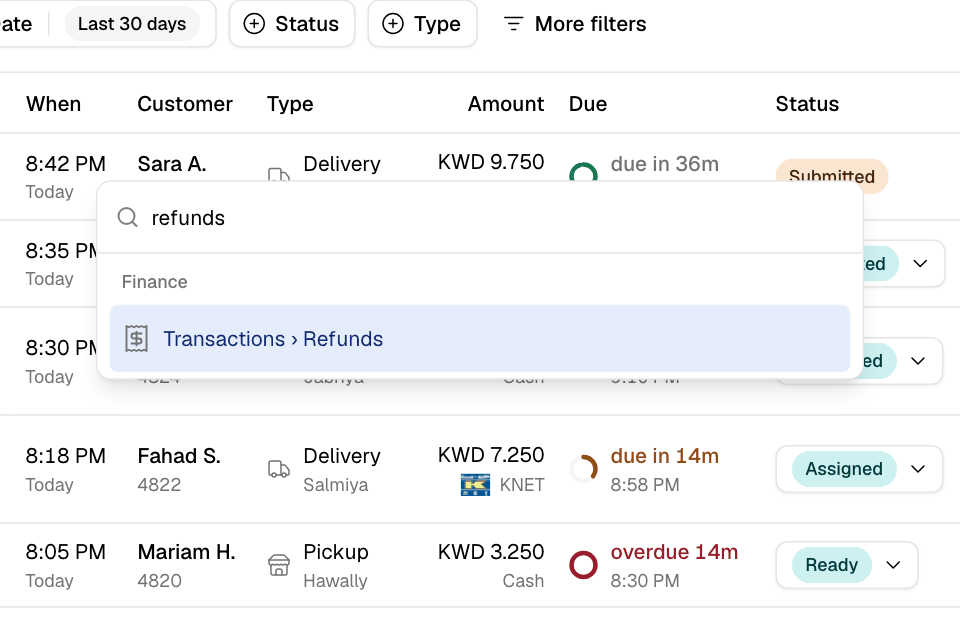
The page you open fills the rest of the screen. Its name shows at the top as a path, for example Finance > Transactions > Refunds. Select the middle part, Transactions, to go back to that page's first tab.
You see only the pages your role allows. Two people on the same team can have different sidebars.
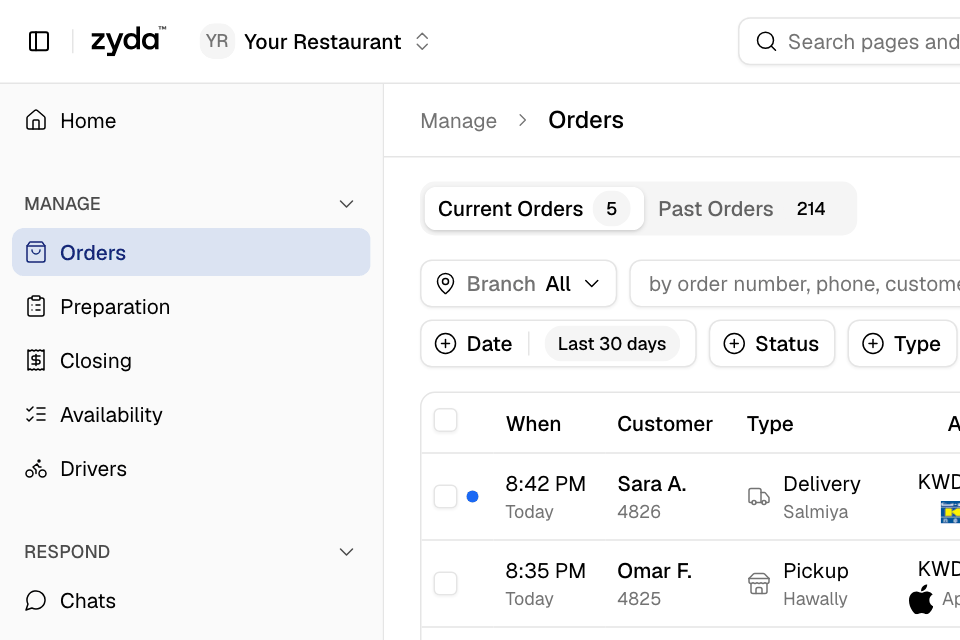
The sidebar
Home is at the top. It shows how your store is doing and what needs you now. See Read your Home page.
Under Home, the pages are grouped by job:
| Job | What you do there | Pages |
|---|---|---|
| Manage | Run today's orders | Orders, Preparation, Closing, Availability, Drivers |
| Respond | Answer customers | Chats, Calls, Reviews |
| Serve | Choose how customers get their food | Delivery, Pickup, Curbside, Dine-in, Catering, Wholesale |
| Grow | Bring customers back | Offers, Loyalty, Campaigns, Banners |
| Understand | Read your numbers | Sales, Customers |
| Finance | Check money and your plan | Fees & payout, Transactions, Transaction fees, Plan |
| Setup | Set up your store | Business, Menu, Branches, Point of sale, Storefront, Payments, Team, Integrations |
Some pages show only when they apply to your store. For example, Transaction fees shows only with MyFatoorah.
A page can have tabs of its own. They are at the top of the page, not in the sidebar. For example, Reviews has Insights, Inbox and Settings.
To fold a job, select its name. This browser remembers the jobs you fold. When you open a page, its job opens again.
To make the sidebar smaller, select the sidebar button at the start of the top bar. The sidebar then shows only icons. Select the button again to open it.
Find a page with search
- Select the search box in the top bar, or press Ctrl K. On a Mac, press ⌘ K.
- Type a word, for example "refunds".
- Select a result, or press Enter.
Search finds every page and every tab inside a page. It also finds your other brands and a few actions, such as Chat with us, My account and Log out. You can type in English or in Arabic.
The top bar
From the start of the top bar to the end:
| Part | What it does |
|---|---|
| Sidebar button | Shows or hides the sidebar. |
| Your store's name | Opens Your brands, to switch to another brand. All brands opens the full list. A brand that customers cannot see says Unpublished. |
| Search box | Finds any page or action. |
| Connection badge | Connected means new orders reach this page as they come in. Reconnecting or Offline since a time means they do not. Check your internet connection. |
| The bell | Opens your order sound settings. A crossed-out bell means sounds are off. See Hear new orders and arrivals. |
| Get the app | Shows a QR code to get the Zyda phone app. It can show on a computer until you have the app. When your app is out of date, it says Update the app. |
| Help (the round life buoy icon) | Opens the Help menu. |
| Your initials | Opens your account menu. |
The connection badge and the bell show only on your store's pages.
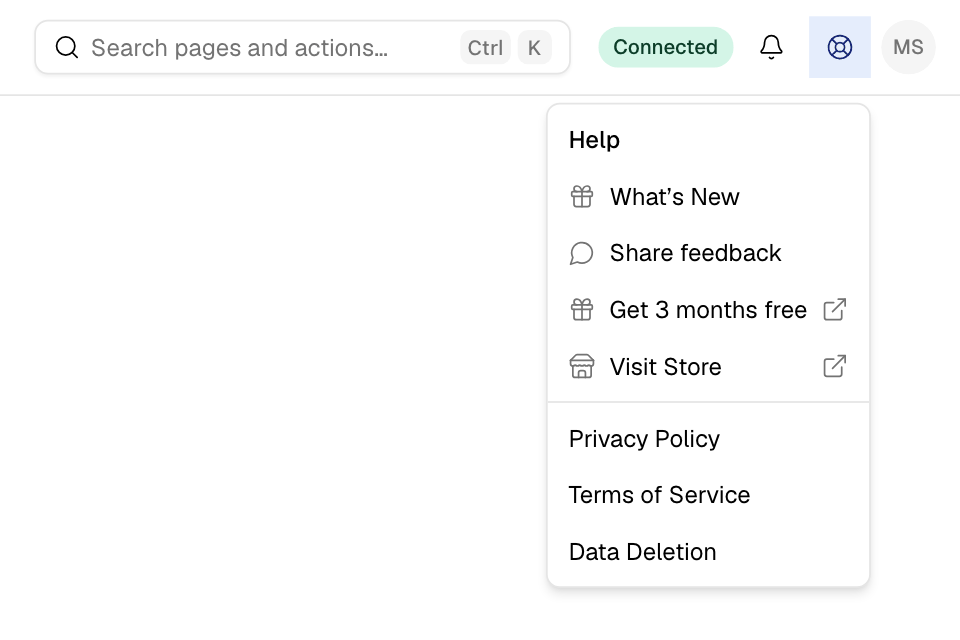
The Help menu
Select the Help icon to open the Help menu:
- What's New: the latest changes to the dashboard. See See what's new in the dashboard.
- Share feedback: tell Zyda what works and what does not.
- Get 3 months free: refer another business to Zyda.
- Visit Store: opens your online store in a new tab.
- Download Zyda App: on a phone only, opens the app store.
- Privacy Policy, Terms of Service and Data Deletion.
To talk to Zyda support, select the chat bubble in the bottom corner of the screen. You can also search for "Chat with us".
Your account menu
Select your initials at the end of the top bar:
- My account: change your name, email, phone or password.
- Language: choose English or العربية. See Switch the dashboard between English and Arabic.
- Log out.
On a phone
The dashboard also works in a phone's browser. The sidebar button opens the pages as a menu. The search box is a search icon. For a phone, the Zyda phone app is easier to use.
Common questions
Why can't I see a page that my colleague can see?
Your role decides which pages you see. Ask your store owner to check your role in Setup > Team.
Where did What's New go?
It is in the Help menu. Select the Help icon in the top bar, then What's New.
The badge says "Offline since". What do I do?
New orders do not reach this page while it is offline. Check your internet connection. The badge says Connected again when the page is back online.