For: Branch staff, Operations, Owners
Where: Your online store > checkout > verification code
Available: Web dashboard · All countries
A customer says the code or the link never arrived. First find out which message they are waiting for. Each one is sent in its own way.
How it works
| Message | When it is sent | How it is sent |
|---|---|---|
| Verification code | The customer confirms their phone number on your store, before they order. | WhatsApp first. Egypt numbers get SMS first. The customer can switch. |
| Payment link | You choose Send payment link on a phone order. | SMS to Kuwait and Egypt numbers, WhatsApp to other countries. |
| Order accepted | You accept the order. | SMS, only if order status messages are on for your store. |
| New order time | You change an order's time and tick Notify customer. | SMS. |
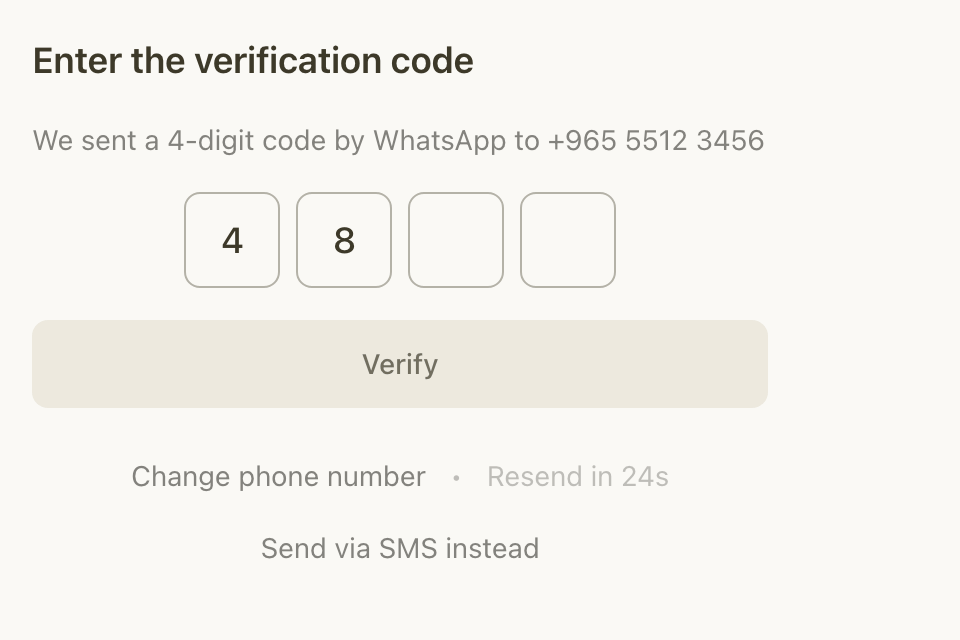
The verification code has 4 digits. The customer can ask for a new code after 30 seconds. Each new request makes the wait longer.
Quick checks for a verification code
- Ask the customer to check the phone number they typed, with the right country code.
- Ask them to check WhatsApp as well as their SMS messages. The screen says which one was used, for example "We sent a 4-digit code by WhatsApp to" their number.
- When the resend timer ends, ask them to select Send via SMS instead or Send via WhatsApp instead. This sends a new code the other way. Before the timer ends, no new code goes.
- If they see "Too many attempts" with a number of seconds, they must wait until the time runs out. If the wait comes back each time, ask them to check the number. If they see "Too many attempts — request a new code below.", they typed a wrong code too many times. Ask them to request a new code.
- If they see "We can't take orders from this number. Please contact the store.", your store blocked this number. See Block a customer's phone number.
- If they see "We can't send a code to this number. Please try a different one.", the number is not valid. Ask them to use another number.
Quick checks for other messages
- Payment link: check the phone number on the order. See A payment link does not open.
- Order accepted: this SMS is off unless Zyda support turned it on for your store. Only Zyda support can change it. It is not sent for dine-in table orders, walk-in orders or orders from your own system.
- New order time: the SMS goes only when the new time is later and Notify customer is ticked. See Change an order's due time.
Campaign, review and loyalty messages use your SMS credits. See Buy SMS credits.
If it still does not work
Contact Zyda support from the chat bubble in the bottom corner of the dashboard. Send:
- the customer's phone number, with the country code
- which message they expected: verification code, payment link or order message
- the time they tried, and the order number if there is one
- a screenshot of the message they see on your store
Common questions
Does a verification code use my SMS credits?
No. Zyda sends verification codes, and the payment links you send from a phone order, without your SMS credits.
Can customers order without a code?
Yes, if you choose No code under Phone number check. The order is then not tied to a confirmed number. See Set preparation time, auto-accept and checkout options.