For: Owners, Branch staff, Operations
Where: Manage > Orders > Create Order > Send payment link
Available: Web dashboard and Zyda phone app (Android) · All countries
You took an order by phone and sent a payment link, but the customer says it does not open or does not work. The link opens your online store's checkout, so your store must be published for it to work.
How it works
When you choose Send payment link on a phone order, Zyda sends the customer a link to your store's checkout. The customer pays there, on their own phone.
- Zyda sends the link by SMS to phone numbers in Kuwait and Egypt, and by WhatsApp to numbers in other countries.
- The link works for 7 days.
- The order reaches Orders only after the customer pays.
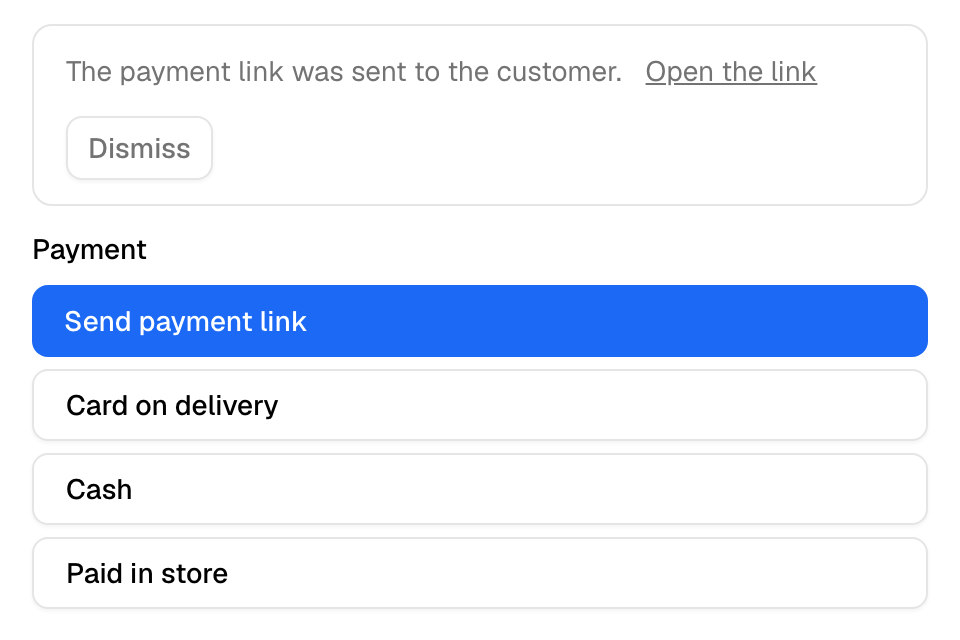
After you send it, the order screen says "The payment link was sent to the customer." Select Open the link to see what the customer sees.
Quick checks
- Select Open the link on the order screen. If it shows "Sorry! We can't receive your order at the moment", your store is unpublished. Payment links and online checkout do not work until you publish it. See Customers see your store as closed.
- If the customer sees Cart Expired, "Your cart has been expired, please create a new one", the link is older than 7 days, or the customer already placed the order. Check Manage > Orders for the order first. If there is none, take the order again and send a new link.
- Check that your store takes online payments. See A customer cannot pay online.
- If the customer did not get the link at all, check the phone number on the order. See A customer did not get an SMS.
- If the customer paid but you see no order, see An order is stuck waiting for payment.
While your store is unpublished, you can still take the order in the dashboard with Cash, Card on delivery or Paid in store. See Take an order by phone, WhatsApp or at the counter.
If it still does not work
Contact Zyda support from the chat bubble in the bottom corner of the dashboard. Send:
- the time you sent the link, and the branch
- the customer's phone number
- what the customer sees when they open the link, or a screenshot of it
Common questions
Can I send the link myself?
Yes. Right-click Open the link, or press and hold it, and copy the link. Send it to the customer yourself. Do not copy the address from the store page after the link opens. The store removes the payment details from it.
Does the customer need an account?
No. The link opens the order you prepared, ready to pay.