For: Owners, Marketing, Operations
Where: Grow > Offers
Available: Web dashboard · All countries
A customer types your code at checkout, but it is refused, or the total does not go down. The message they see tells you why. Ask for it first.
How it works
Zyda checks every rule of the offer when the customer applies the code: the dates and hours, the order type, the branch, the area, the items, the minimum spend and who the customer is. If one rule does not fit, the code is refused with a message.
Quick checks
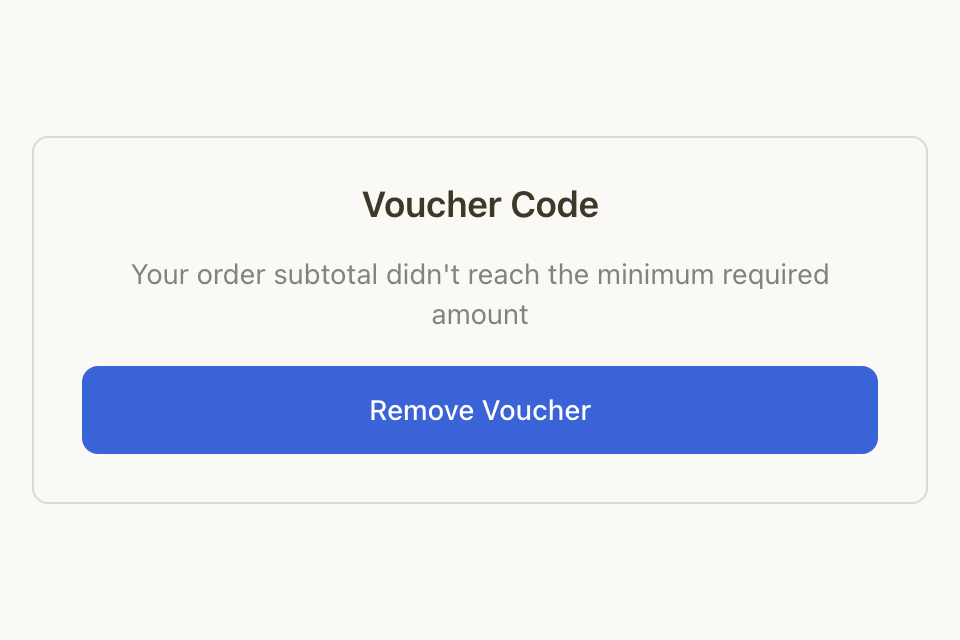
- Ask the customer for the exact message, or a screenshot. Find it in the table in What customers see when they use an offer. It says which rule refused the code.
- Go to Grow > Offers and open the offer. Check that it is live: not paused, not ended, and its uses or budget are not used up. See Manage your offers.
- Check the code's spelling against the offer. Ask the customer to type it again.
- Check the offer's rules against the order: order type, branch, area, items, minimum spend, days and hours, and which customers it is for. See Choose who, where and when an offer works.
- If the customer sees "Your code is not used: an automatic offer saves you more", the customer already has a better discount. See How automatic offers and promo codes work together.
- If the customer had a loyalty reward on the order, the code replaces it. A reward and a promo code cannot be on the same order.
To test a code, place an order on your own store with it. Then cancel it with the reason Duplicate, fake or test order, then Test order. Only people who can refund orders see Test order. A cancelled order gives the code's use back. See Cancel or reject an order.
If it still does not work
Contact Zyda support from the chat bubble in the bottom corner of the dashboard. Send:
- the code and the offer's name
- the message the customer saw, or a screenshot of it
- the order type (delivery or pickup), the branch, and the customer's area
- the cart total, and the time of the order
Common questions
The code worked yesterday. Why not today?
Check the offer's days and hours, and its end date. Then check if it reached its total uses or its budget.
Can a customer use two codes on one order?
No. A new code replaces the code already on the order. The store says "Have another code? It replaces this one."