For: Owners, Branch staff, Operations
Where: The bell and the live status in the top bar
Available: Web dashboard and Zyda phone app (Android) · All countries
An order came in, but nobody heard it. Most of the time the browser blocked the sound, or the dashboard lost its connection. Work through these checks in order.
How it works
The dashboard rings only while it is open in a browser tab. It rings for the store you have open, and only for the branches you can see.
Two things in the top bar tell you if sound can reach you:
- The bell: a crossed-out bell means order sounds are off. A dot means the browser is blocking sound.
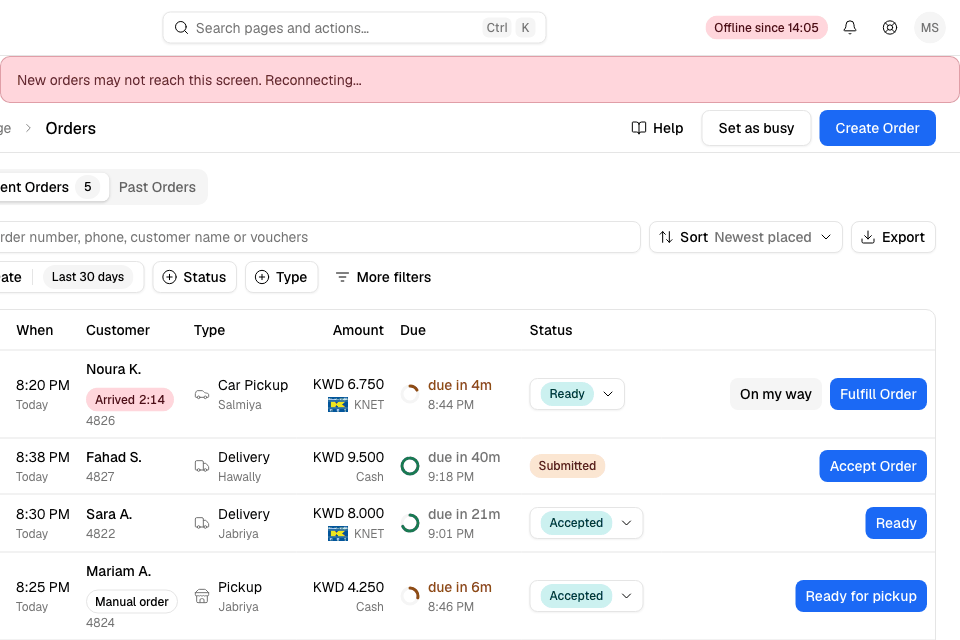
- The live status next to the bell: Connected, Reconnecting or Offline since a time. While it is offline, new orders may not reach the screen.
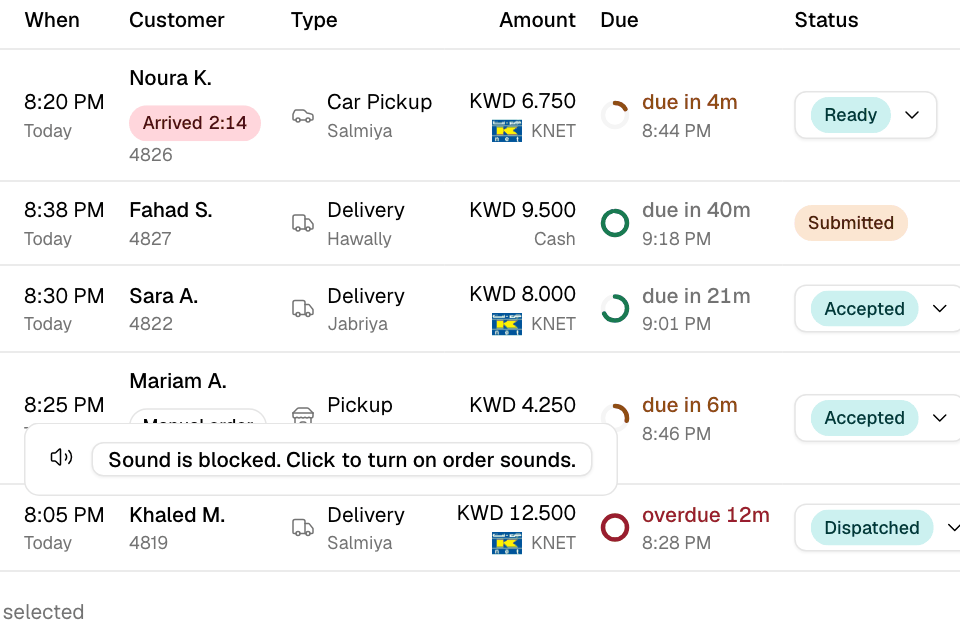
Quick checks on the web dashboard
- Look for "Sound is blocked. Click to turn on order sounds." at the bottom of the page. Select it. Browsers block sound until you click the page once, so do this each time you open the dashboard.
- Select the bell. Check that Order sounds is on. Select Play to test the sound. See Hear new orders and arrivals.
- Check the live status next to the bell. If it says Reconnecting or Offline since, check your internet. The dashboard reconnects by itself.
- Check the computer: the volume is up, the speakers are on, and the browser tab is not muted.
- Keep the dashboard open in a tab, and keep the computer awake. A closed tab or a sleeping computer does not ring.
- Check that the right store is open. You hear only the store open in the dashboard, and only your own branches.
Quick checks in the Zyda app
These steps are for the new look of the Zyda app on Android.
- Go to More > Settings > Notifications. Check that Order ringing is not Off.
- Check that Orders is on under Push.
- Allow notifications for Zyda in your phone's settings, and turn the phone's volume up.
See Set order alerts and sounds in the app.
An order came in with no sound at all
An order paid online reaches you only after the payment goes through. Until then it does not ring and does not show in Current Orders. See An order is stuck waiting for payment.
If it still does not work
Contact Zyda support from the chat bubble in the bottom corner of the dashboard. Send:
- the order number that did not ring, and the time it came in
- what the live status in the top bar said at that time
- the browser you use (for example Chrome or Safari) and the computer or tablet
- a screenshot of the top bar and of the bell's sound settings
Common questions
Do I have to click the page every time?
Yes, each time you open or reload the dashboard. This is a browser rule, not a Zyda setting.
Does every computer need its own settings?
Yes. The sound and the switches are saved for each browser. Set them on each computer or tablet. The ringing choice is saved for your user.