For: Owners, Operations, Finance
Where: Setup > Payments
Available: Web dashboard · All countries
A customer wants to pay by card, but the payment does not show at checkout or does not go through. Find out which of the two it is, then follow the checks.
How it works
Customers pay online through your payment gateway: the company that takes card payments for you, such as Tap, MyFatoorah or Paymob. Your store shows only the online methods that your gateway has approved and that you turned on.
When a payment fails, the order is not placed. It does not reach your Orders list.
The customer sees no way to pay online
- Open your store as a customer. Select the Help icon in the top bar, then Visit Store. If you see "Sorry! We can't receive your order at the moment", your store is unpublished. See Customers see your store as closed.
- The store owner goes to Setup > Payments. Under Online payments, check that your gateway says Connected. In review means the gateway has not approved your account yet. Rejected shows the reason when you open it.
- Select Manage on your gateway. Check that the method the customer wants, such as KNET or Apple Pay, is on.
- If the order is from a branch with its own gateway, check that gateway too in Setup > Branches.
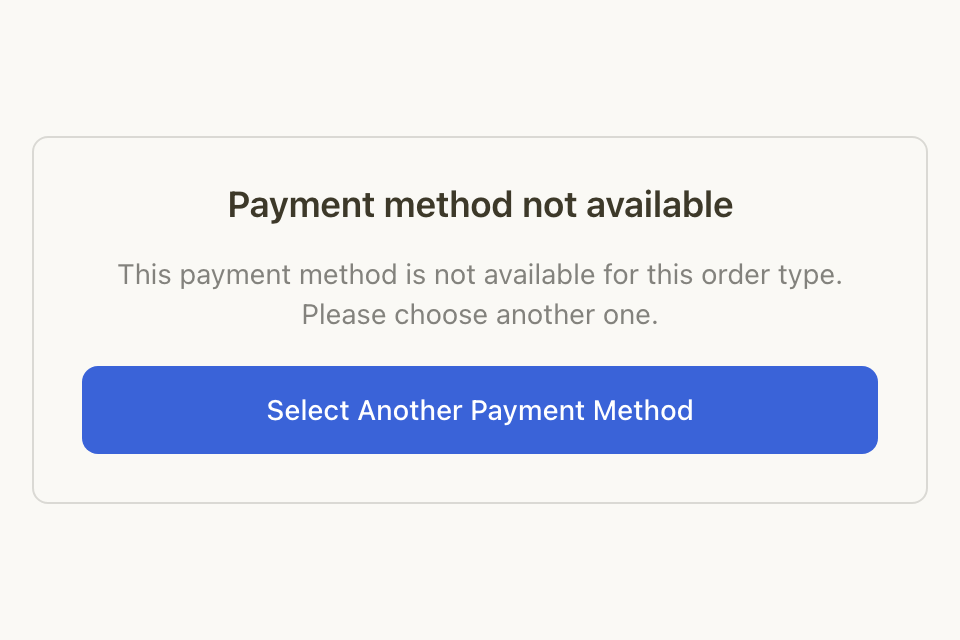
- If the customer sees "No payment method is available for this order type", check which order types each method is offered for. See Turn cash and card machine payments on or off.
See Connect a payment gateway for online payments.
The payment does not go through
- Ask the customer for the exact message.
- "The payment did not go through. Try again or use another card." The bank or the card turned it down. The customer can try another card or another method.
- "Something went wrong. Please try again." Ask the customer to try again in a few minutes.
- "We did not get a reply in time, so your order may still have been placed." Do not ask the customer to pay again yet. Check if the order arrived first.
- Find the payment in Understand > Sales > Report. Search by the order number. Check its Status. See Find an online payment in the sales report.
- If the payment shows Initiated, the customer did not finish paying. See An order is stuck waiting for payment.
If it still does not work
Contact Zyda support from the chat bubble in the bottom corner of the dashboard. Send:
- the order number, or the time the customer tried to pay
- the payment method, for example KNET, a credit card or Apple Pay
- the message the customer saw, or a screenshot of it
- the payment Reference from Understand > Sales > Report, if there is one
Never ask the customer for their card number. Never send card numbers to Zyda support.
Common questions
The customer was charged, but I have no order. What now?
Find the payment in Understand > Sales > Report. A payment can reach the bank late. When it is captured, the order is placed and reaches Orders. If it does not, contact Zyda support with the payment Reference.
Can I take the card payment for the customer?
No. Send the customer a payment link instead. See Take an order by phone, WhatsApp or at the counter.