For: Owners, Operations, Finance
Where: Understand > Sales > Report
Available: Web dashboard · All countries
A customer says they ordered and paid online, but the order is not in Manage > Orders. The order is still waiting for the payment to go through. Your kitchen does not see it until then.
How it works
When a customer pays online, the order waits while the customer pays with their bank or card company. Then one of three things happens:
| What happens | What you see |
|---|---|
| The payment goes through. | The order reaches Orders and rings, like any new order. |
| The payment fails. | The order does not reach Orders. |
| The customer does not finish paying within 1 hour. | Zyda marks the payment as expired. The order does not reach Orders. |
Zyda checks for expired payments every 30 minutes. So an unpaid order can wait up to about 1.5 hours.
When a payment fails or expires, the order's stock, daily capacity and any promo code go back.
Sometimes a bank confirms a payment late, even hours later. When it does, the order is placed then and reaches Orders.
You cannot cancel or print an order that is still waiting for payment.
Quick checks
- Get the order number from the customer. It is in their order confirmation.
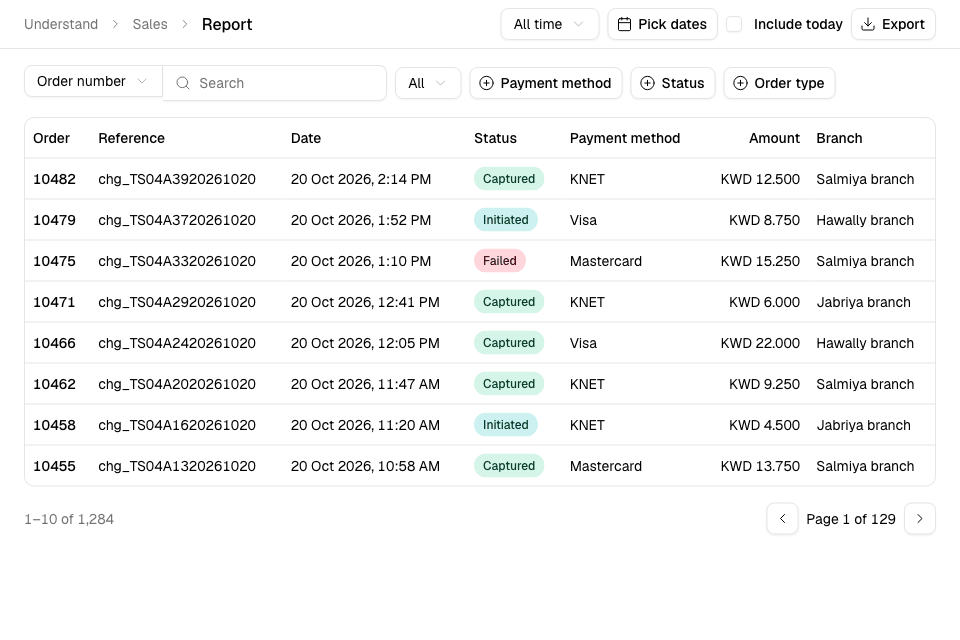
- Go to Understand > Sales > Report. Choose Order number and search for it. See Find an online payment in the sales report.
- Read the payment's Status:
- Captured: the money was taken. The order should be in Orders. Search for it there.
- Initiated: the customer did not finish paying. Ask them to check their bank app. If they were charged, wait for the bank to confirm.
- Failed, Declined or Abandoned: the payment did not go through. Ask the customer to order again.
- To see all unpaid checkouts, go to Home. Under Checkout, select the Unpaid checkouts number. See Read your Home page.
If it still does not work
Contact Zyda support from the chat bubble in the bottom corner of the dashboard. Send:
- the order number and the time the customer paid
- the payment Status and Reference from Understand > Sales > Report
- the payment method, for example KNET or Apple Pay
- a screenshot of the customer's bank message, if they say they were charged
Common questions
The customer was charged, but the order failed. What happens to the money?
If the bank confirms the payment later, the order is placed and reaches Orders. If the order stays unpaid, contact Zyda support with the payment Reference.
Why did the customer's promo code stop working after a failed payment?
It did not stop. A failed or expired payment gives the code back, so the customer can use it on a new order.