For: Owners, Branch staff, Operations
Where: Manage > Orders > open an order > the printer button
Available: Web dashboard and Zyda phone app (Android) · All countries
The kitchen is waiting for a ticket, but nothing comes out of the printer. Check the order first, then the paper size, then the printer.
How it works
Zyda does not install printer software. Each device prints in its own way:
| Where you print | How it prints | Which printers work |
|---|---|---|
| Web dashboard on a computer | The browser's print window opens. You choose the printer there. | Any printer your computer can print to. |
| Zyda app on an Android phone | The phone's print screen opens. | Any printer your phone can print to. |
| Zyda app on a Sunmi device | Straight to the built-in paper roll. It can print new orders by itself. | The device's own printer. |
On the web dashboard, every receipt prints when you select the printer button. The web dashboard does not print new orders by itself. Only a Sunmi device does.
The Zyda app rows are for the new look of the app on Android. The iPhone version does not have the new look yet. For the new look, see Print orders from the app or a Sunmi device.
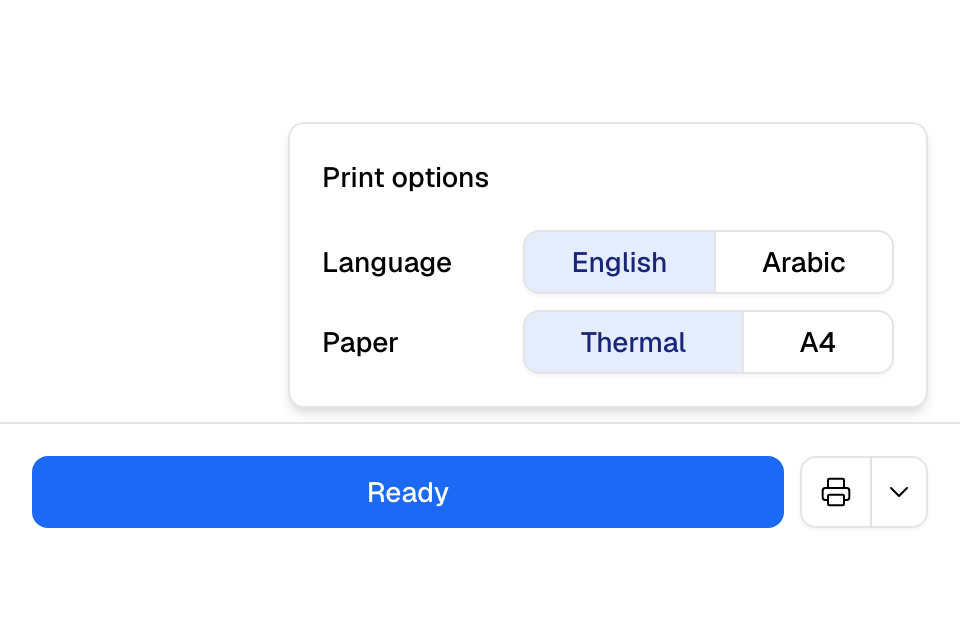
Quick checks on the web dashboard
- Check that the order is paid. An unpaid order has no printer button. See An order is stuck waiting for payment.
- Select the arrow next to the printer button to open Print options. Under Paper, choose Thermal for an 80 mm receipt printer, or A4 for an office printer.
- Select the printer button. In the browser's print window, choose your receipt printer, not a PDF or another printer.
- Print a test page from your computer's printer settings. If that fails too, the problem is the printer or its connection, not Zyda.
- Check that the printer is on, has paper, and its cover is closed.
To print many orders at once, see Accept an order and move it to the next step. Bulk print takes up to 50 orders.
Quick checks in the Zyda app
- On a Sunmi device, go to More > Settings. Under Printing, check that Built-in printer says Ready.
- Select Print a test receipt.
- If new orders do not print by themselves, check that Print orders automatically is on.
See Print orders from the app or a Sunmi device.
If it still does not work
Contact Zyda support from the chat bubble in the bottom corner of the dashboard. Send:
- the order number that did not print
- where you printed from: the web dashboard, the Zyda app, or a Sunmi device
- the printer's make and model, and how it connects (USB, Wi-Fi or Bluetooth)
- what you saw: a message, an empty page, or nothing at all
For help to set up or connect a printer, contact your printer's seller. If your orders print from a point of sale system, contact that system's provider.
Common questions
Which printer should I buy?
Any receipt printer your computer can print to works with the web dashboard. To print each new order by itself, use a Sunmi device with a built-in printer.
The receipt is cut short or has a long empty end. Why?
The paper size does not match the printer. Open Print options and choose Thermal for a receipt roll or A4 for a sheet printer.