For: Owners, Operations
Where: Serve > Wholesale > Accounts > open a business > Account
Available: Web dashboard · All countries
Most businesses pay their suppliers at the end of the month, not at every delivery. Pay on account lets a business order now and pay you later, up to a limit you set.
How it works
When a business has pay on account, its buyers can choose Pay on account at checkout. The order goes to your kitchen at once, like a paid order, but it stays unpaid.
- Each order is due a number of days after its delivery date. You choose the days in Payment terms.
- The business can owe up to its Credit limit. An order that would take it over the limit cannot be paid on account. The buyer can pay it online.
- Only buyers who sign in with an approved phone number can pay on account.
When the business pays you, the order is marked paid. This happens by itself when it pays through its statement link. If it pays you another way, select Mark paid on the order.
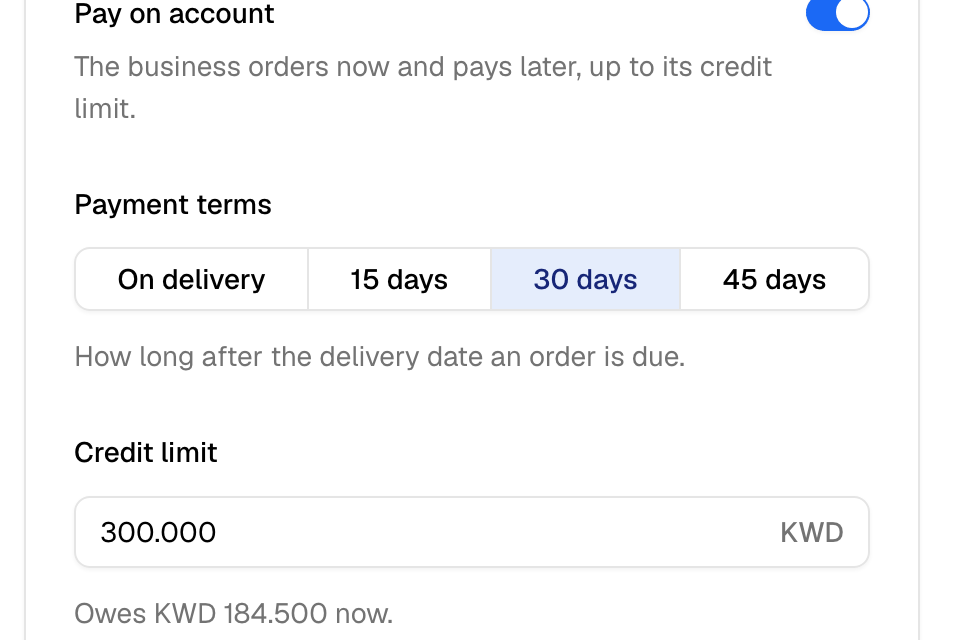
Turn on pay on account
- Go to Serve > Wholesale > Accounts and open the business.
- Find the Account card.
- Turn on Pay on account.
- Under Payment terms, choose On delivery, 15 days, 30 days or 45 days.
- Enter the Credit limit.
- Optional: enter a Minimum order. Leave it empty for no minimum.
- Select Save.
You see "Account saved". When the business owes money, the card shows the amount under the credit limit.
Choose who can pay on account
The business's Contact phone can always pay on account. To add more buyers:
- In the Account card, find Phones that can pay on account.
- Enter a number under Extra phone and select Add phone.
- Select Save.
To remove a number, select Remove next to it, then Save.
See what each business owes
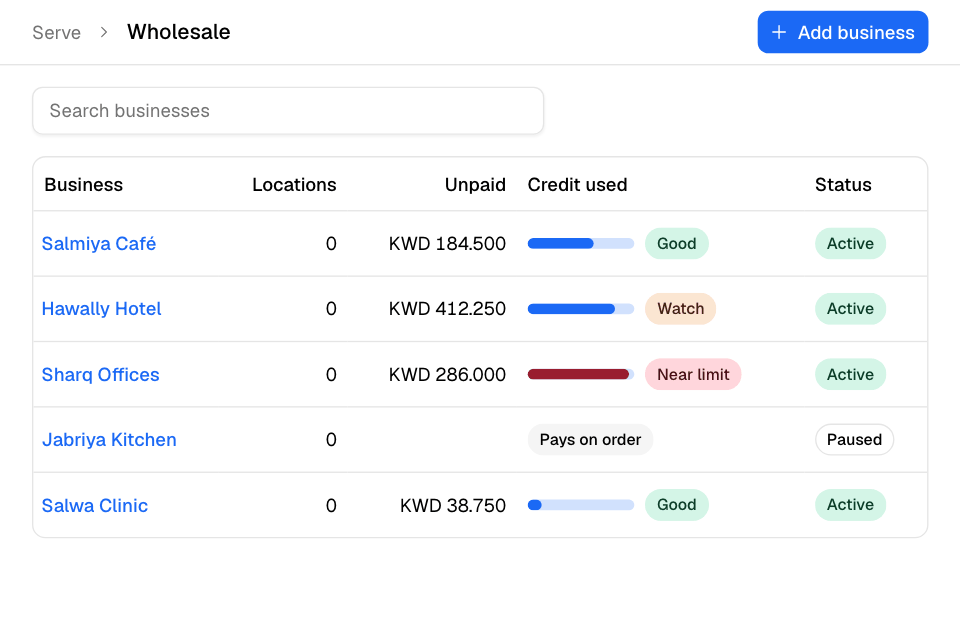
In Serve > Wholesale > Accounts, each business shows:
- Unpaid: what it owes now.
- Credit used: a bar and a label. Good is below 70% of the limit. Watch is from 70%. Near limit is from 90%. Pays on order means the business has no pay on account.
Mark an order paid
- Go to Manage > Orders. To see only business orders, open More filters, then Wholesale, and choose Wholesale only.
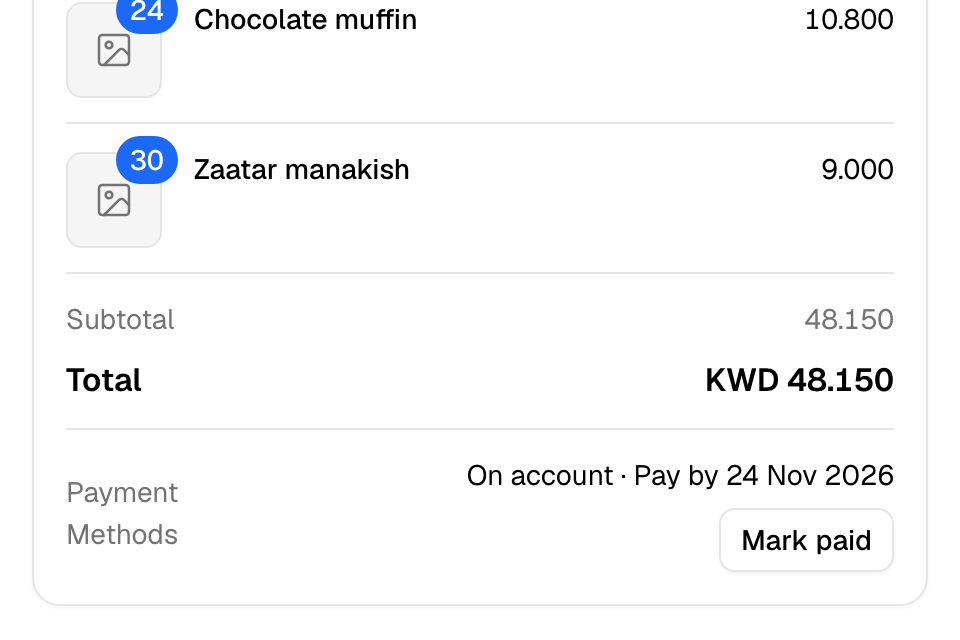
- Open the order. Its payment reads On account with the date to pay by.
- Select Mark paid.
- Select Mark paid again to confirm.
You see "Order marked paid". The order no longer counts in what the business owes, and its payment reads Paid.
Rules and limits
- A credit limit is needed to turn on pay on account. A limit of 0 means the business cannot order on account.
- An order that brings the business exactly to its limit is allowed.
- The Minimum order applies to every order of the business, however it pays.
- You can add up to 20 extra phones.
- Business orders are paid on account or online. Cash and card on delivery are not offered. A wallet can pay the whole order, or part of it with the rest paid online. It never works with pay on account.
- Pay on account works at stores with no POS integration, and with Foodics. With any other POS, the switch is off and says "Your POS does not support pay on account."
- Only the Owner and Operations roles can select Mark paid.
- A refund of an unpaid order on account is a write-off. It lowers what the business owes. No money moves.
- When you cancel an unpaid order on account, it no longer counts in what the business owes.
- In Manage > Closing and Understand > Sales > Overview, On account, still owed and Written off are shown apart. Neither counts in Total collected.
Common questions
A buyer cannot choose Pay on account. Why?
The buyer is not signed in with an approved phone, or the order is over the credit limit. Pay on account may also be off for the business.
Does Zyda remind businesses to pay?
No. Zyda sends nothing on a schedule. Send the business its monthly statement when you want to collect.
How do I stop a business that does not pay?
Lower its Credit limit to what it owes, or turn off Pay on account. The business can still order and pay online. To stop all its orders, select Pause on its page.