For: Owners, Operations, Marketing
Where: Grow > Loyalty > Members
Available: Web dashboard and Zyda phone app (Android) · All countries
Needs: A points program
A customer calls to say their points are missing. Or you want to thank a regular with a birthday gift. The Members page shows every customer in your points program, and lets you add or remove points with a reason.
How it works
A customer becomes a member when they place their first order while your points program is on. They do not need to sign up.
The Members page lists every member with their Points, Amount spent and Last activity.
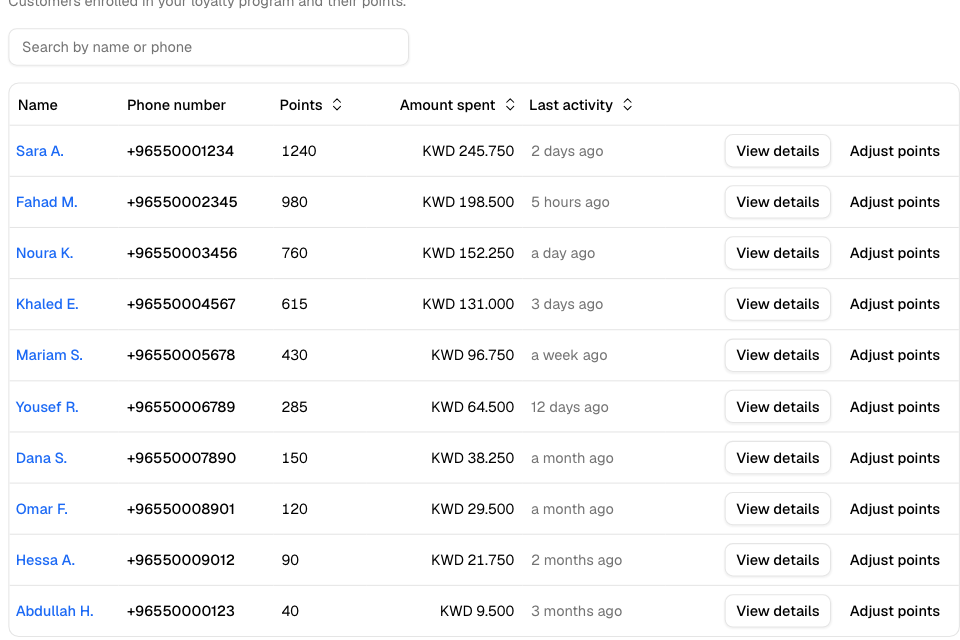
Find a member
- Go to Grow > Loyalty > Members.
- Type a name or phone number in Search by name or phone.
- To sort, select the Points, Amount spent or Last activity column. Select it again to reverse the order.
The page shows 25 members at a time. The search, sort and page stay in the page address, so you can share the link with a colleague.
Select a phone number to open the customer's profile.
See a member's history
Select View details on a member. You see:
- their phone number, email and the date they joined
- Points, Lifetime earned, Lifetime redeemed and Amount spent
- Transaction history: each change with its date, description, points and the balance after it
| Description | Meaning |
|---|---|
| Earned with order | Points from an order. The order number is in Reference. |
| Redeemed reward | Points spent on a reward. |
| Points expired | Points that reached their expiry date. |
| Manual adjustment | Points a team member added or removed. Reference shows the reason and who did it. |
| Points refunded (order cancelled) | Points spent on a cancelled order, given back. |
| Points reversed (order cancelled) | Points earned on a cancelled order, taken back. |
The history shows the 100 most recent changes. For the full list, use the points ledger. See Track points and wallet balances.
Add or remove points
- Select Adjust points on the member's row or on their details page.
- Choose Add points or Deduct points.
- Enter the Amount as a whole number.
- Enter a Reason, for example "Birthday gift" or "Missing points for order 10234".
- Check New balance.
- Select Apply.
You see "Points adjusted". The change shows in the member's history with your name, email and reason.
Added points expire like earned points, by your program's expiry setting.
Rules and limits
- You need edit access to Loyalty to adjust points.
- A reason is required.
- You cannot take away more points than the member has. A larger deduction stops at zero.
- Amount spent shows only if you can view sales. Otherwise it shows a dash.
- There is no export on the Members page. Export the points ledger instead.
Common questions
Can I give cashback by hand?
Not from Loyalty. To put money in a customer's wallet, refund an order to the wallet, with compensation if you want.
Why is Amount spent a dash?
Your role cannot view sales. Ask the store owner to give your role sales access in Setup > Team > Roles.
A customer ordered as a guest. Where are their points?
Guest points are kept under the phone number. They join the customer's account when they sign in with that number.