For: Owners, Branch staff, Operations
Where: More > Settings > Printing
Available: Zyda phone app (Android) · All countries
Needs: The new look of the Zyda app. The iPhone version does not have it yet.
The kitchen needs a paper ticket for each order. With a Sunmi device, the Zyda app prints each new order by itself. On any other phone, you print through the phone's own print screen.
How it works
A Sunmi device is an Android phone or handheld with a receipt printer built in, such as the Sunmi V2 Pro. The Zyda app finds the built-in printer by itself.
| Device | How the app prints |
|---|---|
| Sunmi device with a built-in printer | Straight onto the paper roll. It can print new orders by itself. |
| Any other phone | It opens the phone's print screen. Choose a printer there. |
The receipt shows the same details as the receipt on the web dashboard: the items, the totals, the customer, the address and the payment.
Print one order
- Open the order in Orders.
- Tap the printer button beside the next step.
On a Sunmi device, the app says, for example, "Printed #1043" and "Built-in printer · 1 copy". On a Sunmi device, each row on Current also has its own printer button.
To change the print settings without leaving the order, tap the arrow next to the printer button. This opens Print options.
Print new orders by themselves
This works only on a Sunmi device.
- Go to More > Settings.
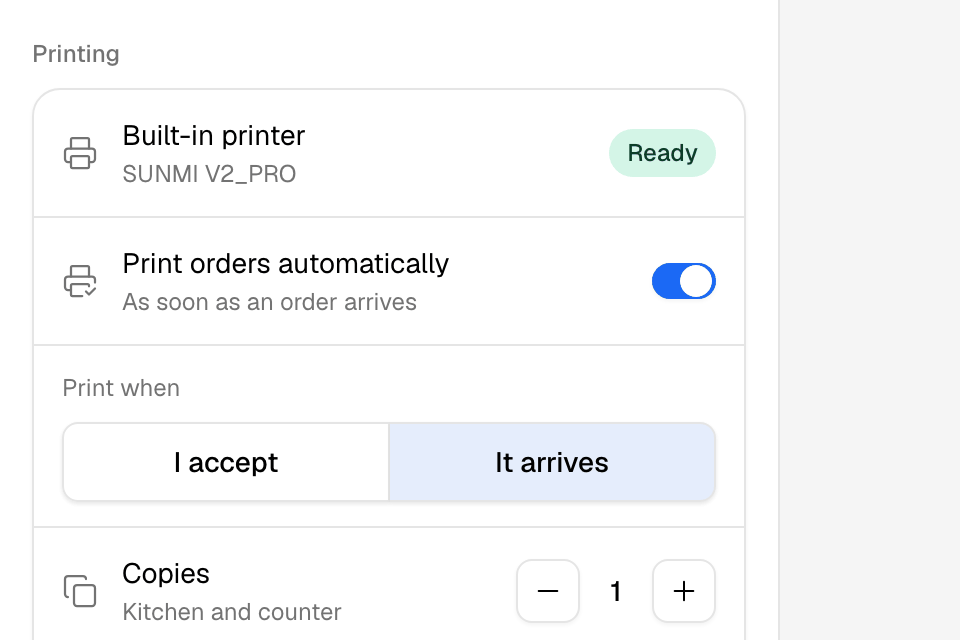
- Under Printing, check that Built-in printer says Ready.
- Turn on Print orders automatically.
- Under Print when, choose:
- It arrives: prints each new order as soon as it comes in.
- I accept: prints each order when you accept it on this device.
- Under Copies, tap + or − to print 1 to 4 copies, for example one for the kitchen and one for the counter.
- Tap Print a test receipt to check the printer.
Print many orders at once
- On Orders, touch and hold a row to start selecting.
- Tap the other orders.
- Tap Print receipts.
On a Sunmi device, the receipts print one after another. On another phone, one print screen opens with every receipt.
Rules and limits
- An unpaid order has no print button. It prints once it is paid.
- Bulk print takes 50 orders at most. Unpaid orders are left out, and the app says how many.
- Automatic printing prints each order once, even if the app hears about it twice.
- Print orders automatically is on by default on a Sunmi device, set to It arrives, with 1 copy.
- The printing settings are saved on this device. Set each device on its own.
- On a phone without a built-in printer, Settings says "None found. Print opens your phone's print dialog."
Common questions
It says "Could not print #1043."
Check that the printer has paper and its cover is closed. Then tap the printer button again. The app says "Check the printer and try again." when a print stops.
My Sunmi device shows "Looking for a printer".
The printer service is starting. Wait a moment, then open More > Settings again.
Does "I accept" print orders accepted on the web?
No. I accept prints only orders you accept on this device. To print every order, choose It arrives.