For: Owners, Operations
Where: Serve > Curbside > Signage > Download
Available: Web dashboard · All countries
A customer who sees your sign can scan it and start a pickup or curbside order at that branch. Each branch gets its own signs, QR codes and links, made in your store's colours.
How it works
Zyda makes one sign for each branch and each way of collecting:
- A Pickup sign for each branch that offers pickup.
- A Curbside sign for each branch that offers curbside.
Each sign has its own link. A customer scans the QR code or opens the link. Your store then opens in pickup or curbside mode, with that branch already chosen.
You design the signs once, and the design applies to every sign on the page.
Open the signs
- Go to Serve > Curbside.
- Under Set up, next to Signage, select Download.
The Signage row shows once a branch offers curbside. The page then has signs for every branch that offers pickup or curbside.
If no branch offers curbside, the dashboard has no link to this page. The Pickup page has no link to it.
Design the signs
In Sign design:
-
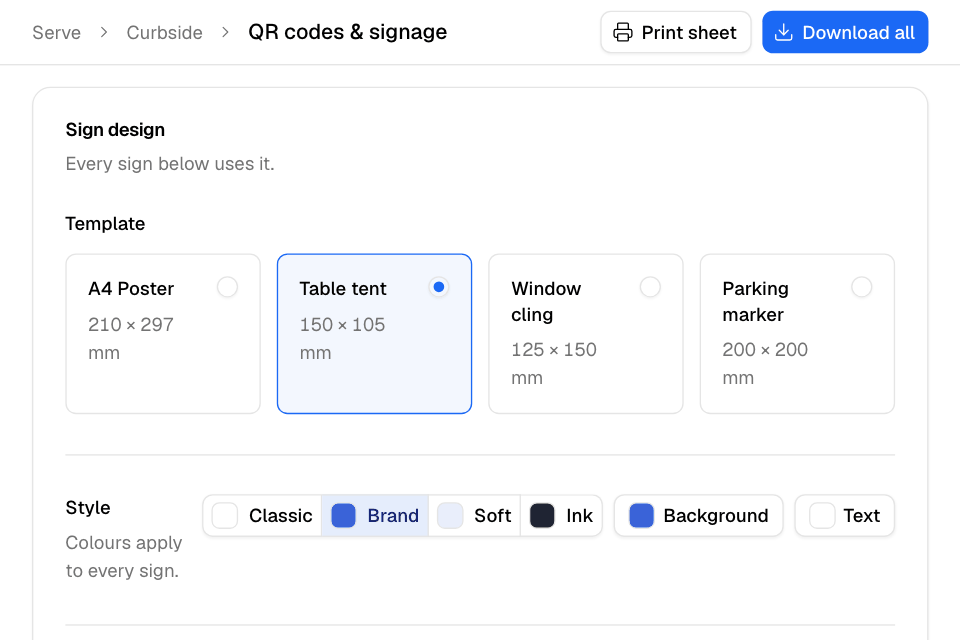
Under Template, choose the size:
Template Size A4 Poster 210 × 297 mm Table tent 150 × 105 mm Window cling 125 × 150 mm Parking marker 200 × 200 mm -
Under Style, choose a colour set, such as Classic or Brand. The sets come from your store's colours. To pick your own, select Background or Text.
-
Under Headline font, choose Serif or Sans. This shows only if your store has its own fonts.
-
Under Sign language, choose English or عربى. Colours apply to both languages. You write the text for each language.
-
Under Pickup message and Curbside message, choose a Message to start from. Then change the Headline and Subtext if you want.
The signs under the form change as you type.
Print or download
| You want to | Do this |
|---|---|
| Print every sign | Select Print sheet. A new window opens with the print dialog. |
| Download every QR code | Select Download all. You get one PNG file for each sign. |
| Download one QR code | On the sign, select Download QR. |
| Share one link | On the sign, select Copy link. |
Rules and limits
- The design is not saved. If you leave the page, it goes back to the default design. Print or download before you leave.
- If the print window does not open, allow pop-ups for the dashboard and try again.
- The template, colours and text do not change the links. Sign language does: an Arabic sign opens your store in Arabic. A printed sign keeps working.
Common questions
Can I put the link in my Instagram bio?
Yes. Select Copy link on the sign and paste it anywhere. The link opens your store in pickup or curbside mode at that branch.
What is the difference from my store's QR code?
Your store's QR code opens your store's home page. These signs open pickup or curbside at one branch. For the store's code, read Make a QR code for your store.