For: Owners, Marketing, Operations
Where: Respond > Reviews > Insights, and Respond > Reviews > Inbox
Available: Web dashboard · All countries
Needs: Review invites turned on
Ratings tell you what goes well and what to fix. For example, a dish that arrives cold or a branch that is slow. Insights shows the trends, and Inbox shows every review.
How it works
Customers rate two things for each order, from 1 to 5 stars:
- Order rating: the food and the order.
- Delivery rating: the delivery. Pickup orders have no delivery rating.
They can also pick tags, such as taste or packaging, and write a comment.
Respond > Reviews opens on Insights. Both tabs show the last 90 days, including today. Change the dates and the branch at the top of the page.
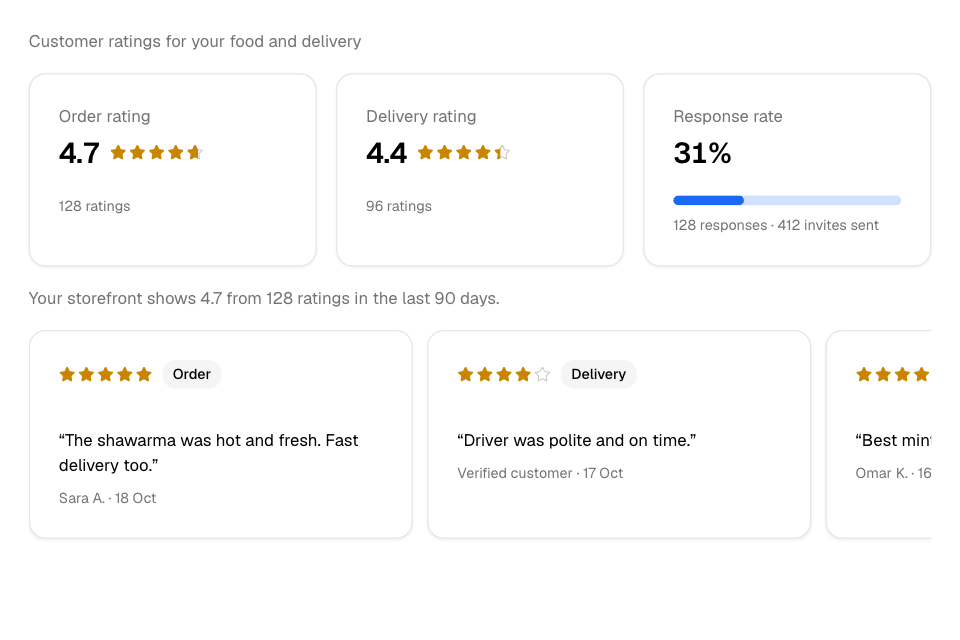
Read your Insights
- Go to Respond > Reviews > Insights.
- Optional: choose a branch, and change the dates.
You see:
- Order rating and Delivery rating: the average stars and how many ratings. Below the minimum number of ratings, the card says "Not enough ratings yet".
- Response rate: how many customers who got an invite answered it.
- A line that says which rating your store shows, and how many ratings it uses. It shows only when your store shows a rating.
- Recent comments from customers.
- Rating distribution: how many ratings have each number of stars.
- Ratings trend: how your ratings change over time.
- Branch comparison: each branch's ratings, when you look at all branches.
- What's driving your ratings: the tags customers pick most, for the order and the delivery, praised and flagged.
- Items in your highest-rated orders and Items in your lowest-rated orders.
Customers rate the whole order, not each item. The item lists show how often an item appears in the best and worst rated orders. Use them as a place to look, not as an item's rating.
Read every review
- Go to Respond > Reviews > Inbox.
- Optional: choose a branch, and change the dates.
Reviews show newest first, 20 to a page. Each row shows the Date, the Customer, the Order rating, the Delivery rating, the Tags and the Order #. A review with no customer name shows Guest. A review that earned the customer a reward shows Incentivized.
- Select a row to open the order.
- Open the row's menu to select View order or View customer.
Opening the Inbox clears the new-review count in the sidebar, on this browser.
Rules and limits
- A branch average shows only after the branch has enough ratings. The default is 5. Change it in Settings > Advanced.
- Your store's rating and item averages need 10 ratings by default.
- You need the Reviews area in your role. The Owner, Operations and Marketing roles have it by default.
Common questions
Can I reply to a review?
Not from the dashboard. Open the customer from the review and contact them by phone or in Respond > Chats.
Why is there no rating on my store?
Check Respond > Reviews > Settings. In Auto (when strong) mode, the rating shows only at or above your minimum, 4.5 by default. It also needs enough ratings. Always hide hides it.
I turned invites off. Where are my old reviews?
They stay. On the Inbox start page, select the link with your count of past reviews, for example See your 12 past reviews.