For: Owners, Operations
Where: Setup > Menu > Items > open an item > Booking slots
Available: Web dashboard · All countries
Needs: Booking slots, turned on for your store by Zyda
Some things you sell happen at a set time: a cooking class, a tasting night or a seat at an event. Add time slots to the item. Customers pick a slot when they order, and each order takes a seat.
How it works
A slot is a date and a time, or a whole day. Each slot has a number of seats. The seats count at each branch that sells the item. A slot can also have its own price.
On your store, the item page shows a time picker with the seats left. Checkout takes the seats. A cancelled order gives them back. The booked time shows on the order, the printed receipt and the customer's order page.
The Booking slots tab shows only after Zyda turns booking slots on for your store. Ask Zyda to turn it on.
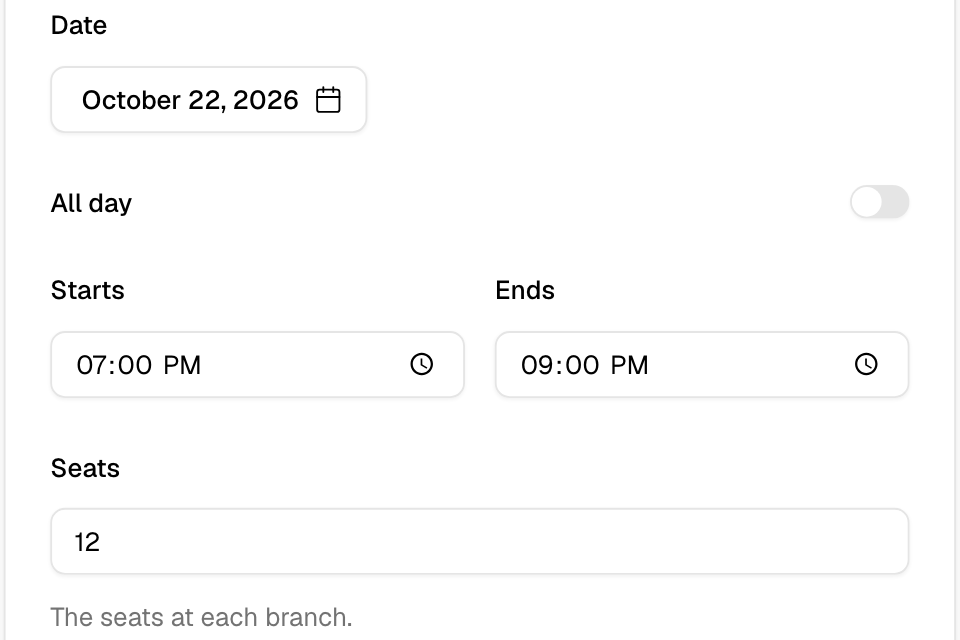
Add slots
- Go to Setup > Menu > Items and open the item.
- Open the Booking slots tab.
- If the item has more than one size, choose the size in the list at the top.
- Select Add slot.
- Pick the Date. Enter when it Starts and Ends, or turn on All day.
- Enter the Seats.
- Optional: enter a Price.
- Select Done.
- Select Save slots.
Slots save only with Save slots, not with the item's Save.
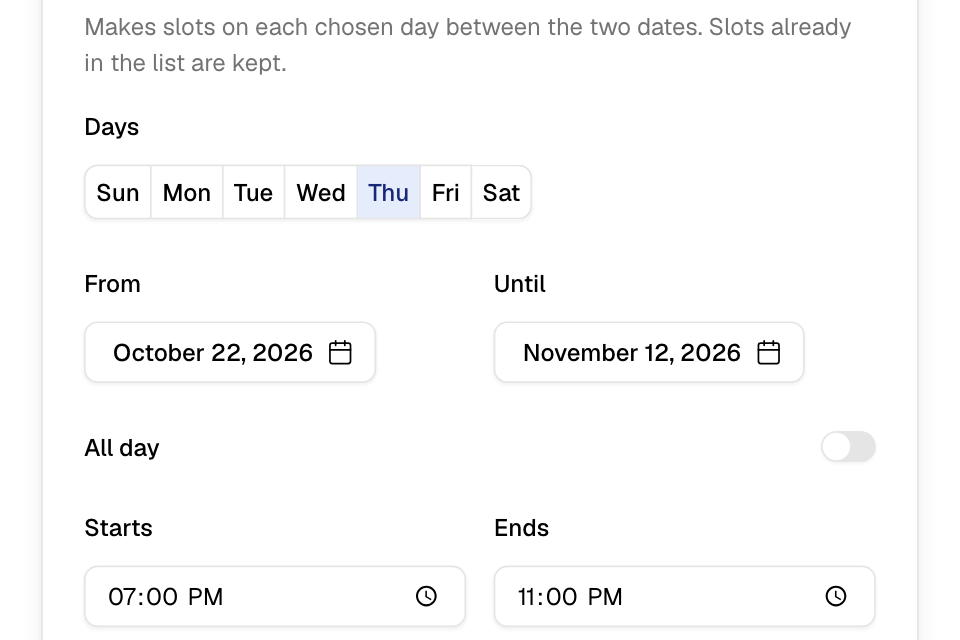
Add many slots at once
- Select Add repeating slots.
- Pick the Days of the week.
- Pick the dates From and Until.
- Enter when the slots start and end, or turn on All day.
- Under Each slot, choose One slot for the whole time, or a length such as 1 hour.
- Enter the seats and an optional price.
- Select the add button. It says how many slots it adds, for example Add 12 slots.
- Select Save slots.
Slots that are already in the list stay as they are.
See the seats left
Choose a branch in the branch list at the top of the tab. Each slot then shows, for example, "3 of 10 left". A slot shows Full when no seats are left, and Past when it has started.
Slot prices
- Leave the price empty, or enter 0, to use the item's normal price. Branch prices and discounts then apply.
- A price above 0 is the final price at every branch, with no discount.
Rules and limits
- A size can have up to 200 slots.
- Two slots of one size cannot have the same date and time.
- An upcoming slot with booked seats cannot be removed or moved to another date or time. Cancel or move those orders first.
- An item with slots cannot count a daily capacity. An item that counts a daily capacity cannot have slots.
- An item with booked seats on upcoming slots cannot be deleted. Unpublish it instead.
Common questions
Each customer takes how many seats?
One seat per item ordered. A customer who orders 2 takes 2 seats.
The tab is not there. Why?
Booking slots are off for your store. Ask Zyda to turn them on. A new item shows the tab after you create it.