For: Owners, Operations
Where: Setup > Integrations > Google Sheets
Available: Web dashboard · All countries
Many teams keep a sheet of their orders for accounting or stock. Connect Google Sheets, and Zyda adds a row for every new order, so nobody copies orders by hand.
How it works
Each order adds one row to the tab you choose, when the order is placed. This includes orders from your website, your app and your staff.
The first column is always the Zyda order ID. If Zyda tries a row again, it checks this column, so the same order is never added twice.
Connect your sheet
- Go to Setup > Integrations and select Google Sheets.
- Under 1. Share your spreadsheet, copy the Zyda email address.
- In Google Sheets, share your spreadsheet with that address, as an Editor.
- Under 2. Spreadsheet URL, paste the link of your spreadsheet. Select Load tabs.
- Choose the tab.
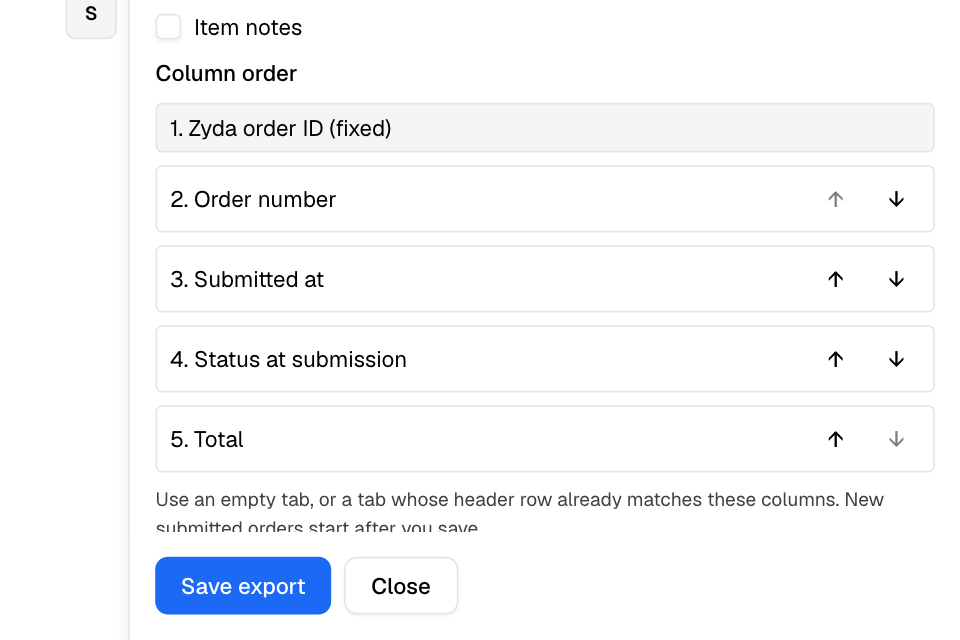
- Under 3. Order columns, tick the order details you want. Use the arrows to put them in order.
- Select Save export.
New orders start after you save. Earlier orders are not added.
The order details you can add
Order number, Submitted at, Status at submission, Order type, Branch, Customer name, Customer phone, Total, Subtotal, Delivery fee, Payment method, Payment status at submission, Voucher code, Origin, Items and Item notes.
Each row shows the order as it was when it was placed. Later status changes do not update the row.
When something goes wrong
If Google refuses a row, the export pauses and the sheet shows why. Fix the problem, then select Save export again. Orders placed during the pause are added after you save.
| You see | Fix |
|---|---|
| Sheet columns changed. Save the tab again to resume export. | Put the header row back, or choose an empty tab, and save. |
| This spreadsheet is already connected to another restaurant. | Use another spreadsheet. One spreadsheet works for one store. |
| This tab already has different columns. Choose an empty tab or the same columns. | Choose an empty tab, or the same columns. |
Rules and limits
- Use an empty tab, or a tab whose header row already matches your columns.
- The sheet gets your customers' names and phone numbers if you choose those columns. Share the spreadsheet with care.
- To stop the export, select More, then Disconnect.
Common questions
Can I send status changes to the sheet too?
No. The sheet gets one row when the order is placed. To follow every status change, use webhooks. See Set up webhooks and API keys.