For: Owners, Operations
Where: Serve > Wholesale > Accounts > open a business > Price list
Available: Web dashboard · All countries
A hotel that buys 100 croissants a day pays less than a walk-in customer. Give each business its own prices, and show it only the products you sell to it.
How it works
Each business has its own price list. You can build it in two ways, or mix them:
- A discount on all products: every product shows on the business's link at that discount, for example 10% off.
- Products one by one: add only the products the business buys, each with its own price.
A price you enter for a product always replaces the discount. Products not on the list, and products you hide, do not show on the business's link.
The prices are checked again at checkout, so a business always pays the price on its list.
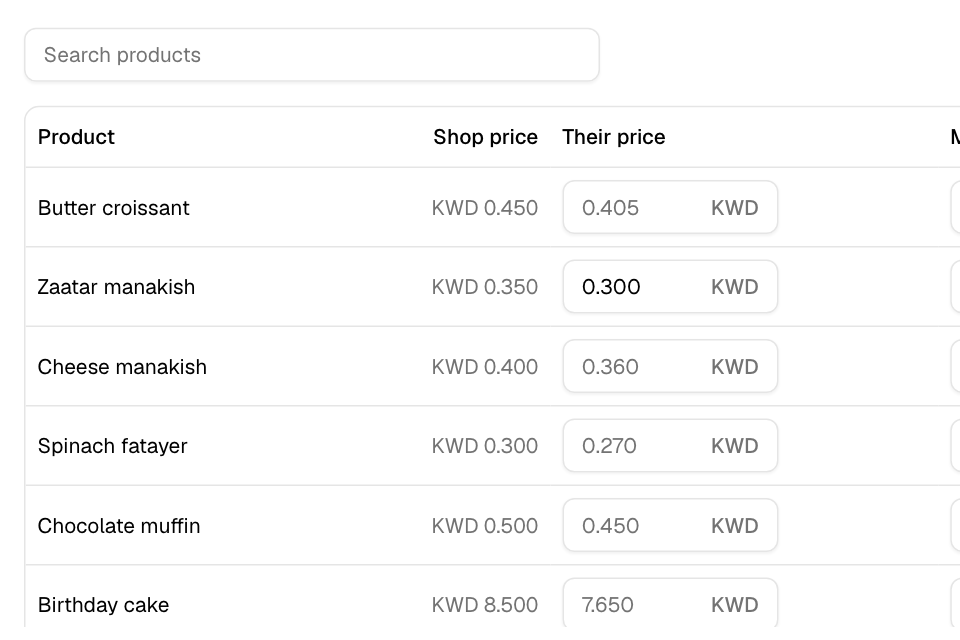
Give a discount on all products
- Go to Serve > Wholesale > Accounts and open the business.
- Scroll to Price list.
- In Discount on all products (%), enter a number above 0 and below 100.
- Select Save.
Every product now shows in the table. After you save, an empty Their price box shows the discounted price in grey.
Add products one by one
- In Price list, leave Discount on all products (%) empty.
- Select Add products.
- Tick the products. Then select the Add button, which shows how many you ticked, for example Add 3.
- For each product, enter Their price. Leave it empty to use the shop price.
- Select Save.
Set a minimum quantity or hide a product
- In Min qty, enter the smallest number the business must order of that product in one order. It starts at 1.
- Turn off Visible to hide a product from this business only.
- Select Save. To undo your changes before saving, select Discard changes.
Rules and limits
| On the list | What the business pays |
|---|---|
| A price in Their price | That price |
| No price, with a discount on all products | The shop price less the discount |
| No price, no discount | The shop price |
| Visible off | Cannot order it |
| Not on the list, no discount | Cannot order it |
- Shop price is the price at the branch the business orders from.
- Each size of a product is its own row.
- Modifiers (options) keep their normal prices.
- Combo meals and products with a booked time cannot be ordered on a business link.
- Prices take your currency's decimals, for example 3 for KWD.
- The table shows 50 products a page. Use Search products to find one.
- Add products shows only while the discount box is empty.
Common questions
I removed the discount. Why did some products disappear?
Without a discount, the list shows only products you added or changed. Products that came only from the discount are no longer sold to the business. Add them with Add products.
Can two businesses share one price list?
No. Each business has its own list. Set each one on its own page.
What does the business see when it orders below the minimum quantity?
The link says "Order at least" and the number, and checkout stops an order with fewer.