For: Owners, Operations
Where: Setup > Menu > Prices
Available: Web dashboard · All countries
Prices change, and some branches charge more than others. Change every price from one table, without opening each item.
How it works
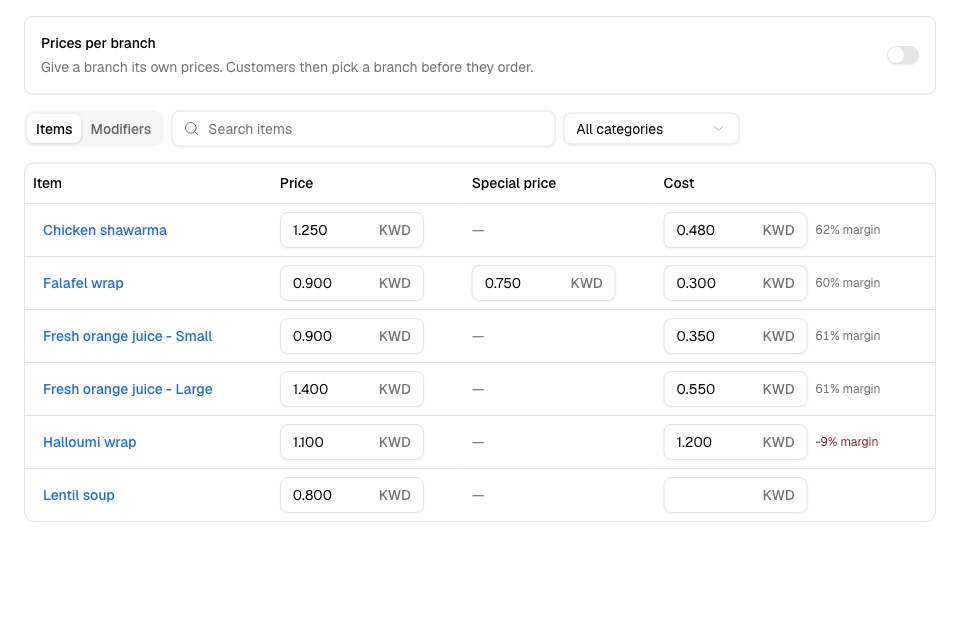
Setup > Menu > Prices lists every item size with its price. You type a new price in the table, and it saves when you leave the field.
Each size has:
| Column | What it is |
|---|---|
| Price | The normal price. |
| Special price | A lower price that customers pay instead. A dash (—) means the size has none. |
| Cost | What one unit costs you. Only the Owner and Operations roles see it. |
When a size has a cost, Zyda shows its margin, for example "62% margin". The margin uses the special price when there is one. If the cost is above the price, the margin shows in red, because you lose money on each sale.
Change a price
- Go to Setup > Menu > Prices.
- Find the item. Use Search items or choose a category.
- Select the price, and type the new one.
- Press Enter, or select another field.
The price saves at once. To change a special price, type the new one in Special price. To add or remove a special price, open the item and use Add discounted price on the Variants & prices tab.
Give a branch its own prices
- Turn on Prices per branch.
- Under Prices shown, choose the branch.
- Type the branch's price next to the item. The Status column changes from Default to Own price.
To go back to the default price at that branch, empty the field. You can also give a branch its own special price.
When you turn on prices per branch, customers must pick a branch before they order. If customers can still browse first, a notice says so. They see your default prices until they pick a branch. Select Ask them to pick a branch first to change this.
Add costs
- Go to Setup > Menu > Prices, with Default prices shown.
- Type what one unit of the size costs you in Cost.
- Press Enter, or select another field.
To remove a cost, empty the field.
Change modifier prices
- Open the Modifiers tab on the Prices page.
- Find the group or the option. Each group shows how many items use it.
- Type the new price for the option.
With prices per branch on, choose a branch to give options a price for that branch only.
Rules and limits
- A price must be 0 or more.
- A special price must be lower than the price.
- An empty branch price uses the default price.
- Only roles with See product costs can see and save costs: the Owner and Operations roles, or a role of your own with that switch on. Other roles do not see the Cost column.
- You can type numbers with Arabic digits.
- If your menu comes from a POS, prices are managed in the POS. You can still save costs.
Common questions
Where else can I change a price?
In the item editor, on the Variants & prices tab. Select an item's name on the Prices page to open it.
Do special prices show as a discount to customers?
Yes. Your store shows the special price, with the normal price crossed out. Offers and promo codes are set up in Grow > Offers instead.