For: Owners, Operations
Where: Setup > Integrations > Webhooks, API keys
Available: Web dashboard · All countries
Your ERP, accounting tool or your own app may need your orders as they happen, or may take orders that should be in Zyda too. Webhooks send your orders out. API keys let your system send orders in. You set both up here; your developer does the rest.
How it works
- A webhook is a web address (URL) of your system. Zyda sends it each order event you choose, such as "Order placed". Each request is signed with the webhook's secret, so your system can check it came from Zyda.
- An API key lets your system send orders to Zyda, for example orders you took on a delivery app or by phone.
Your developer needs the guide Connect your own system: orders API and webhooks. Both pages link to it as API guide.
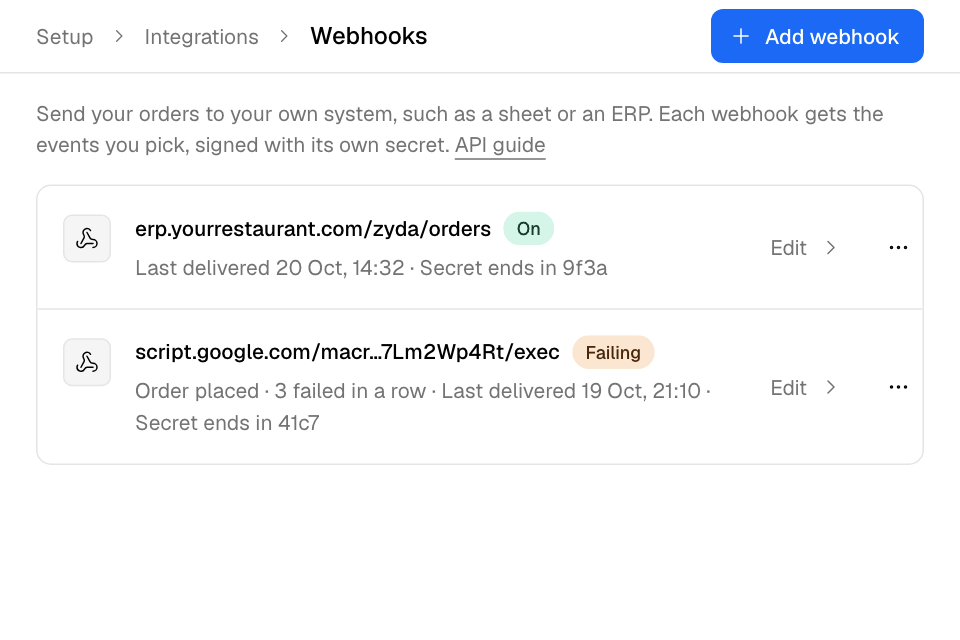
Add a webhook
- Go to Setup > Integrations and select Webhooks.
- Select Add webhook.
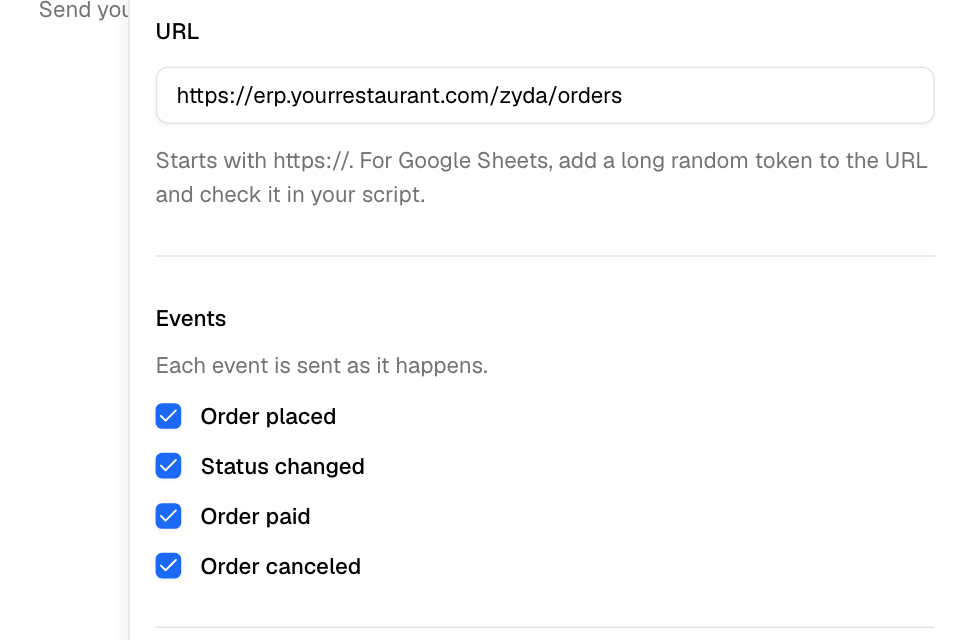
- Enter the URL. It must start with https://.
- Under Events, tick what to send: Order placed, Status changed, Order paid, Order canceled.
- Under Order details, untick any part you do not want to send: Customer name and phone, Delivery address, Items, Payment and totals. The order number, status, times, branch and source are always sent.
- Select Save.
- Copy the secret and give it to your developer. You see it only once. Select Done.
Check that your system receives orders
- On the webhook's row, select More actions (the three dots).
- Select Send test event, choose an event and select Send.
Zyda sends a made-up order, number TEST-0001. You see Delivered or Not delivered, with your system's answer.
To see real deliveries, select Delivery log. It shows the last 30 days. Open one to see what was sent and the error. Select Send again to repeat it.
What the state badge means
| Badge | Meaning |
|---|---|
| On | Sending. |
| Failing | Sending, but the last deliveries failed. The row says how many in a row. |
| Off | You turned off Send events. |
| Turned off | Zyda turned it off after 50 failed deliveries in a row. The row shows the last error. |
To turn a webhook back on, open it, turn on Send events and save. The failure count starts again.
Make a new secret
If the secret leaked, select More actions, then New secret. The old secret stops working at once. Give the new one to your developer.
Create an API key
- Go to Setup > Integrations and select API keys.
- Select Create key.
- Optional: give it a Name, such as ERP.
- Select Create.
- Copy the key and give it to your developer. You see it only once. Keep it secret, like a password.
The page shows where your system sends orders: POST https://dashboard.zyda.com/api/v1/stores/orders.
Each key row shows its first characters, when it was created and when it was last used.
Revoke an API key
- On the key's row, select More actions, then Revoke.
- Confirm. Orders sent with this key are refused from now on. You cannot undo this.
Rules and limits
- A store can have up to 5 webhooks and up to 10 active API keys.
- You reach these pages from Setup > Integrations. By default, only the Owner and Operations roles see it.
- Orders sent with an API key need their order source turned on. See Choose the order sources your team records.
- Deleting a webhook also deletes its delivery log.
Common questions
Does Zyda message my customer about an order my system sent?
No. Zyda sends the customer nothing about these orders.
My webhook shows Turned off. What now?
Your system did not accept 50 deliveries in a row. Ask your developer to fix the URL. Then turn Send events back on.