For: Owners, Operations
Where: Setup > Menu > Modifiers > Edit group
Available: Web dashboard · All countries
Customers choose faster when they can see the choices. Add a photo to each modifier option, such as each sauce or drink. Then choose how the group shows on your store: a list with small photos, or a grid of photo cards.
How it works
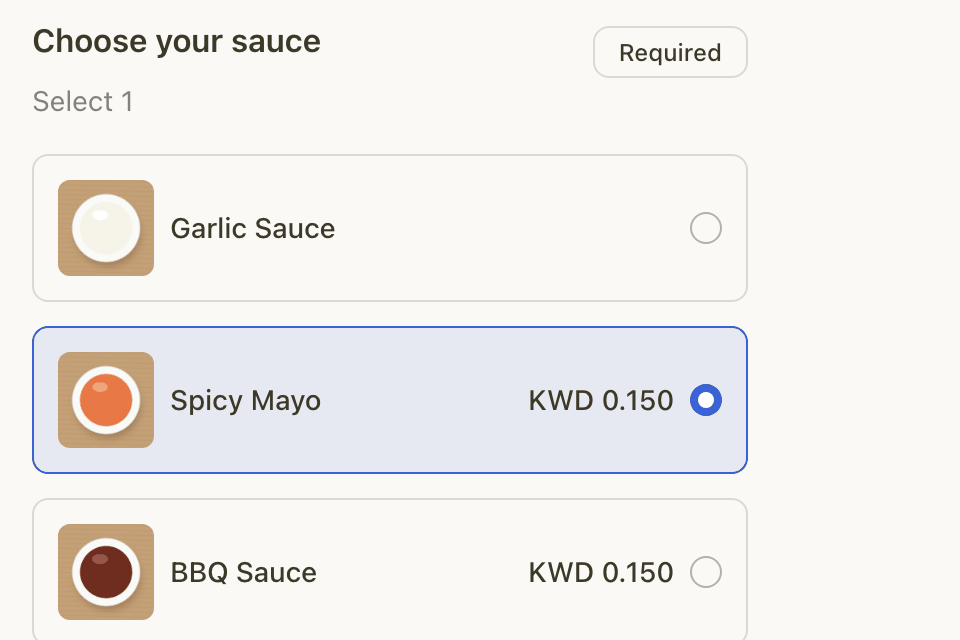
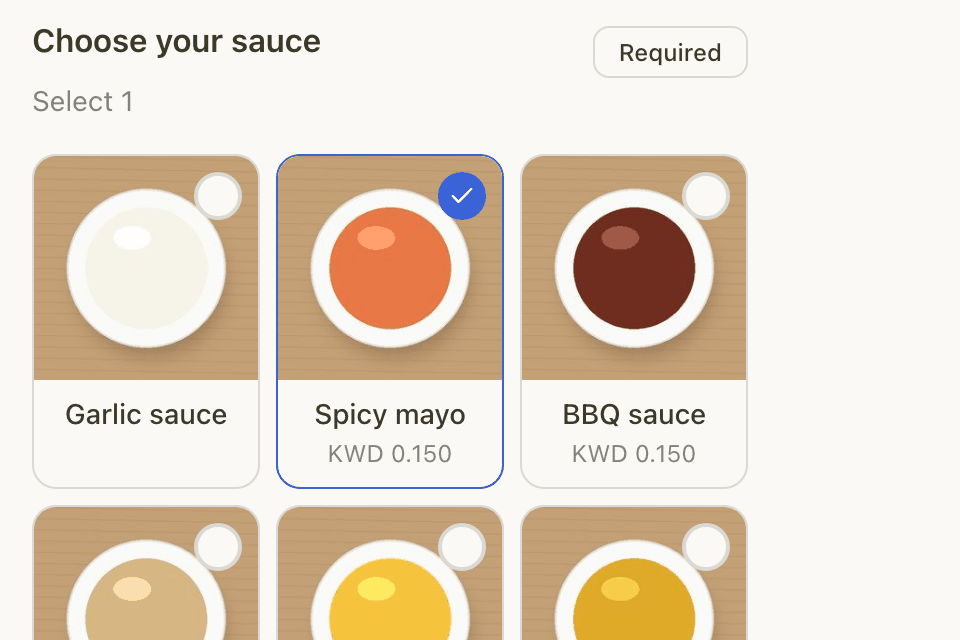
Each modifier group has a display style. It decides how customers see the group's options on the item page of your store:
| Style | What customers see |
|---|---|
| List | One option per row, with its name, its price and a small photo at the start of the row. |
| Grid | Photo cards, three in a row. Each card shows a square photo, the name and the price. |
A new group starts as List. The style is set for the group, so it is the same on every item that uses the group.
In both styles, a free option shows no price. An option with no photo shows without one: in the list it has no thumbnail, and in the grid the card shows only the name and price.
Add a photo to an option
- Go to Setup > Menu > Modifiers.
- Choose the group on the left.
- Select the "…" menu on the option, then Edit.
- Under Option photo, choose a photo.
The photo saves as soon as you choose it. You do not need to select Save for it.
To remove the photo, select Remove, then confirm. The photo is deleted from your store at once, and you cannot undo it.
You can add a photo only to an option that already exists. To add a photo to a new option, create the option first, then edit it.
Choose List or Grid
- Go to Setup > Menu > Modifiers.
- Choose the group on the left.
- Select Edit group.
- Under Options display on storefront, choose List or Grid.
- Select Save.
Which style to choose
- Choose Grid when the options look different and a photo helps, such as drinks, sauces or desserts.
- Choose List for options where a photo does not help, such as sizes, spice levels or "no onions". The list also fits more options on the screen.
- If most options in a group have no photo, keep List.
Rules and limits
- A photo must be 5 MB or smaller.
- The grid shows three cards in a row on phones and computers.
- In the grid, each card has a round mark when customers must pick exactly one option, and a square mark in other groups. The mark fills on the cards the customer picks.
- When customers can pick the same option more than once, the grid shows a counter on each card instead of a mark. The list shows a counter on each row, without photos.
- Only the Owner and Operations roles can add photos and change the style. Branch staff cannot.
Common questions
Do option photos show anywhere else?
On your store, option photos show where customers choose the options, in the list or the grid. They do not change the item's own photo.
Can I use Grid for one item and List for another?
No. The style belongs to the modifier group. To show the same options in two ways, duplicate the group and give the copy the other style. See Create modifier groups and options.