For: Owners, Branch staff, Operations
Where: Menu tab
Available: Zyda phone app (Android) · All countries
Needs: The new look of the Zyda app. The iPhone version does not have it yet.
An item runs out in the middle of service. Turn it off from your phone, and customers stop ordering it at that branch.
How it works
The Menu tab lists your items and options for one branch at a time. Each row has a switch. On means customers can order it at that branch. Off means they cannot.
The line under each name says its state: Available, Sold out, Sold out today, or "Unavailable until 9:00 PM".
The tab has two lists:
- Items: the dishes and products on your menu, by category.
- Modifiers: the options inside items, such as sizes and sauces, by group.
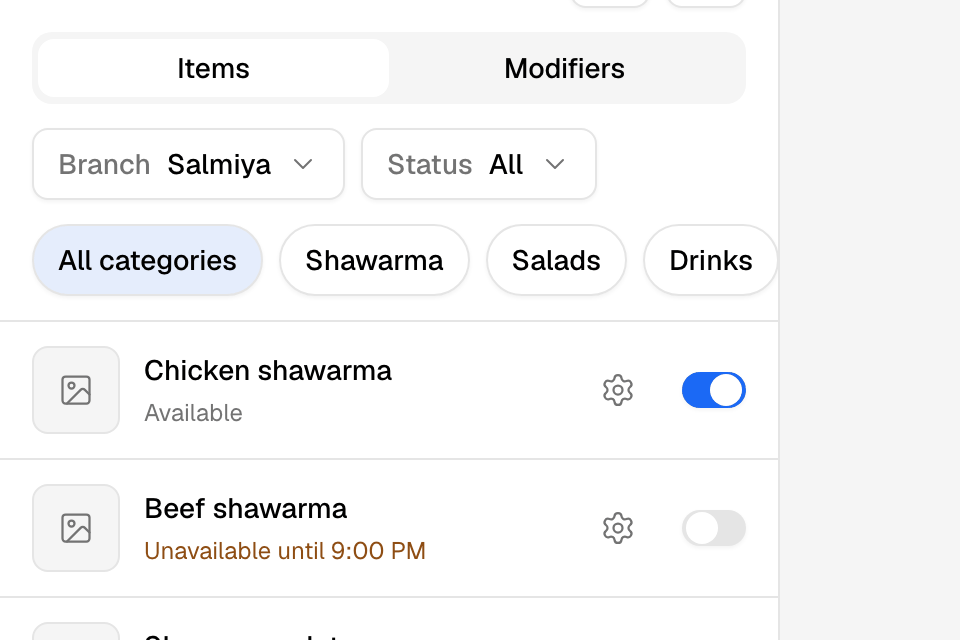
Turn an item off
- Open the Menu tab.
- Check the Branch at the top.
- Find the item. Use the category list, the Status filter or the search button.
- Turn off its switch.
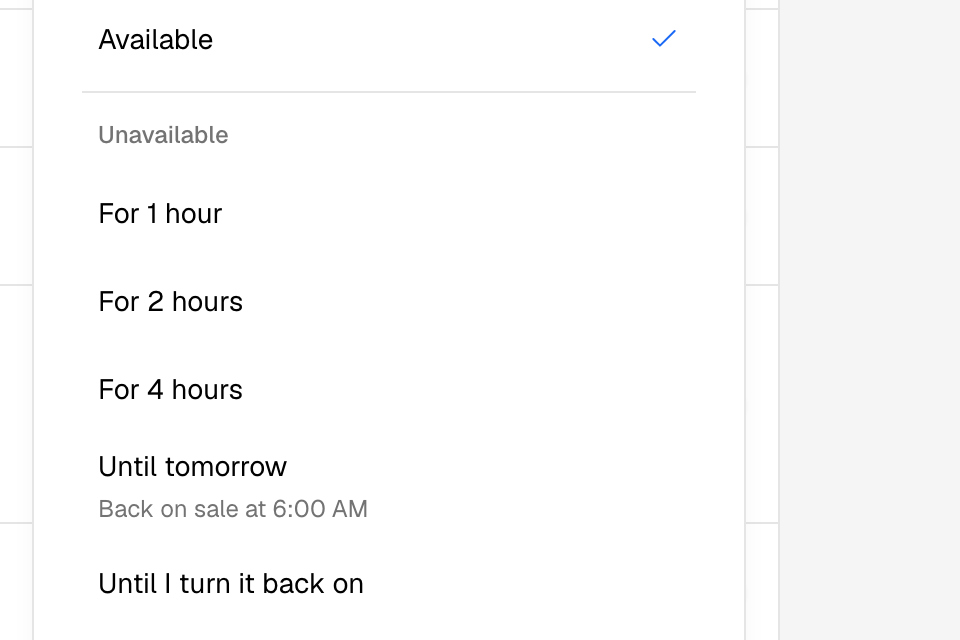
- Choose how long:
- For 1 hour, For 2 hours or For 4 hours.
- Until tomorrow. The app shows when it is back on sale.
- Until I turn it back on.
The item comes back by itself at the end of the time you chose. To turn it back on earlier, turn on its switch.
Turn an option off
- Tap Modifiers.
- Find the option. Pick a group or search.
- Turn off its switch.
An option stays off until you turn it back on.
Change a stock count
Items that count their stock show the number on the row, for example "Inventory 12" or "Daily Capacity 30 · 5 left today". Low Stock shows when few are left.
- Tap the number on the row.
- Enter the new count.
- Tap Save.
To choose how an item counts, tap the gear on its row. Choose On or off only, Inventory or Capacity. See Track stock and daily capacity.
More in the ⋯ menu
- View history: every stock change, with who made it and when.
- Stock settings: when to warn customers that an item is running out, and the message they see.
- Review menu names: Zyda AI's suggested names and descriptions, when it has some for you.
Rules and limits
- A change applies only to the branch you picked. Turn the item off at each branch that ran out.
- You need availability at view to see the tab. You need availability at edit to change stock counts and how an item counts.
- If a change does not save, the switch goes back and the app says "That change did not save. Try again."
- If your menu comes from your POS, some options cannot change in Zyda. The app says why.
- For the full rules, see Turn items off when they run out.
Common questions
What do customers see when an item is off?
They cannot order the item at that branch until it is available again. It stays on your menu with all its settings.
Why does an item with its switch on say Sold out?
It counts its stock, and none is left. Change the count, or wait for the next day if it uses daily capacity.