For: Owners, Marketing, Operations
Where: Respond > Reviews > Settings
Available: Web dashboard · All countries
You want to know how every order really went, not only the complaints that reach you. Review invites ask each customer to rate their order and its delivery after they get it.
How it works
- An order reaches the status you choose, for example Delivered.
- After the delay you set, the customer gets an invite by SMS or WhatsApp with a link to rate the order.
- The customer rates the order and the delivery from 1 to 5 stars, and can add tags and a comment.
- The rating shows in Respond > Reviews, and can show on your store.
A customer who orders often is not asked after every order. You set how many days pass between two invites.
Review invites are off until you turn them on. While they are off, Respond > Reviews shows a start page with Set up Reviews.
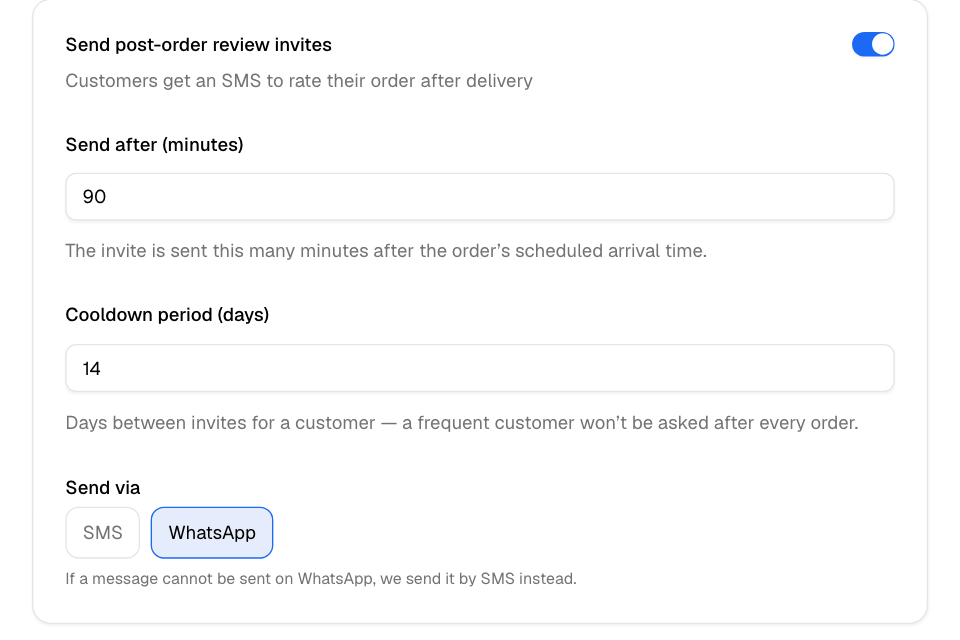
Turn on review invites
- Go to Respond > Reviews > Settings. On the start page, you can also select Set up Reviews.
- Turn on Send post-order review invites.
- Under Send via, choose SMS or WhatsApp.
- Set Send after (minutes): the invite goes out this many minutes after the order's scheduled arrival time.
- Set Cooldown period (days): the days between two invites to the same customer.
- Select Save.
The page header shows Live — invites are sending.
Choose when the invite is sent
Under When to send the invite, choose the order status that starts the timer:
| Orders | Statuses you can choose |
|---|---|
| Delivery orders | Accepted, Ready, Out for delivery or Delivered |
| Pickup orders | Accepted, Ready or Picked up |
The invite is sent after the delay in Send after (minutes).
Write your own SMS message
- Under SMS message, select Customize message.
- Write the Message (English) and the Message (Arabic).
- Add the details you need: Customer name, Restaurant name, Order number and Review link.
- Select Save.
A message can be up to 2 SMS long. To go back to Zyda's text, select Use default message.
WhatsApp invites use a message that Meta approved. You cannot edit it here.
Choose where your rating shows
Under Display rating on Storefront:
- Show the rating on your storefront:
- Auto (when strong): the rating shows only when it is at or above Minimum rating to show (Auto). The default is 4.5.
- Always show.
- Always hide.
- Show rating in search results (SEO): adds your star rating to how your store shows in Google results. This is separate from the rating on your store.
Under Advanced:
- Minimum ratings for a branch average (Insights): a branch's average stays hidden in Insights until it has this many ratings. The default is 5. Branch averages never show on your store.
- Minimum ratings for a store / item average: your store's public rating and item averages need this many ratings before they show. The default is 10.
Rules and limits
| Setting | Default |
|---|---|
| Send after (minutes) | 90 |
| Cooldown period (days) | 14 |
| Delivery orders | Delivered |
| Pickup orders | Picked up |
| Show the rating on your storefront | Auto (when strong), 4.5 |
| Show rating in search results (SEO) | On |
- Counts must be whole numbers, 0 or more. The minimum rating must be from 0 to 5. A wrong value shows under its field.
- WhatsApp is greyed out until your store connects a WhatsApp number.
- When WhatsApp cannot send an invite, Zyda sends it by SMS.
- Each invite sent by SMS uses one of your store's SMS credits. With no credits left, the invite is not sent, and Zyda does not try again later. An invite sent on WhatsApp uses no SMS credit. Meta charges your business for it.
- Orders you create in the dashboard, such as phone orders, get no invite.
- When Meta first approves your review invite template, Zyda moves the invites to WhatsApp once. If you go back to SMS, they stay on SMS.
Common questions
I chose WhatsApp, but a customer got an SMS. Why?
Zyda sends the invite by SMS when it cannot send it on WhatsApp. This happens, for example, when the WhatsApp template is not approved yet.
Why did a customer not get an invite?
Check three things. Your store may have had no SMS credits left. The customer may have had an invite within the cooldown days. Or the order was created in the dashboard. See Buy SMS credits.
Can I turn invites off again?
Yes. Turn off Send post-order review invites and select Save. Reviews you already got stay in Respond > Reviews.