For: Owners
Where: Setup > Team > People > Add person
Available: Web dashboard · All countries
Each person on your team should sign in with their own email, not a shared one. Then each person sees only what their job needs.
How it works
Every person on your team has one role. A role is the set of pages a person can open and change. For example, Branch staff can take orders but cannot see your sales. Read See what each role can open and do to pick the right one.
When you add someone with a new email, Zyda creates their sign-in and emails them a password. The email says "You have been added to" and your store's name. They sign in with that password, then change it from their account page.
The email may already have a Zyda sign-in, for example when the person works at another store. Then Zyda adds your store to that sign-in. They keep their own password, and they get no email. They see your store the next time they sign in.
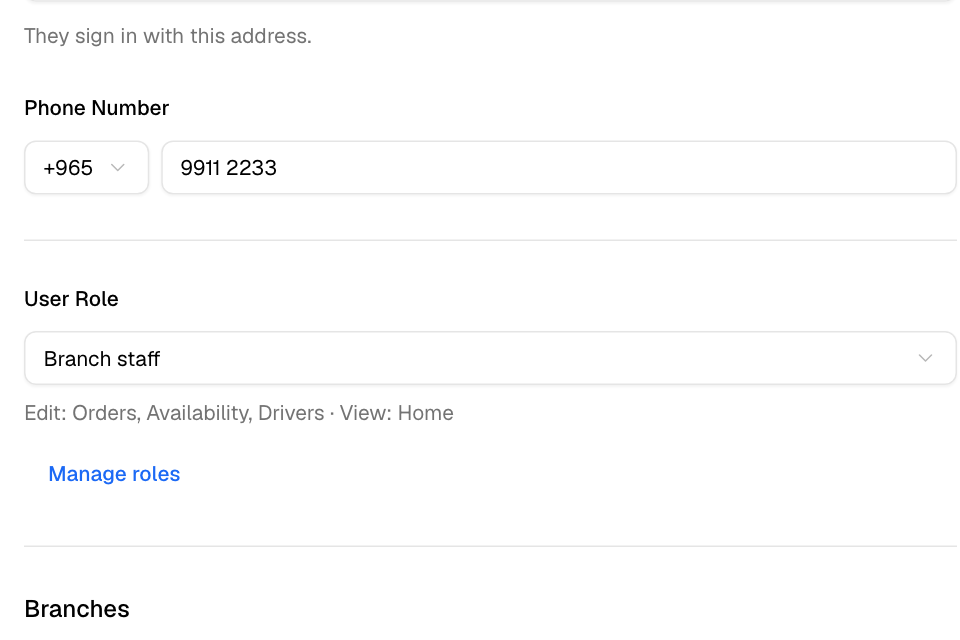
Add a person
- Go to Setup > Team.
- Select Add person.
- Enter the Full Name, Email and Phone Number.
- Under User Role, choose a role. The line under it lists the pages the role can change and view.
- Under Branches, choose All branches or Only some branches. Read Limit a person to some branches.
- Select Add.
The person now shows on the People tab.
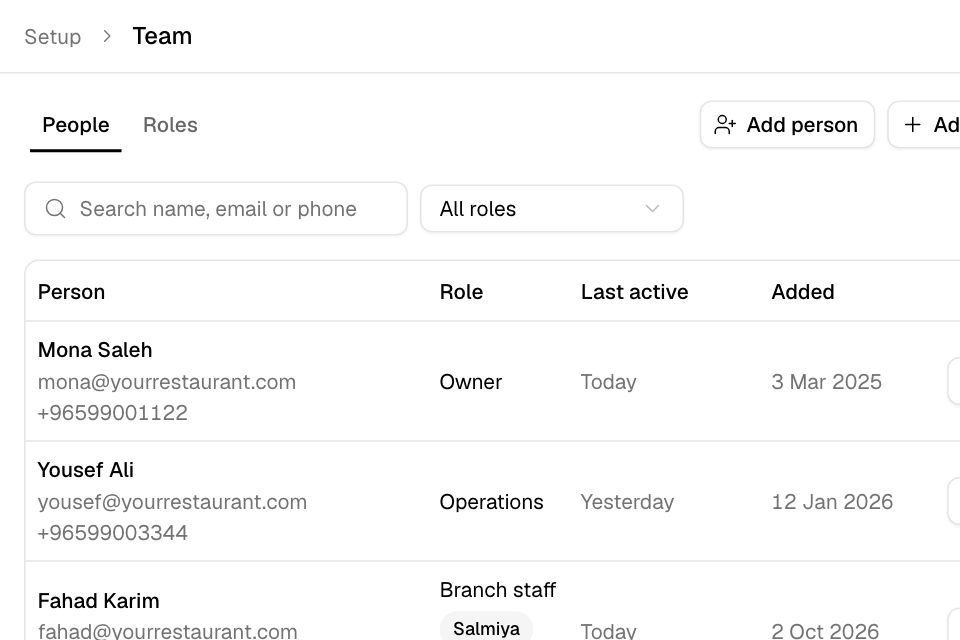
Find a person
The People tab lists everyone on your team, 10 to a page.
- Type in Search name, email or phone to find someone.
- Choose a role in the All roles list to see only the people with that role.
- Last active shows the last day the person used the dashboard. Never active means they have not signed in yet.
- Added shows the day you added them.
Rules and limits
- Only the store owner can open Setup > Team. Other people see "You cannot open the team".
- Each person has one role in your store.
- A new person starts as Branch staff on all branches. Change the role before you select Add.
- The name must have letters. The email and the phone number are required.
- Zyda staff accounts do not show in your team list.
Common questions
The person did not get a password. What now?
Ask them to check their spam folder. If they already had a Zyda sign-in, Zyda sends no email. They sign in with their own password, or select Forgot your password? on the sign-in page.
Can I set the person's password myself?
No. Zyda emails a password to a new person. Only the person can change their own password.
I saw "was added to the team, but the role you picked was not saved". What does it mean?
The person is on your team, with the ready-made role your choice is based on. The page opens their details. Check the role and select Save Changes again.
Can one person work for two of my stores?
Yes. Add the same email in each store. They choose the store after they sign in, and they can have a different role in each store.