For: Owners, Operations
Where: Setup > Menu > Items > open an item > Modifiers
Available: Web dashboard · All countries
A burger needs a choice of bread, and fries can have extra sauce. Add modifier groups to the item and set the rules: what the customer must pick, what is optional, and what is free.
How it works
You add a modifier group to an item's sizes (variants). Each size can have its own groups and its own rules.
The rules for a group on an item are:
| Rule | What it does |
|---|---|
| Minimum Selection | How many options the customer must pick. 0 makes the group optional. |
| Maximum Selection (Optional) | The most options the customer can pick. |
| Free Options | How many options cost nothing. If you set 2 and the customer picks 3, the 2 cheapest are free. |
| Allow customers to select a single option multiple times | The customer can pick the same option more than once, such as 2 extra cheese. |
| Bulk Sale options are added with a multiplier | With the option above on, the customer adds the option in steps of the Multiplier, for example 6 at a time. |
The item list in the Modifiers tab shows each group with a summary, for example "Required, At least: 1, At most: 1, Free options: 0".
Modifier groups save as soon as you add, change or remove them. You do not need to select Save for them.
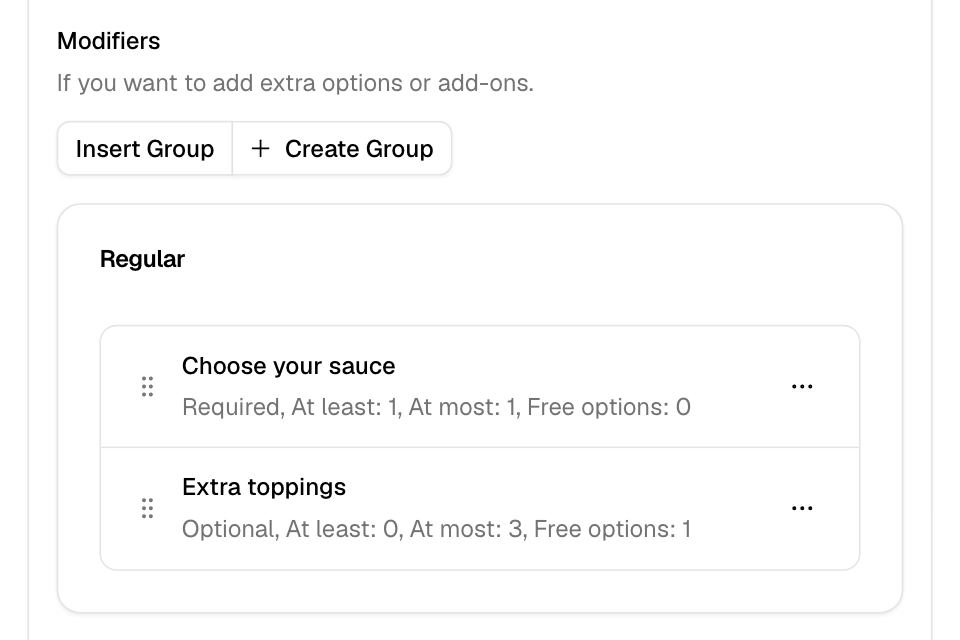
Add an existing group to an item
- Go to Setup > Menu > Items and open the item.
- Open the Modifiers tab.
- Select Insert Group.
- Under Select group variant, tick the sizes that get the group.
- Under Select Group, choose the group.
- Optional: tick the options this item does not offer.
- Under Set selection quantity, set the minimum, the maximum and the free options.
- Select Insert.
Create a new group from the item
- On the item's Modifiers tab, select Create Group.
- Enter the Group name in English and Arabic.
- Under Link group to variant, tick the sizes.
- Set the options limit.
- Add the options with their names and prices.
- Select Save.
The new group is also on the Modifiers page, ready for other items.
Change or remove a group on an item
- On the item's Modifiers tab, find the group under the size.
- Select the "…" menu on the group's row.
- Choose Edit group to change the rules or leave out options for this size. Or choose Delete option group to take it off this size.
To change the order of the groups, drag them by the grip. If a size has more than two groups, select Show more first.
Add a group to many items at once
- Go to Setup > Menu > Modifiers.
- Under the group's name, select Used in N items, or Add to items if no item uses it yet.
- Select Add to items.
- Filter by category or search, and tick the items. Select all ticks every item shown.
- Set the Default selection rules for new items.
- Select Add to items.
Items that already have the group are skipped. The message says how many.
From the same panel you can also:
- Select Edit selection rules to set one set of rules on every item that uses the group. This replaces each item's own rules.
- Select Remove from items, tick the items, and select Remove.
Let customers add a note or a photo
On the item's Modifiers tab:
- Under Special notes, turn on Customers can add a note. Write a short hint in English and Arabic, such as "Add Instructions". Tick Required to make the note required.
- Under Customise with a photo, turn on Customers can upload a photo. Write the label in English and Arabic. Tick Required to make the photo required. Use this for items such as a printed cake.
Select Save. These two settings save with the item.
Rules and limits
- The maximum cannot be more than the number of options, unless customers can pick an option more than once.
- The minimum cannot be more than the maximum.
- Free Options cannot be more than the maximum.
- The multiplier cannot be more than the maximum.
- You cannot insert a group that has no options.
- On a store connected to a POS, each new option needs its External Id.
Common questions
Why does the customer have to pick pieces?
The size is Sold as a set of pieces on the Variants & prices tab. The customer picks that many pieces from the item's groups.
I changed an option's price. Does it change on every item?
Yes. Options belong to the group, so a change shows on every item that uses it. To leave an option out for one item, edit the group on that item.