For: Owners, Operations
Where: Setup > Branches > Locations
Available: Web dashboard · All countries
Needs: Owner or Operations role
Each branch is a place customers order from. It has its own address, phone numbers, opening hours, and its own choice of delivery and pickup.
How it works
Setup > Branches > Locations shows one card for each branch. Each card shows:
- Public location if customers can visit the branch, or Private location if they cannot, such as a central kitchen.
- A Delivery badge and a Pickup badge: Available, BUSY, Closed or Unavailable.
- A line when the branch is paused, for example "Paused until 14 Oct, 18:30", or when a pause is booked for later.
Customers can order from a branch only during its opening hours, and only the ways you turn on.
Add a branch
- Go to Setup > Branches > Locations.
- Select Add Business Location.
- Enter the Branch name in English and Arabic.
- Enter the Branch phone number.
- Under Customer service number, keep Same as the branch phone number ticked, or untick it and enter another number. Customers call this number about their order.
- Under Pin on the map, search for the place or tap the map to move the pin.
- Enter the Address in English and Arabic, the Block, Street, Building and City.
- Optional: add Notes for drivers, for example which entrance to use.
- Under How customers get orders, turn on what the branch offers. See "Choose how customers get orders" below.
- Set the Opening hours.
- Select Create branch.
The next page says the branch "is ready". Select Add delivery zones so customers can order delivery from it. See Add a delivery zone.
When a branch costs extra
Your plan includes some branches: 2 on Starter (Standard) and 5 on Growth. Ring has no limit. You can add more. Each extra branch has a monthly price.
Before you create an extra branch, a note above Create branch says what it costs. It says the monthly price and what you pay today for the rest of your plan term.
Choose how customers get orders
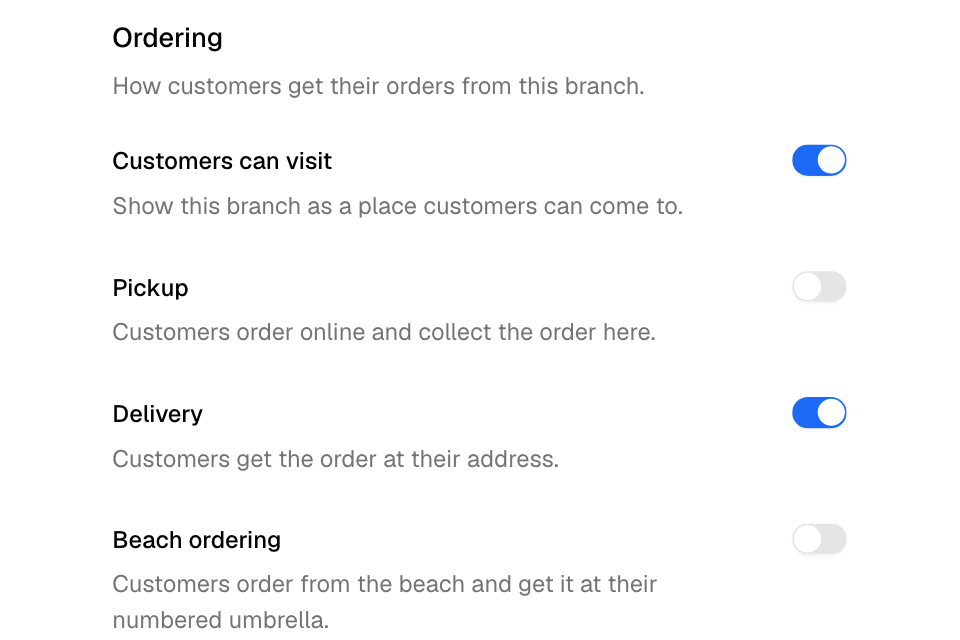
The Ordering section of the branch has these switches:
| Switch | What it does |
|---|---|
| Customers can visit | Shows the branch as a place customers can come to. |
| Pickup | Customers order online and collect the order here. It shows only when Customers can visit is on. |
| Delivery | Customers get the order at their address. The branch also needs delivery zones. |
| Beach ordering | Customers order from the beach and get it at their numbered umbrella. |
With Pickup on, choose How customers collect:
- In the branch: customers come in to collect.
- From their car: you bring the order out to the car.
- Both: customers choose at checkout.
Longest time for an order now
Set Longest time for an order now in minutes. When preparation plus delivery takes this long or longer, customers cannot order delivery for now. They can only schedule it for later, and only if scheduled orders are on. A new branch starts at 360 minutes.
Set the opening hours
- Under Opening hours, choose Every day, then the From and To times.
- To set different hours by day, choose Custom per day.
- Tick each day the branch opens, and set its times. Untick a day to close the branch that day.
A closing time at or before the opening time runs into the next day. For example, 18:00 to 02:00 closes at 2 AM.
Change a branch
- Go to Setup > Branches > Locations.
- On the branch card, select Edit.
- Change what you need.
- Select Save.
The branch page also has Last order and Blocked dates. See Close a branch on holidays and stop orders before closing.
If you leave the page with changes you have not saved, the dashboard asks you first.
Delete a branch
- Open the branch with Edit.
- Select More actions (the three dots) at the top, then Delete branch.
- If the branch has delivery zones, choose one:
- Move all the zones to another branch, then pick the branch.
- Delete the zones with the branch.
- Select Delete.
Deleting a branch can take up to 5 minutes. A zone that the other branch already has is not copied twice.
Rules and limits
- Only the Owner and Operations roles see Setup > Branches.
- A branch needs a name in English and Arabic, a phone number, an address in both languages, a block, a street, a building, a city and a pin you placed on the map.
- Every open day needs both times.
- Pickup needs Customers can visit on.
- Longest time for an order now applies to delivery orders, not pickup.
Common questions
Why can't customers choose pickup?
Turn on Customers can visit, then Pickup. Pickup is offered only at a branch customers can visit.
Why can customers only schedule delivery orders?
Preparation plus delivery takes as long as Longest time for an order now, or longer. Raise the number, or shorten the preparation time. If scheduled orders are off, customers cannot order delivery at all at that time.
How do I pause a branch for an hour?
Select Set as busy on the branch card. See Pause new orders when you are busy.
Someone on my team cannot add a branch. Why?
Only the Owner and Operations roles can add a branch. Others see "Only the store owner or a manager can add a location."