For: Owners, Operations
Where: Setup > Menu > Items
Available: Web dashboard · All countries
Your menu is a list of categories with items in them. Add each dish once, with its photo, names in English and Arabic, price and sizes. Then choose the branches that sell it.
How it works
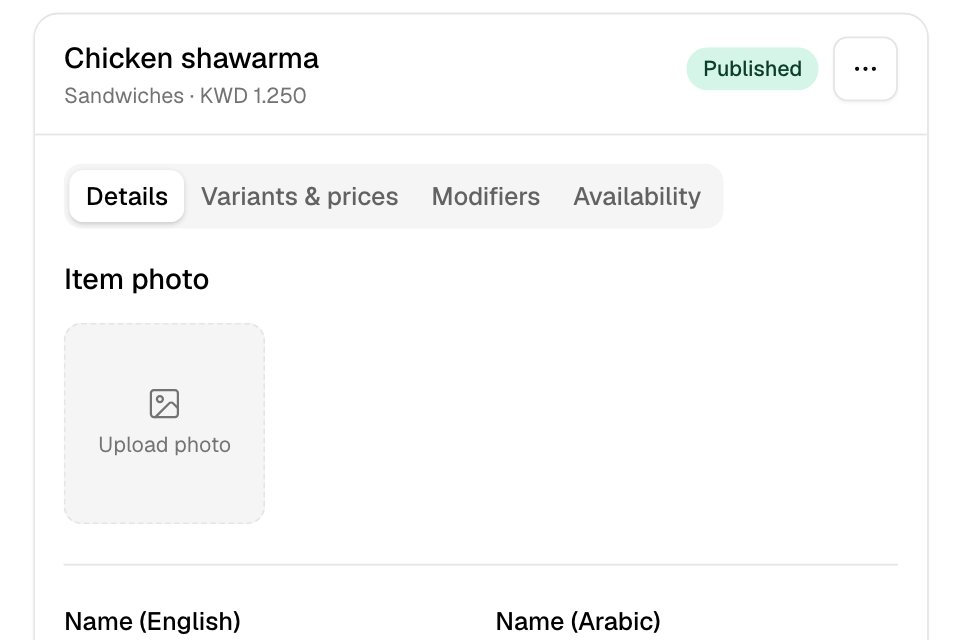
Setup > Menu > Items shows your categories and their items on the left. When you select an item, the item editor opens on the right. On a small screen, it opens in a panel.
The editor has tabs:
| Tab | What you set |
|---|---|
| Details | Photo, names, category, tags, descriptions, variant photos |
| Variants & prices | Sizes, prices, discounted prices, preparation time, SKU and barcode |
| Modifiers | Modifier groups, customer notes and customer photos |
| Availability | Branches, delivery or pickup, and stock tracking |
Most changes wait until you select Save. Until then, the editor shows Unsaved changes. Some parts save at once, and say so: modifier groups, variant photos and the per-branch stock list.
Customers see the item at a branch when it is published at that branch and its category is visible there.
Add an item
- Go to Setup > Menu > Items.
- Find the category, and select Add item in its row.
- Add an Item photo. It uploads when you create the item.
- Enter Name (English) and Name (Arabic).
- Check the Category. You can choose more than one.
- Enter the Price.
- Optional: enter Description (English) and Description (Arabic).
- Open the Availability tab and tick the branches that sell the item, or All branches.
- Select Create item.
The other tabs open once the item exists.
Add sizes and prices
Each item has at least one variant. A variant is a size or version of the item, such as Small and Large. The first variant is the Default.
- Open the item, then the Variants & prices tab.
- Select Add variant.
- Enter Variant name (English), Variant name (Arabic) and Price.
- Select Save.
On each variant you can also:
- Select Add discounted price to sell it for less. The Discounted price must be lower than the price. Select the x to remove it.
- Select Set preparation time to give this variant its own time in minutes. Select Use the store default to go back.
- Turn on Sold as a set of pieces and enter Pieces per order. The customer then picks that many pieces from the item's modifier groups.
- Select More to add a SKU or Barcode.
To remove a variant, select the x on its card, then Save. An item always keeps one variant.
Choose where the item is sold
On the Availability tab:
- Branches: tick each branch that sells the item. With no branch ticked, the item is Unpublished.
- Delivery and pickup: choose Both, Delivery or Pickup.
- Stock tracking: see Track stock and daily capacity.
Select Save.
Edit an item
- Select the item in the list.
- Change any tab.
- Select Save.
To move an item to another category, change its Category on the Details tab. To change the order of items, drag the grip next to an item.
Select Cancel to undo changes you have not saved.
Add tags and variant photos
- Tags: on the Details tab, select Add tag. Write the tag in English and Arabic. An item can have up to 3 tags of 30 characters each.
- Variant photos: on the Details tab, under Variant photos, select Add photos for a variant. You can add .jpg and .png photos up to 5 MB. These save as soon as you add or delete them.
Hide or delete an item
To hide an item from every branch:
- Open the item.
- Select the "…" menu, then Delete item.
- Select Unpublish.
You can publish it again later on the Availability tab.
To delete the item, select Delete in the same window. Deleting removes the item's sales from your reports. Unpublish instead if you may need the reports.
Rules and limits
- Both names are required. A new item also needs a category and a price of 0 or more.
- Add items to a category that has no sub-categories. A category with sub-categories holds no items of its own.
- An item with several sizes shows a price range in the list. If every size costs 0, it shows Price on selection.
- A preparation time is in whole minutes. It cannot be shorter than your store's shortest preparation time.
- Items with booked seats on upcoming time slots cannot be deleted. Unpublish them instead.
- If your menu comes from a POS, items are read-only here. The editor says "Prices are managed in the connected POS. Edit there." Select Sync from POS in the "…" menu to bring in the POS's latest version.
Common questions
The item says Published, but customers cannot see it. Why?
Its category is hidden at those branches. The editor shows Hidden by category under the item's name. Publish the category at the branch, or move the item to a visible category. See Organise your menu with categories.
What is the Uncategorized group?
It lists items that are in no category. A POS import can create them. Open each item and choose a category, or delete it.
Can I see the item in Arabic in the list?
Yes. Use the View in switch above the list to show the English or Arabic names.