For: Owners, Operations, Marketing
Where: Setup > Storefront > Web links
Available: Web dashboard · All countries
Customers who like your food want to follow you and message you. Add your social pages and WhatsApp once, and your store shows them on every page.
How it works
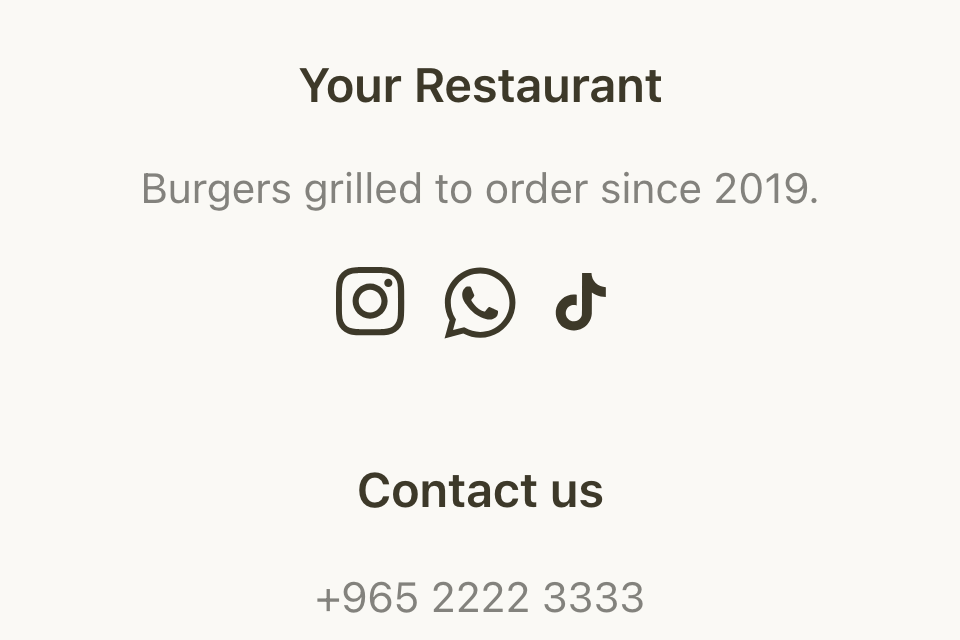
You add each link with a title and a type, such as Instagram or WhatsApp. Your store then shows:
- An icon for each Instagram, Facebook, WhatsApp, Twitter, Snapchat and TikTok link, in the footer.
- A WhatsApp button at the bottom corner of your store's pages, from your WhatsApp link.
- The WhatsApp tab in the phone bottom bar, if you added one.
The page also lets you add Website URL, SMS, Phone and Email links. Your store saves them, but it does not show them to customers. The footer shows your branch phone numbers instead.
Links save at once. They do not wait for Publish in the editor.
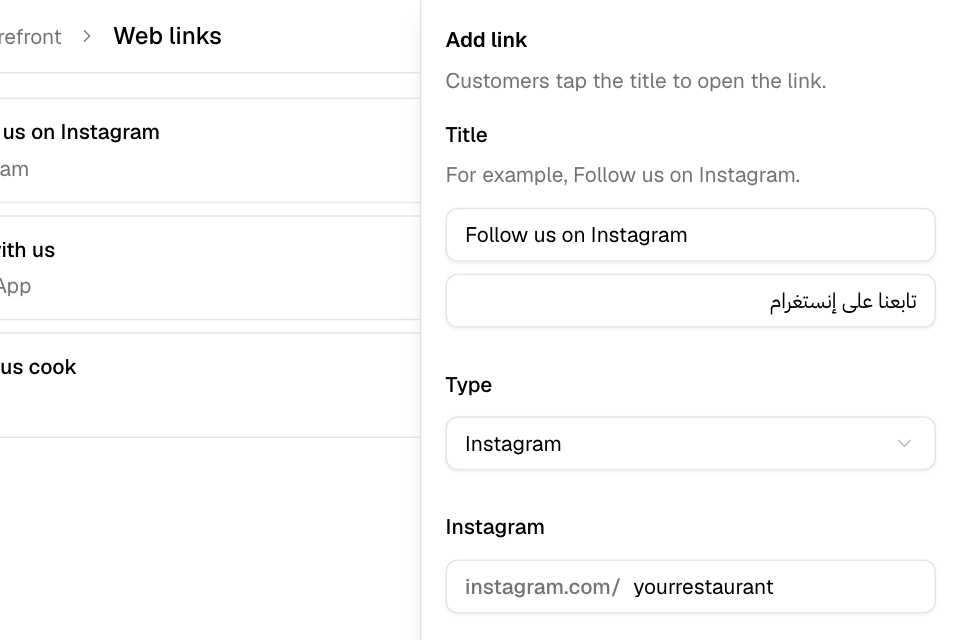
Add a link
- Go to Setup > Storefront > Web links.
- Select Add link.
- Type the Title, for example "Follow us on Instagram". The Arabic title copies it. To type a different Arabic title, select Add Arabic text.
- Choose the Type: Website URL, Facebook, Instagram, Twitter, Snapchat, Tiktok, WhatsApp, SMS, Phone or Email.
- Fill in the field for that type:
- For a social page, type your user name only. The start of the address, such as instagram.com/, is already there.
- For WhatsApp, SMS or Phone, choose the country code and type the number. For SMS, also type the message.
- For Email, type the email address.
- Select Save.
Change, sort or delete a link
- To change a link, select Edit on its row.
- To change the order, drag the handle at the start of the row. Or select … and then Move up or Move down.
- To delete a link, select …, then Delete, and select Delete again. Customers stop seeing it on your store.
Where your WhatsApp button gets its number
Your store uses the first of these it finds:
- The WhatsApp link on this page.
- A WhatsApp link on your link in bio page.
- The WhatsApp number you connected to Zyda.
Always use the WhatsApp type for your WhatsApp number. A Website URL link to wa.me or whatsapp.com does not show on your store. It also stops your store from using the link in bio link and the connected number, so your store shows no WhatsApp button at all.
Rules and limits
- Your store shows only the social and WhatsApp links. Website URL, SMS, Phone and Email links are saved, but customers do not see them on your store or in your store app.
- Every link needs a title. If you do not type an Arabic title, the English one is used.
- These links are not the same as your link in bio links. See Create a link in bio page.
Common questions
Why is there no WhatsApp button on my store?
Your store has no WhatsApp link and no connected WhatsApp number. Or your WhatsApp link uses the Website URL type. Add a link with the WhatsApp type here, and delete the Website URL one.
Why don't customers see my phone number or website link?
Your store shows only social and WhatsApp links. Customers see your branch phone numbers in the footer. To show your website, add it to the footer in the editor. See Set up your header, bottom bar and footer.
Can I put a link in the top menu?
Yes, in the editor. See Set up your header, bottom bar and footer.