For: Owners, Operations
Where: Serve > Dine-in > Tables
Available: Web dashboard · All countries
Each table needs its own QR code, so Zyda knows where the guest sits. You add your tables by name, one branch at a time, and print a code for each one.
How it works
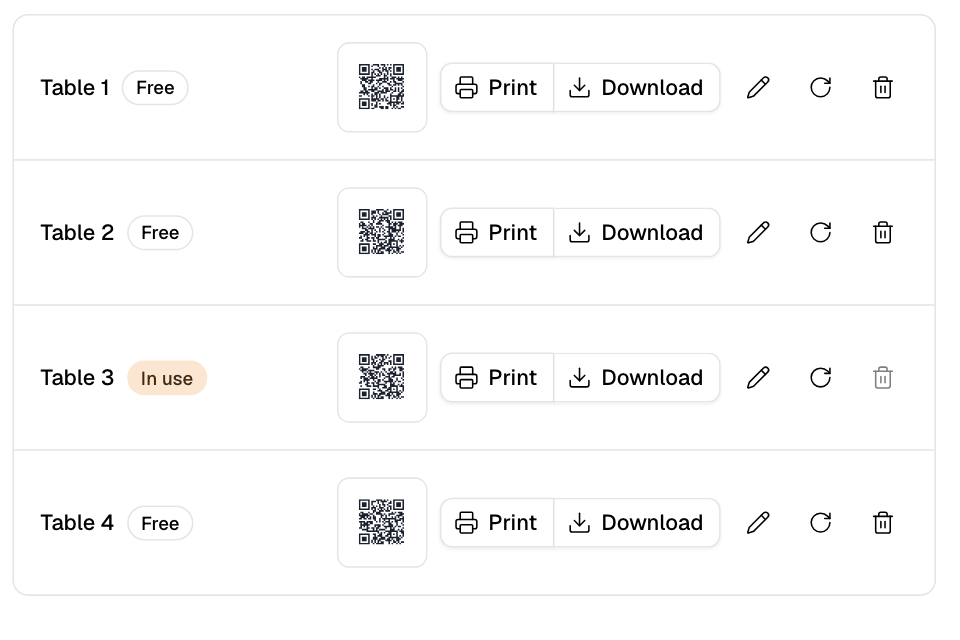
The Tables page lists the tables of one branch. Each table has:
- Its name, such as Table 5. Your team and your guests see it.
- Free or In use. A table is in use while guests have it open.
- Its QR code, and buttons to print it, download it, edit the table, replace the code and delete the table.
The Tables tab shows only while dine-in is on. Read Turn on dine-in and choose its branches.
Add a table
- Go to Serve > Dine-in > Tables.
- Choose the branch at the top.
- Select Add table.
- Type the Name, for example Table 5.
- Select Add table.
You see "Table added". Repeat for each table.
Print the QR codes
- To print every table of the branch, select Print QR codes. You get one card per table, with its name and "Scan to order and pay".
- To print one table, select Print on its row.
- To save one code as a picture, select Download on its row.
Put each code on its own table.
Replace a QR code
Replace a code when a printed code was copied or taken from the table.
- On the table's row, select Replace QR code.
- Select Replace QR code again to confirm.
- Print the new code and put it on the table.
The old printed code stops working at once.
Link a table to your POS
If your store sends orders to Foodics, link each table to its table in Foodics.
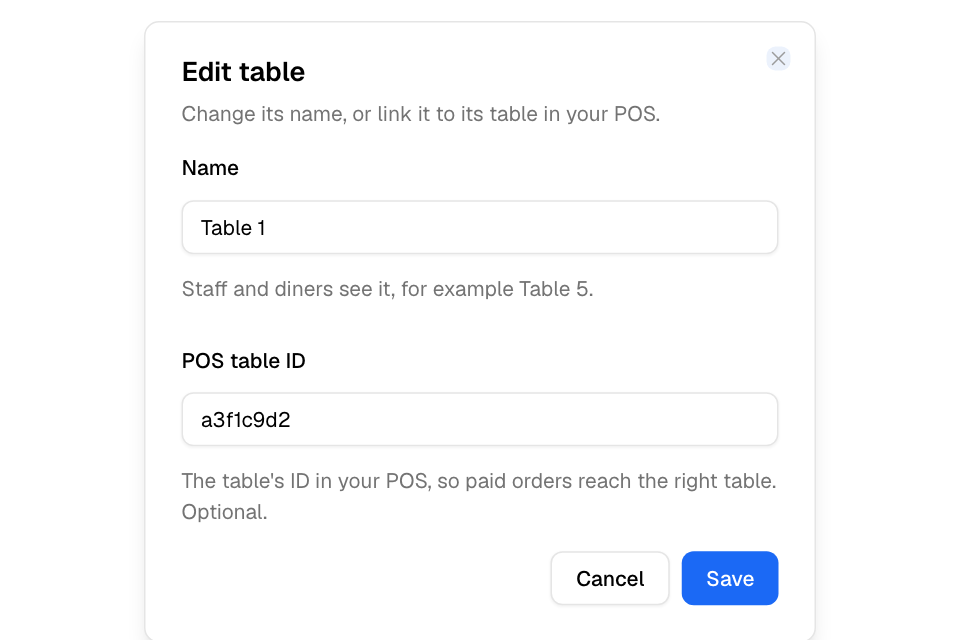
- On the table's row, select Edit table.
- Under POS table ID, type the table's ID from Foodics.
- Select Save.
When the table is paid in full, it closes. Foodics then gets one paid dine-in order on that table, with all its rounds, payments and tips. Rounds do not go to Foodics one by one.
Delete a table
- On the table's row, select Delete table.
- Select Delete table again to confirm.
Its QR code stops working. Past orders are kept.
Rules and limits
- Each table's name must be different from every other table in the same branch. Capital letters and spaces at the ends do not count.
- You cannot delete a table that is In use. Wait until the table closes, or close it from Live tables.
- If Table ordering is off at the branch, the page says so. Guests who scan see the menu but cannot order.
- A downloaded code is named after the branch and the table, for example salmiya-table-5-qr.
Common questions
Can I use one QR code for the whole restaurant?
No. Each table has its own code, so the order and the bill belong to that table.
A guest scanned the wrong table. What now?
The guest scans the code on the right table. If their phone already has items from another table, it asks before it moves. Your team can also move a whole table from Live tables with Move table.