For: Owners, Operations, Marketing
Where: Setup > Storefront > Branding
Available: Web dashboard · All countries
Your logo and name tell customers they are in the right place. Add them once on the Branding page, and they show on your store, your QR code and your link in bio page.
How it works
The Branding page has two parts:
- Images: your logo and your cover photo. They upload as soon as you pick them.
- Name and text: the page title, the slogan and the footer text. They change when you select Save.
These changes go to your live store at once. They do not wait for Publish in the editor.
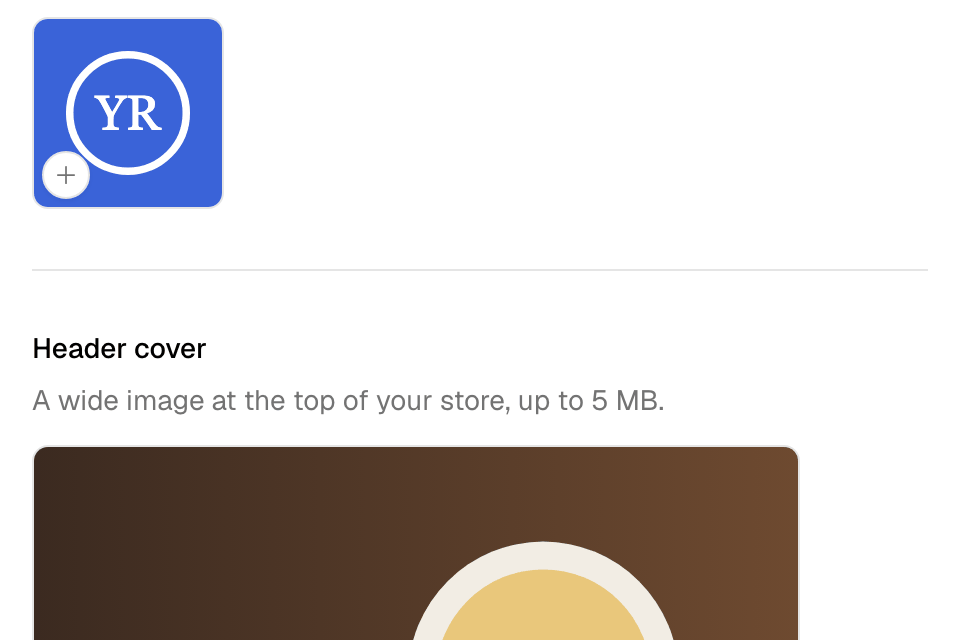
Upload your logo and cover
- Go to Setup > Storefront > Branding.
- Under Logo, select the box and pick a square picture, up to 5 MB.
- Under Header cover, select the box and pick a wide picture, up to 5 MB.
Each picture uploads at once. To stop an upload, select Cancel. To change a picture, select it again.
Set your store's name and text
- Under Page title, type the title for the browser tab and search results, in English and in Arabic. Leave one empty to use your store name.
- Optional: turn on Hide the store name to hide your store name at the top of your store. Use this when your logo already shows your name.
- Under Slogan, type a short line that shows under your name. Select Add Arabic text to type the Arabic.
- Under Footer, type the text for the bottom of your store.
- Select Save.
You see "Store information updated successfully". If you leave the page with changes you did not save, the dashboard asks you first.
Where your logo shows
- At the top of your store. To make it round or wider, see Set up your header, bottom bar and footer.
- In the middle of your QR code, if you turn it on.
- On your link in bio page.
- In Style, where Generate from my logo reads its colours.
Rules and limits
- Each picture can be up to 5 MB.
- The footer text here is the same text as Footer text in the editor. If you change it in the editor, publish to see it on your store.
Common questions
My logo looks cut off. What can I do?
Use a square logo with space around it. If your logo is wide, turn off Round logo and set Logo width in Header > Navigation in the editor.
Why did my upload fail?
A picture over 5 MB does not upload, and the page tells you so. Pick a smaller picture. If the page says "File has failed to upload", the connection may have dropped. Try again.