For: Owners, Branch staff, Operations
Where: Manage > Orders > Assign delivery
Available: Web dashboard and Zyda phone app (Android) · All countries
A delivery order needs someone to take it. You can choose your own driver, a courier company you work with, or a courier from the Zyda delivery network, all from the order.
How it works
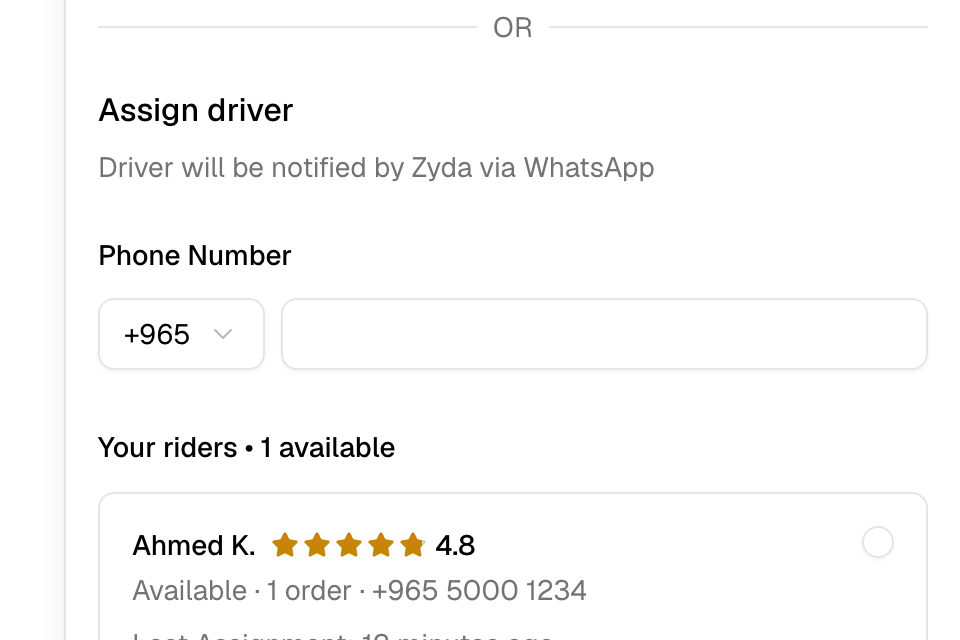
Select Assign delivery on the order. The sheet shows three groups:
- Your riders: your own drivers on shift, with their current orders and rating.
- Your couriers: courier companies you have connected, with their delivery time and cost.
- Delivery network: couriers in the Zyda network, with pickup time and fee. A delivery processing fee applies. Zyda takes it from your payment gateway after the delivery. See Use the delivery network.
Once assigned, the driver updates the order to out for delivery and delivered. The order shows the driver, a phone number and Track Rider.
Assign an order
- Open the order, or find it in Current Orders.
- Select Assign delivery.
- Choose a rider or courier.
- Select Assign now.
Your own driver gets the order by WhatsApp from Zyda.
To add a new driver at the same time, type their phone number and name, then select Add & assign now.
The first time you use a network courier at a branch, Zyda asks you to confirm the branch address, pin and phone number. Couriers use them to find you.
Change or remove the driver
On the order's delivery card:
- Select Reassign to choose someone else.
- Select Unassign to remove the driver. A courier company may charge a cancellation fee.
Assign many orders to one driver
Tick the orders in the list and select Assign delivery in the bar under the table. This works with your own drivers.
Turn on the delivery network from an order
If your store is not on the delivery network, an order may show a button to try it. It opens Turn on network delivery, with the partners, their pickup times and prices, and any new-store offer. Select Turn on and assign this order to turn on the network and send this order with the fastest courier.
Common questions
Why can't I mark the order delivered?
The driver does it from their app. You set only Accepted and Ready.
Can my store accept and assign automatically?
Yes, when automatic assignment is on in Manage > Drivers. Then accepting an order opens the assign sheet.