For: Owners, Operations, Branch staff
Where: Manage > Drivers > Dispatch settings (in Kuwait, Manage > Drivers > Dispatch > Dispatch settings)
Available: Web dashboard · All countries
Choosing a driver for every order takes time at a busy counter. Zyda can give each accepted order to one of your drivers for you, and tell the driver on WhatsApp.
How it works
Dispatch settings has three parts:
- Own fleet: turns delivery with your own drivers on or off.
- Assign drivers automatically: who gets an order once you accept it.
- WhatsApp messages to drivers: which steps a driver confirms on WhatsApp.
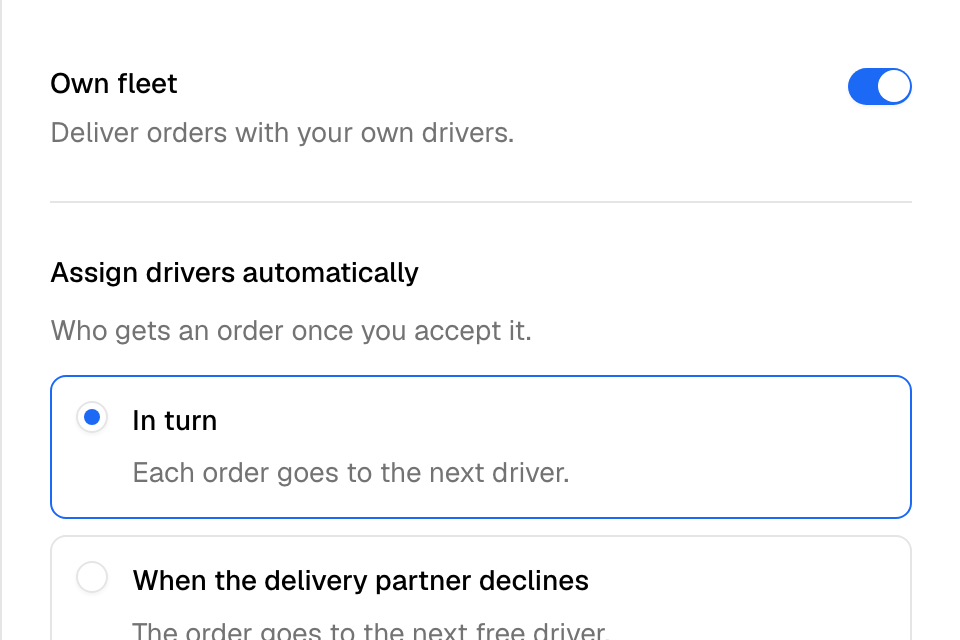
Turn on your own fleet
- Go to Manage > Drivers. In Kuwait, select the Dispatch tab.
- Select Dispatch settings.
- Turn on Own fleet. It saves at once.
The other settings show once Own fleet is on. Only people who can edit Delivery see the Own fleet switch: the Owner and Operations roles. Branch staff can change the other settings once the own fleet is on.
Choose who gets each order
- In Dispatch settings, under Assign drivers automatically, choose one:
- In turn: each accepted order goes to the next driver on duty. The driver with the fewest orders in progress goes first.
- When the delivery partner declines: the order goes to the next free driver only when a delivery partner declines it.
- Don’t assign automatically: you assign each order yourself.
- Select Save.
You see "Dispatch settings saved".
Choose what drivers confirm on WhatsApp
- In Dispatch settings, under WhatsApp messages to drivers, choose one:
- Accepted, picked up and delivered: the driver confirms each step. You can see how each driver performs.
- Delivered only: the driver confirms only the delivery. Performance cannot be measured.
- Select Save.
When the driver confirms delivered, the order is marked delivered on your dashboard.
Rules and limits
Zyda turns on In turn or When the delivery partner declines only when:
- you have at least one driver,
- at least one driver is on duty,
- every branch has at least one driver, and
- Assign orders automatically for the delivery network is off.
If one of these is not true, you see the reason when you save.
In turn picks from all your drivers on duty. It does not check which branches the driver takes orders from.
Your own drivers and the delivery network cannot both assign orders automatically. Turn one off first.
The Delivery processing fee per order and Network discount fields are set by Zyda support. They show only to Zyda staff.
Common questions
Orders are not assigned automatically. What do I check?
Check that at least one driver is On duty. Check that Assign drivers automatically is not set to Don’t assign automatically. With When the delivery partner declines, your drivers get only the orders a partner declined.
Can I still pick a driver myself?
Yes. You can assign or reassign any order from the order. See Assign a driver or courier to an order.
Which WhatsApp option should I choose?
Choose Accepted, picked up and delivered to see how each driver performs. With Delivered only, drivers confirm one step, but driver performance cannot be measured.