For: Owners, Operations
Where: Understand > Customers > select a customer > Block number
Available: Web dashboard · All countries
Some numbers place fake orders, or orders they never collect. Block the number, and it cannot order from your store again until you unblock it.
How it works
When you block a number:
- Your website does not send a sign-in code to that number.
- An order from that number is refused. The customer sees "We can't take orders from this number. Please contact the store."
- Zyda's AI agent does not take orders from it either.
- If your team types the number in a phone order, they see "This number is blocked."
The block is for your store only. The customer can still order from other stores on Zyda.
The customer stays in your customer list, with a Blocked badge.
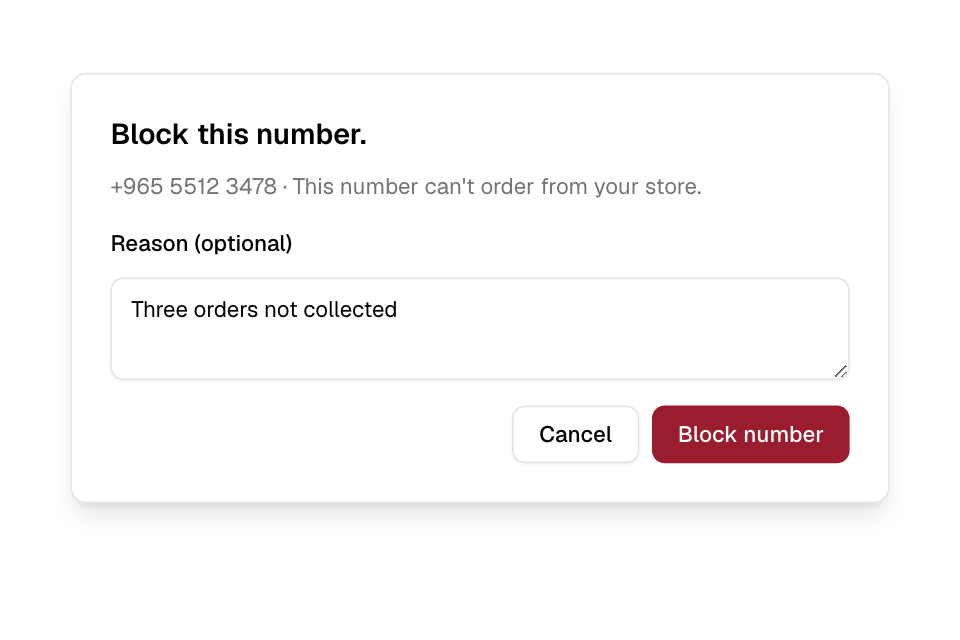
Block a number
- Go to Understand > Customers.
- Find the customer and select them. The customer panel opens.
- Select Block number.
- Optional: write a Reason (optional) for your team, for example "Three orders not collected".
- Select Block number in the window.
You see "Number blocked."
You can also block from the customer's full profile page.
Unblock a number
- Open the customer.
- Select Unblock number.
The number can order again at once. You see "Number unblocked."
Rules and limits
- Only the Owner and Operations roles can block and unblock numbers. Other roles do not see the button.
- The reason can be up to 500 characters.
- You block a phone number, not a person. A customer with a new number can still order.
Common questions
I see "Only the owner or an operations manager can block numbers." Why?
Your role cannot block numbers. Ask someone with the Owner or Operations role.
Does blocking cancel the customer's open orders?
No. Blocking stops new orders only. To stop an open order, see Cancel or reject an order.