For: Owners, Operations, Marketing
Where: Setup > Storefront > Editor > Home page
Available: Web dashboard · All countries
By default, your store opens on your menu. You can open it on a home page you design instead: a large banner, your best collections, your story and your branches.
How it works
You set this in two sections of the editor, under Home page:
- Landing: what customers see first, and what they do before they browse.
- Home page: the sections on your custom home page, and your best sellers.
Under Landing, What customers see sums up your choices in one sentence and a list of steps, such as "Customers land on your homepage. They open the menu when they're ready."
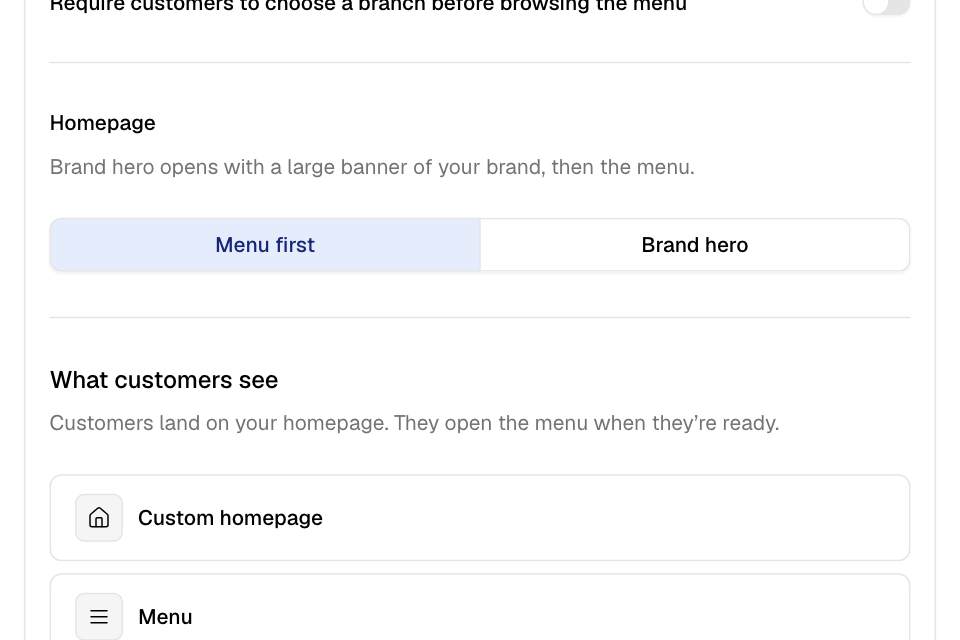
Choose what customers see first
- Go to Setup > Storefront > Editor and open Home page > Landing.
- Choose your settings:
- Custom homepage: on to open on the home page you build. Off to open on your menu.
- Require customers to choose a branch before browsing the menu: on if your branches have different menus, prices or items. Customers pick a branch first. With one branch, this does nothing.
- Homepage: Menu first, or Brand hero for a large banner of your brand with your menu right below it.
- Read What customers see.
- Select Publish.
These settings save as you change them. They go into your unpublished changes.
Add a video behind your brand
With Brand hero, you can add a video that plays behind your brand.
- Under Homepage, choose Brand hero.
- Under Background video, select Upload video and pick the file. Or select Paste a link instead and paste an https link that ends in .mp4 or .webm.
- Optional: under Phone video (optional), upload a lighter portrait video for phones. Without it, phones play the computer video.
- Select Publish.
The video always plays without sound, again and again. For a good video:
- Keep it 6 to 15 seconds long. Start and end on the same shot.
- Keep text and logos out of it. Your brand shows on top.
- Computer: landscape 16:9, 1920 × 1080, MP4, up to 10 MB.
- Phone: portrait 9:16, 1080 × 1920, MP4, up to 6 MB.
A video longer than 30 seconds cannot be used. The editor also warns you when a video is too small, the wrong shape, or a length other than 6 to 15 seconds.
Build your home page from sections
- Turn on Custom homepage in Landing.
- Open Home page > Home page.
- Select Add section and choose a section.
- Fill in its settings. The text boxes are in the language you chose above the preview. Switch to the other language and fill them in again.
- Under Appearance, choose the width, the background colour and the space above and below.
- Use the arrows to move a section up or down. Select the remove icon to delete it.
- Select Save, then Publish.
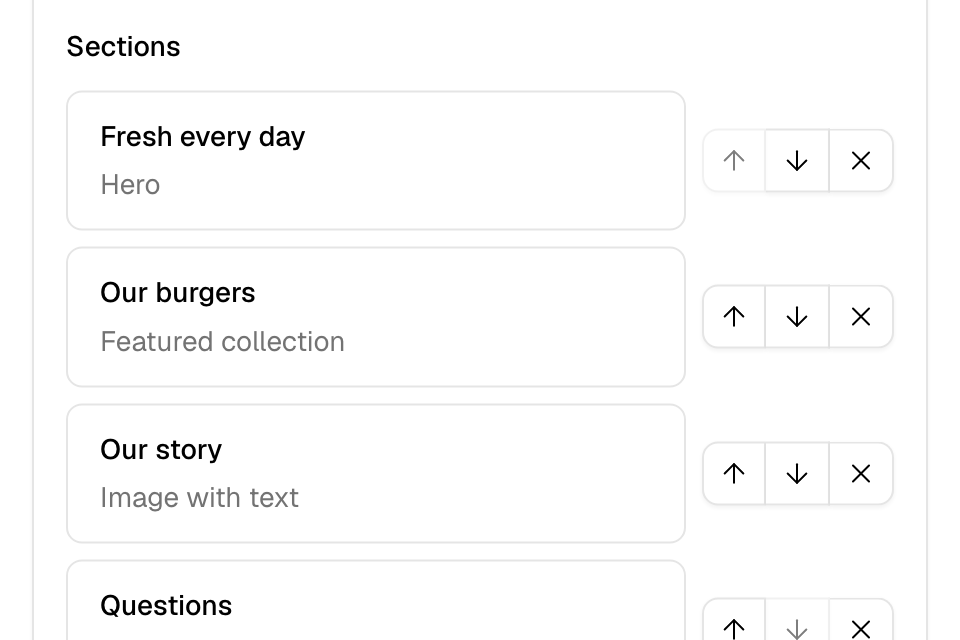
The sections you can add:
| Section | What it shows |
|---|---|
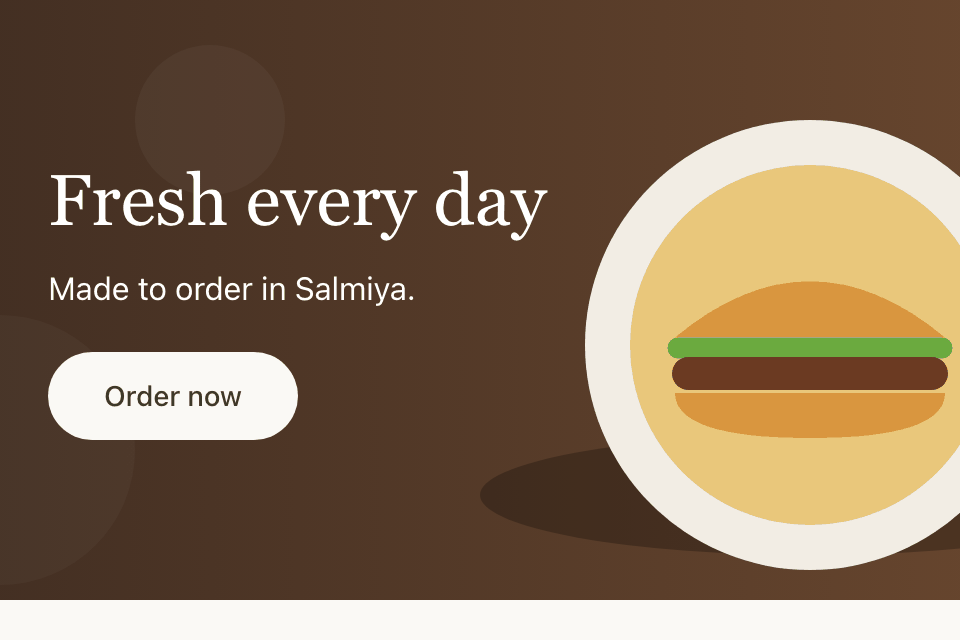
| Hero | A full-width banner with a heading and a button. Add up to 6 Slide blocks for a slideshow. |
| Featured collection | The products of one category. |
| Tabbed collections | Up to 6 categories as tabs, each with its products and a "View all" link. |
| Text | A heading and a paragraph. |
| Multicolumn | Up to 6 cards with a picture, a heading and text, such as your story or what makes you different. |
| Image with text | One picture beside a heading, a paragraph and a button. |
| Call to action | A heading and a button to a web or email link, such as WhatsApp. |
| Branches | Up to 12 branch cards with a picture, address, opening hours and map link. |
| FAQ | Up to 30 questions and answers that open when tapped. |
| Contact form | A form for name, phone and message that opens WhatsApp or email. |
Add pictures to a section
- Drag a picture onto the box, or select it to upload one. Use an image file under 10 MB.
- Or paste the link of a picture.
Show your best sellers
In Home page > Home page, turn on Display Best Selling products. Your store then shows your top-selling products on your menu page. This saves as you change it.
Rules and limits
- The sections show on your store only when Custom homepage is on and you saved the sections.
- Brand hero replaces the custom home page on your website. Your menu shows right below the banner.
- Button links must start with https://, mailto: or be a link inside your store.
- A Hero button can go to your menu or to one category.
Common questions
I added sections, but my store still opens on the menu. Why?
Turn on Custom homepage in Landing, then select Publish.
Can I use the same sections on other pages?
Yes. Your own pages use the same sections. See Add pages to your store.
Where do I add a top bar or a popup?
In Grow > Banners. See Show a banner or popup on your store.