For: Owners, Operations
Where: Serve > Delivery > Edit zones > select a zone
Available: Web dashboard · All countries
Your costs change, a road closes, or a branch gets busier. Change a zone's fee, minimum order, delivery time or hours from the zones list, without drawing it again.
How it works
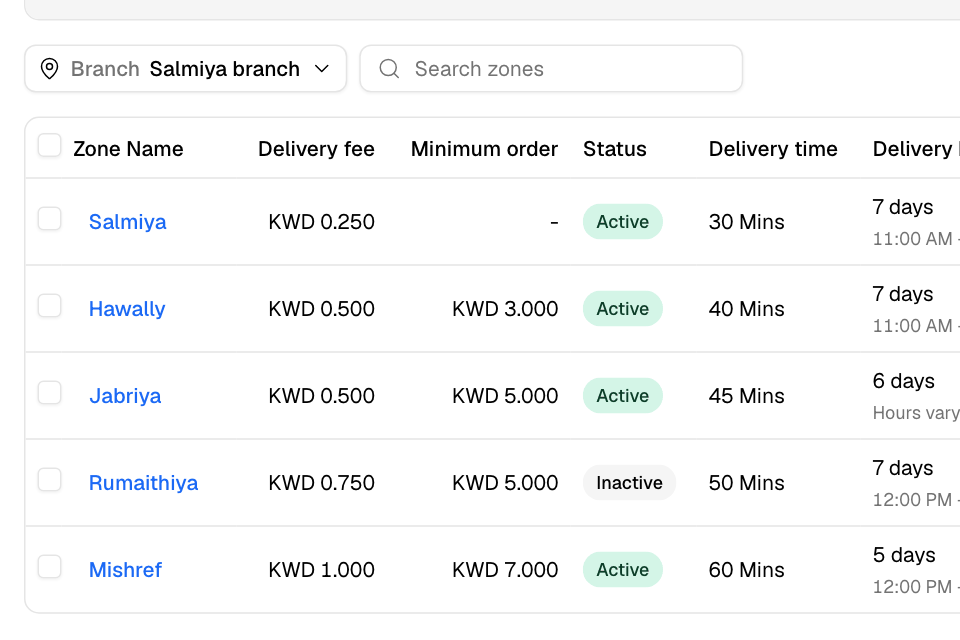
The zones list shows one branch at a time. Each row shows the zone's Delivery fee, Minimum order, Status, Delivery time and Delivery hours.
Change a zone's details
- Go to Serve > Delivery and select Edit zones.
- Choose the branch at the top of the list. Use Search zones to find a zone by name.
- Select the zone's name. Or select … on its row, then Edit.
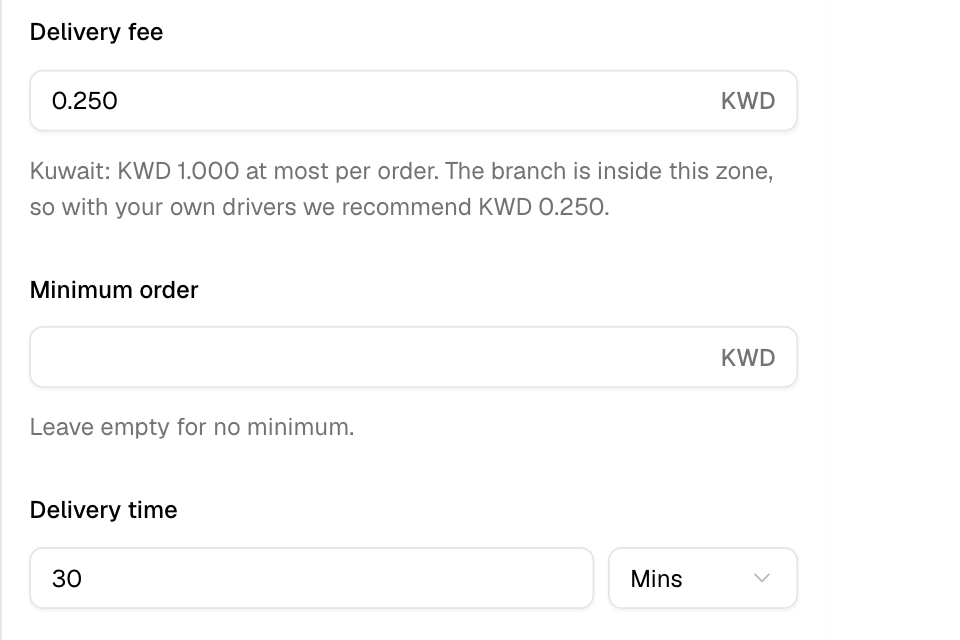
- Change what you need: Delivery fee, Minimum order, Delivery time, Delivery hours, Fulfilled by or Published.
- Select Save.
You see "Delivery Zone Edited".
Set different hours for each day
- Open the zone.
- Under Delivery hours, choose Custom per day.
- For each day, tick it to deliver that day, and set the from and to times.
- Select Save.
Choose Every day to use one set of hours for the whole week.
Stop delivery to a zone for a while
Turn off Published and select Save. The zone shows Inactive in the list. Customers there cannot order delivery. Turn it on again when you are ready.
To stop delivery for a whole branch, turn delivery off for the branch instead. Its zones are kept.
Change a zone's shape
- Select … on the zone's row, then View on map.
- On the map, drag a corner to reshape the zone. For a radius zone, drag the edge to change the distance.
- Select Save.
To leave without saving, select Cancel, then Discard.
Delete a zone
- Select … on the zone's row, then Delete. You can also select Delete Zone in the zone's sheet.
- Select Delete to confirm.
Customers there can no longer order delivery. This cannot be undone.
Rules and limits
- Fulfilled by: ticking another branch makes a copy of the zone for that branch. You see "Copied to 1 more branch". A radius zone cannot move to another branch.
- In Kuwait, a new fee or a higher fee can be KWD 1.000 per order at most. A zone that already has a higher fee keeps it. You can also lower it.
- The delivery time cannot be shorter than your preparation time.
- If you leave the page with changes you did not save, the dashboard asks you first.
- A few older stores still have an older zones page. If Edit zones opens a different page, contact Zyda support.
Common questions
Why is my delivery time refused?
It is shorter than your preparation time, or longer than how far ahead customers can book, minus two time slots. The message under Delivery time gives the limit.
Why is my fee refused in Kuwait?
Kuwait law caps the delivery fee at KWD 1.000 per order. Set a fee of KWD 1.000 or less.
How do I give free delivery in one zone?
Set the Delivery fee to 0. To give free delivery only above an order amount, create an offer. See Create an offer from a goal.