For: Owners, Branch staff, Operations
Where: Manage > Orders > open an order > Change due time
Available: Web dashboard and Zyda phone app (Android) · All countries
The kitchen is behind, or the customer asks for their order later. Change the due time so your team sees the real time, and tell the customer.
How it works
The due time is when the order should be ready or delivered. It shows in the Due column of the Orders list. When you change it:
- the Due column and the countdown show the new time
- for a scheduled order, its time slot and kitchen start time move too
- the driver or courier gets the new time
Delivered on Time and Delivered Late still count from the time you first promised the customer. A late order stays late in your reports.
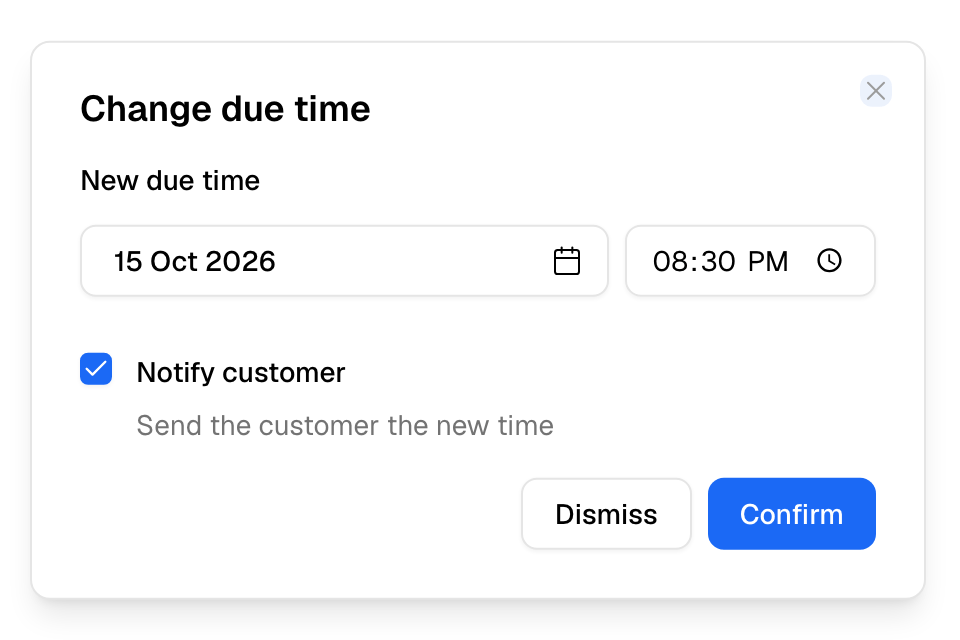
Change the time
- Open the order in Manage > Orders.
- Select Change due time.
- Under New due time, pick the date and the time.
- If the new time is later, you can tick Notify customer. The customer gets an SMS that their order is delayed, with the new time.
- Select Confirm.
You see "Due time changed".
Rules and limits
- You can change the due time of any order that is not finished. Delivered, fulfilled, cancelled and returned orders cannot change.
- The new time cannot be in the past.
- Notify customer shows only for a later time. There is no message for an earlier time.
- Branch staff can change only orders at their own branches.
- The customer does not get the message if customer messages are off for your store.
Common questions
Why did the order still count as late?
Late and on time are measured against the first promise to the customer, not the new time. This keeps your on-time numbers honest.